
ℹ️Introduction
This article explains how to use the Search & Filter tools within Ardens Manager to quickly find and refine key data across dashboards and patient lists. By the end of this article, you will understand how to use these features to prioritise work and focus on relevant cohorts or report types.
Background
Users may find large volumes of data in Ardens Manager dashboards overwhelming when trying to prioritise activity, identify trends, or focus on specific patient cohorts. Without effective search and filtering, it can be difficult to quickly locate the information you need. The Search & Filter tools address this by allowing users to narrow down reports and patient lists effectively.
How Ardens Can Help
The Search & Filter features in Ardens Manager help you locate specific data quickly and refine large datasets to focus on relevant reports or patient cohorts. These tools:
Save time by quickly narrowing down results
Improve prioritisation of work
Make data-driven decision-making more efficient
How to Access
You can access these features directly from any Ardens Manager dashboard:
Search: enter free text to narrow down reports, dashboards or find specific patients.
Filter: use targeted criteria (e.g., activity type, report type, assigned user) to refine your view or narrow lists further by patient demographics or staff details.
🔎Search
Site Search
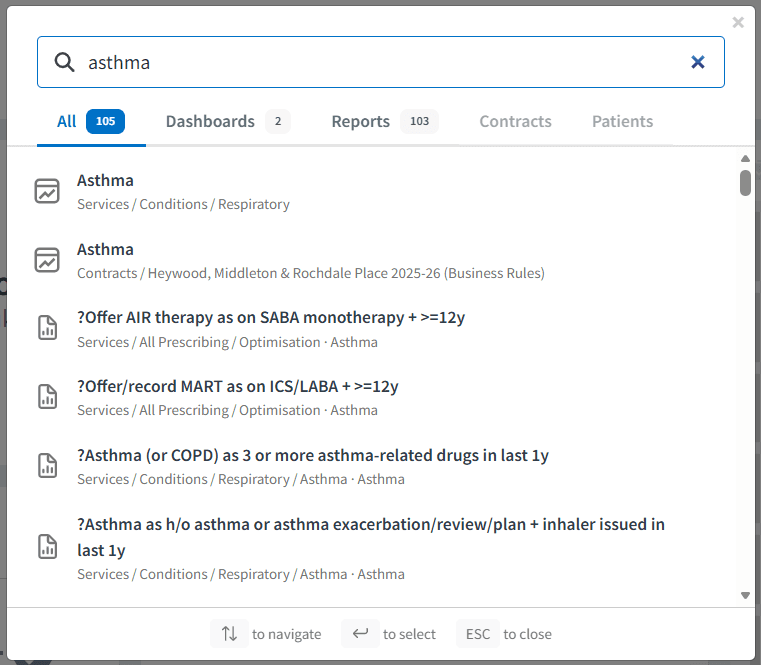
Locate the Search Site field at the top of the screen, accessible from anywhere in the Ardens Manager platform
Click on the search field to open the search screen
Enter keywords to search for dashboards, reports, contracts, or patients
Select the required item to access it

Dashboard Search
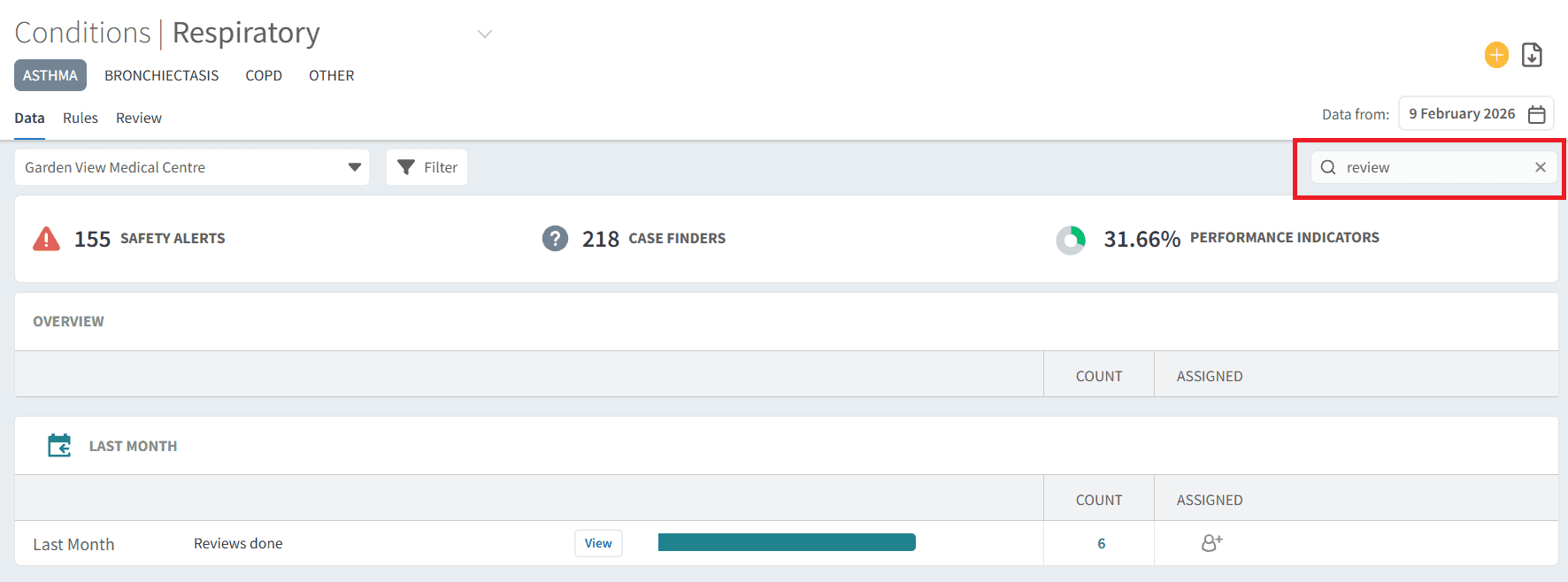
Open the relevant Ardens Manager dashboard
Locate the Search icon (magnifying glass) on the right of the dashboard
Click the search field and start typing specific keywords
Matching reports on the dashboard will update dynamically
⬇️Filter
Dashboard Filter
Open the relevant Ardens Manager dashboard
Locate the Filter icon near the organisation drop-down
Click the icon to open the filter screen
Select filter criteria:
Activity type: e.g., register or review
Report type: e.g., overview, safety alerts, case finders
Assigned to: filter work assigned to specific staff
Points available: focus on reports with incomplete points
The Payment tab includes an option for Payment Available filters by all indicators or missed income
After selecting the relevant choices, click Apply

Patient Filter
Locate a report, and click View to open the single report page
Click the Filter button to the right of the organisation drop-down
Choose relevant patient demographics, risk or condition criteria to narrow down your patient list
Click Apply to refresh the patient list

To remove the filter, click the x next to the criteria

⚠️Please note: You can combine multiple filters to refine results more precisely.
Timeline Filter
The Timeline filter allows you to filter report data by activity date, helping you focus on a specific reporting period.
Locate a report, and click View to open the single report page
Click the Filter button to the right of the organisation drop-down
Expand the Timeline category
Choose one of the available quick selection options, such as This Month, Last Month, etc or select a custom date range using the calendar
Click Select to confirm your selection
Click Apply to refresh the report

The report totals, charts and patient drill-down data are updated to reflect activity within the selected date range. This can be useful when reviewing activity for a specific month, the last 12 months, or a custom reporting period such as an Extended Access reporting period.
❓FAQs
Can I use both Search and Filter together?
Yes. You can use search to locate specific items and then apply filters to refine the results further.
Will filters save automatically?
No, filters apply temporarily. Once you navigate away from the dashboard or report, you may need to reapply them.
How often is the search updated with new data?
Search results reflect the latest data available in Ardens Manager and update dynamically.
Can I filter patients by multiple criteria at the same time?
Yes. You can combine demographics, risk, and condition criteria to narrow down your patient list precisely.
🏫 Additional Support
To further your understanding of the Ardens Manager platform:
Book training for your GP Practice, PCN or ICB
Complete the Getting Started with Ardens Manager academy module
Contact our Support Team for support in real time