
ℹ️ Introduction
This article explains how to export dashboard data from Ardens Manager as a PDF or CSV file. By the end of this article, you will be able to share reports, print dashboards, and analyse exported data in spreadsheet software.
Background
Ardens Manager dashboards present a wide range of information to help organisations monitor activity, track contract performance, and analyse trends across primary care services.
In some cases, users may wish to export this data outside the platform. Exporting data can support activities such as:
Sharing reports with colleagues or stakeholders
Printing dashboards for meetings or reviews
Performing further analysis in spreadsheet software
Using data in presentations or reports
How Ardens Can Help
Ardens Manager provides simple export options directly from the dashboard interface, allowing users to easily share insights or work with the data outside the platform.
Dashboard data can be exported as:
PDF: Preserves the dashboard's visual layout for sharing or printing.
CSV: Exports the underlying data in spreadsheet format for further analysis
📄Export Data
Login to Ardens Manager.
Navigate to the required dashboard.
Click the Export icon in the top right corner of the dashboard.
Select the format.
Export as PDF
Click on Page view (.pdf).
Your device's print settings will open.
Select your printer or choose Save as PDF to download the file.
Export as CSV
Click For Organisation (csv).
The file will automatically download to your device (usually to the Downloads folder).
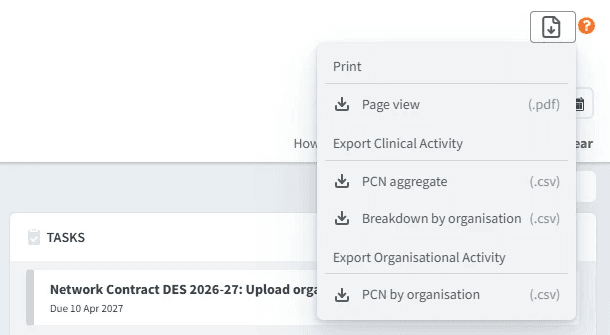
⚠️Please note: CSV export options may vary depending on the dashboard. In many cases, Organisational Activity is only available within Contract dashboards.
❓FAQs
Can I export the details or analysis breakdown from a report?
No. Currently, exports only include the dashboard-level reports and figures displayed on the dashboard.
Detailed breakdown views within reports (such as demographics or analysis) cannot be exported.
If you require patient-level information, you can export the patient list from the PATIENTS tab within the report.
My exported file is not in my Downloads folder?
Exported files are typically saved to your device's Downloads folder. However, the location may vary depending on your browser settings.
🏫 Additional Support
To further your understanding of the Ardens Manager platform:
Book training for your GP Practice, PCN or ICB
Complete the Getting Started with Ardens Manager academy module
Contact our Support Team for support in real time