
ℹ️ Introduction
This article explains how to view, create and manage tasks in Ardens Manager. By the end of this article, you will understand how to track and complete actions such as reviewing reports, accepting agreements and managing assigned work.
Background
Ardens Manager includes a built-in task system designed to help users organise and track actions generated within the platform.
Tasks may be created automatically by the system or manually by users to support collaboration and workflow management. For example, users can assign colleagues to review reports or complete activities identified within dashboards.
How Ardens Can Help
The task system in Ardens Manager helps teams coordinate work and ensure important actions are completed efficiently.
Using tasks, organisations can:
Assign colleagues to review reports or dashboards
Track actions related to contracts or service delivery
Manage system requests such as agreements or invitations
Create personal reminders or shared tasks for team members
Tasks can be accessed at any time within the platform, helping users stay organised and respond quickly to requests.
📋View Tasks
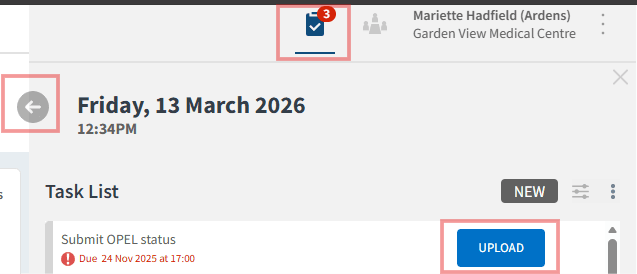
You can access your tasks by clicking the clipboard icon in the top right-hand corner of the screen. This opens the task system, displaying all tasks assigned to you.
A task panel is also available on the home page, providing a quick view of your tasks.
When opened, the task system appears on the right-hand side of the screen. Click the arrow on the left to expand the panel into full-screen mode, where task details are displayed alongside the task list.
To action a task or view more details, click the blue action button (for example Upload, Review or Accept).
Types of Tasks
System Generated Tasks
These tasks are automatically created by the system. Examples include:
Accepting agreements or terms of use
Invitations to join organisations or groups
Data sharing agreement requests
These tasks typically require the user to review or accept a request before continuing to use certain features.
Assigned Tasks
Assigned tasks are created by users to request an action from another team member.
This commonly occurs when a user assigns a colleague to review a report within Ardens Manager. The assigned user will receive a task notification in their task list.
Users can also create tasks for themselves as reminders or to manage their own workload.
📝Create Tasks
Assign a Task
Users can assign colleagues to review a report directly from the report list.
To assign a task:
Locate the report you want to assign
Click the Assign To on the right-hand side of the report
Select one or more staff members from the list
Once assigned, the user's initials or profile picture will appear in the ASSIGNED column. A task will be created automatically for each selected user.

Remove an Assignment
To remove an assignment:
Click the assigned user icon
Select the X next to the user's name
This will remove both the assignment and the associated task.
Create a Task Manually
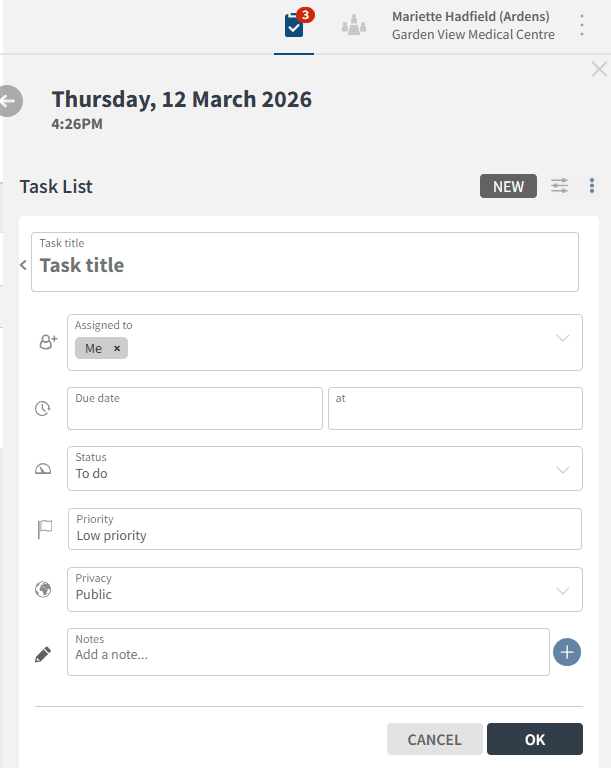
Users can also create tasks directly from the task system.
Click the clipboard icon to open the task system
Select New
Enter the task details
Click OK to save
The task will then appear in the task list.
⚙️Customise Task View
Users can customise how tasks are displayed using the available filters.
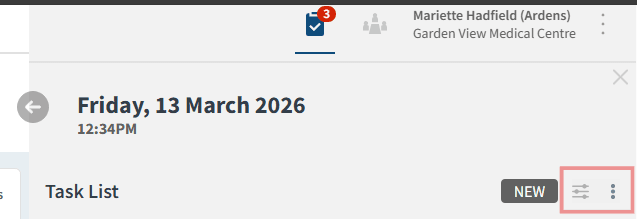
Filters include:
Dates: Filters tasks by their creation date
Created By: View tasks created by a specific user
Assignment: Filter by assigned user
Status: View tasks by status (To Do, In Progress, Done or Archive)
Visibility: Show public or private tasks
Tasks can also be sorted by:
Date created
Due date
These filters allow users to tailor their task list to focus on the most relevant actions.
❓FAQs
Can I assign multiple users to the same report?
Yes. When assigning a report, you can select multiple users, and each person will receive a task in their task list.
Can I open reports automatically?
No. Tasks show the report and dashboard name, but you must navigate to the dashboard manually to access the report.
🏫 Additional Support
To further your understanding of the Ardens Manager platform:
Book training for your GP Practice, PCN or ICB
Complete the Getting Started with Ardens Manager academy module
Contact our Support Team for support in real time