
ℹ️ Introduction
This article explains how to log in to Ardens Manager and set up additional security features, including Multifactor Authentication (MFA), to help keep your account secure. By the end of this article, you will be able to securely access your account and manage your security settings.
Background
To access Ardens Manager, users must log in using an authorised method. This ensures that only approved users can access sensitive organisational and patient data.
How Ardens Can Help
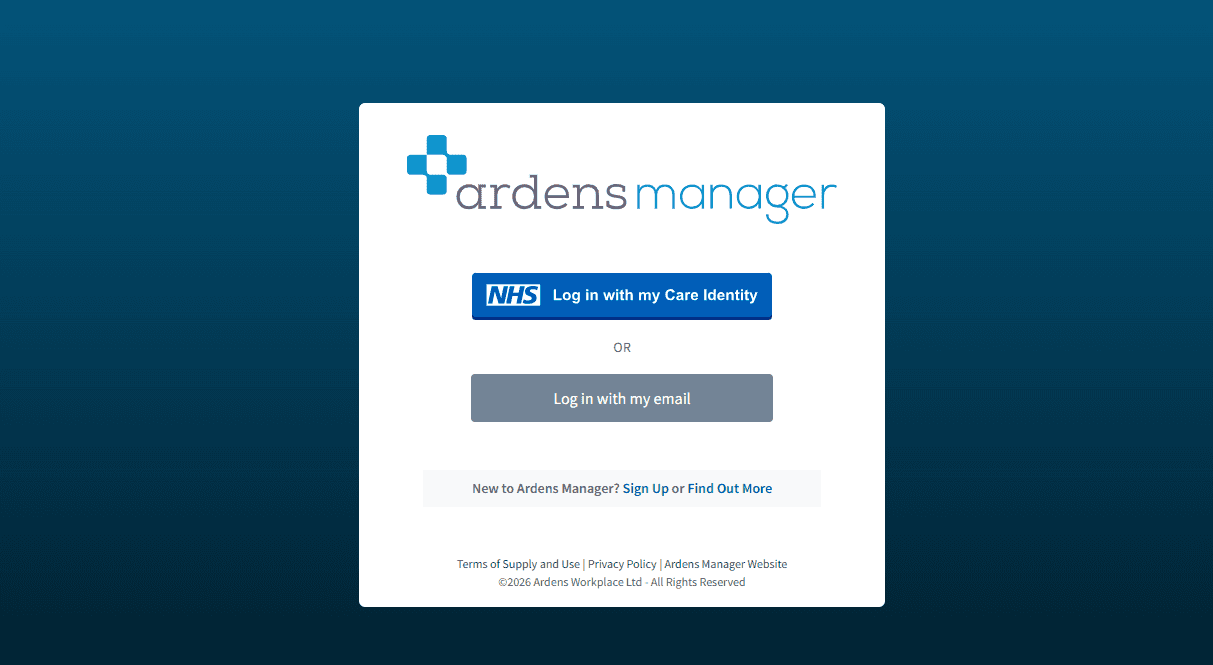
Ardens Manager supports two methods for logging in:
NHS Care Identity Service: Recommended for GP Practice users, enabling access to Patient Identifiable Information
Email Login: Suitable for users without Smartcard access (e.g. PCN or ICB staff)
🔑 Logging In
Log in using Smartcard
To log in with your smartcard you must ensure the following is in place:
An active HSCN connection (e.g. VPN)
Smartcard software installed
To log in:
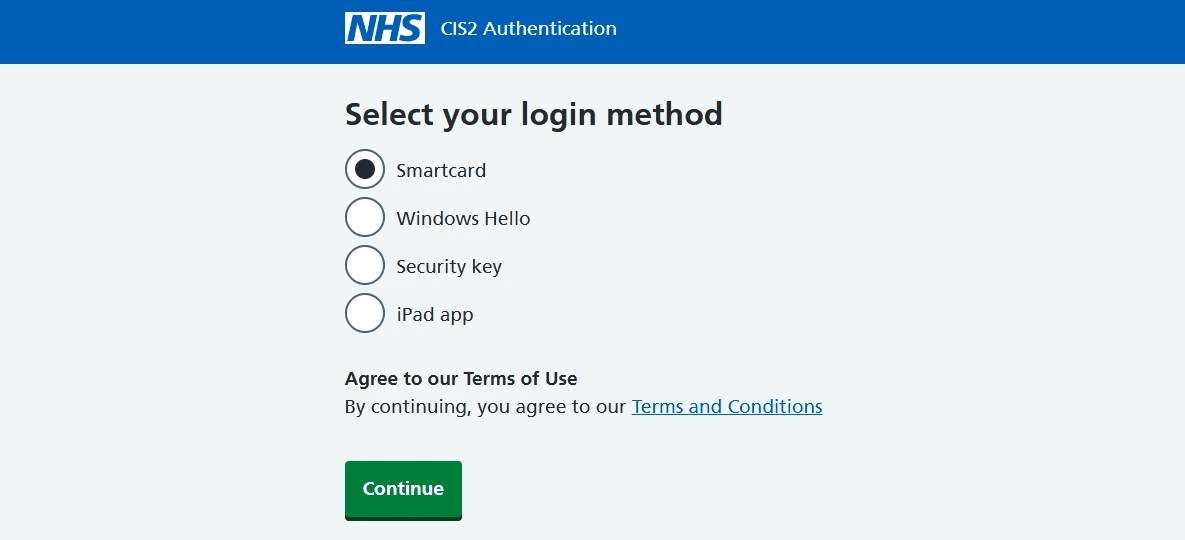
On the log in screen, select Log in with my Care Identity
Select Smartcard
Click Continue
Linking a Smartcard
You only need to link your smartcard to your Ardens Manager account once.
On the log in screen, select Log in with my Care Identity
Select Smartcard and click Continue
Enter your Ardens Manager email address and password
Click LOG IN
Your Smartcard will now be linked to your account.
Log in with Email
Select Log in with my email
Enter your email address and password
Click LOG IN
If MFA is enabled, you will be prompted to enter your authentication code.
🛡️Account Security
Password Requirements
When creating password, it must include:
Minimum of 8 characters
At least one uppercase letter
At least one lowercase letter
At least one number
At least one special character
Password Best Practice
Weak passwords can easily be compromised. To improve password security:
Use three random words
Avoid common passwords such as password
Avoid names or significant dates
Use different passwords for different services
Avoid simple character substitutions (such as P@ssw0rd)
🔒Multifactor Authentication
You can enable MFA to increase the security of your account.
Before you start you will need an authenticator app such as:
Enable MFA
Log in to Ardens Manager
Select the three dots in the top right-hand corner by your name
Open Settings
Select the Security tab
Enable Multifactor Authentication using the toggle
Enter your Ardens Manager password
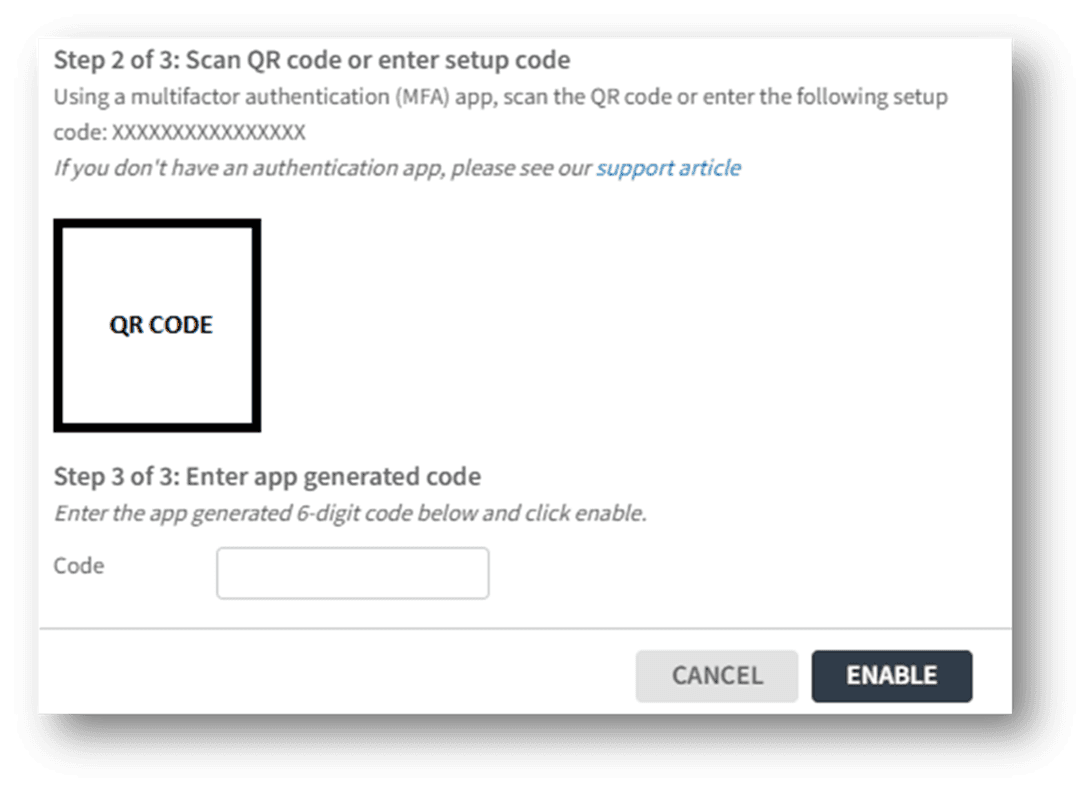
Scan the QR Code using your authenticator app
Enter the 6-digit verification code
Select Enable
Recovery Codes
After enabling MFA, you will receive recovery codes. These allow you to access your account if you lose access to your authenticator app.
You can:
View recovery codes
Regenerate new recovery codes
⚠️ Please note: If you regenerate codes, any previous codes will no longer work. Store them securely (e.g. in a password manager).
❓FAQs
I can't log in using my Smartcard.
Ensure your Smartcard has been linked to your Ardens Manager account.
Why does MFA not appear when I log in with my Smartcard?
MFA only applies to email login. Smartcard login uses the NHS Care Identity Service, which already provides secure authentication.
What happens if I regenerate codes?
You will need to securely store the new recovery codes, as the previous codes will no longer work.
Do I have to use Google or Microsoft authenticator?
No. Ardens Manager supports any authenticator application.
🏫 Additional Support
To further your understanding of the Ardens Manager platform:
Book training for your GP Practice, PCN or ICB
Complete the Getting Started with Ardens Manager academy module
Contact our Support Team for support in real time