
ℹ️ Introduction
This article explains the different reporting types used in Ardens Manager, including Item of Service (IoS) and Event Count, and how they influence how activity is recorded, monitored and paid. By the end of this article, Practices, PCNs and ICBs will understand how reporting logic works and how to ensure contract activity is captured correctly.
EMIS Web Tutorial Video
SystmOne Tutorial Video
Background
Ardens Manager uses standardised reporting logic to ensure activity is counted consistently across organisations. Different services use different reporting types depending on contractual rules and payment structures.
The most common reporting types are:
Item of Service (IoS)
Event Count
Each reporting type measures activity differently, which can affect how activity must be recorded. Some services allow only one claim per patient or episode, while others count every qualifying event.
Understanding these differences ensures activity is recorded in line with contract requirements and reduces the risk of missed or incorrect claims.
How Ardens Can Help
Ardens Manager applies consistent, centrally‑maintained reporting logic across all dashboards to ensure:
Accurate and standardised counting of activity
Alignment with local and national contract requirements
Transparent logic for audit, payment validation and data quality
Reduced risk of duplicate, missing or incorrectly coded activity
✅Included in Ardens Manager Local Content package: Interested in finding out more or requesting a trial? Contact accounts@ardens.org.uk
⚙️ Reporting Types
Event Count
Event Count reporting measures the number of qualifying consultations containing the relevant activity code(s).
Key points:
The consultation is counted once, regardless of how many times the code appears within the same consultation.
Two wound‑care codes added in the same event = 1 event
The same wound‑care procedure recorded in two separate consultation events = 2 events
To count multiple activities of the same type, they must be entered as separate events.
Item of Service (IoS)
Item of Service (IoS) reporting counts activities completed within the practice during a face‑to‑face consultation.
IoS does not include:
Entries added by third‑party software
Activity recorded by admin teams relating to external providers
Code entries not linked to a qualifying face‑to‑face consultation/event
This ensures practices only claim for work genuinely completed in‑house.
IoS Requirements
To qualify for IoS reporting, activity must be recorded within a face‑to‑face consultation type.
Recording IoS activity using non‑qualifying types (for example, admin note or enterprise consultation) will exclude the activity from payment reports.
Below is a list of commonly recognised face-to-face consultation types by clinical system:
Ardens EMIS
Children's home visit note (63441000000115)
Clinic (1809171000006114)
Clinic note (62211000000111)
Emergency appointment (285368015)
Emergency consultation / Emergency appointment (1809181000006108)
Extended hours consultation (1809191000006106)
Face to face consultation (1672851000006116)
First attendance face to face (1850011000006102)
Follow up attendance face to face (1850001000006100)
GP Surgery (1672871000006114)
Home visit note (63341000000114)
Nursing home visit note (62241000000112)
Patient-initiated encounter (270427003)
Residential home visit note (62101000000117)
Routine appointment (2019541000006105)
Routine consultation (1809171000006105)
Same day appointment (1931821000006103)
Seen in rapid access clinic at GP surgery (1928501000006103)
Urgent consultation (1809161000006103)
Walk-in clinic (81234003)
Weekly care home ward round (1920731000006103)
Home Visit (Appointment)
Face-to-face (Appointment)
Ardens SystmOne
Face to face
Acute visit note
Children's Home Visit Note
Home Visit Note
Hotel Visit Note
Nursing Home Visit Note
Residential Home Visit Note
Medicus
25651000000106 – Home visit note
25671000000102 – Surgery consultation
24751000000101 – Nursing home visit
24731000000108 – Clinic note
439708006 – Home Visit
1269515004 – F2F
🔎 View Reporting Logic
You can review how any report is calculated within Ardens Manager by:
Open the relevant dashboard.
Navigate to the Rules tab.
Review the inclusions, exclusions and logic.
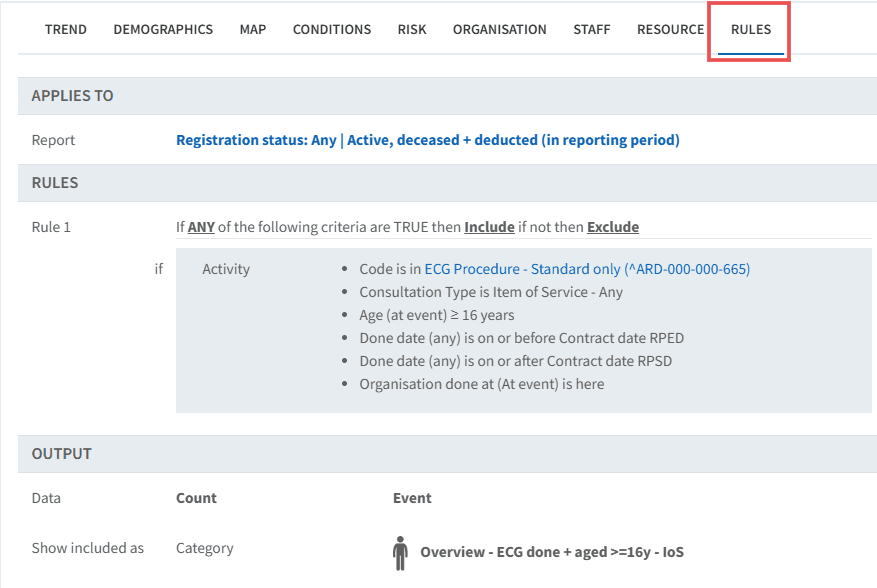
This provides full transparency on:
Which codes are included
How activity is counted
Any reporting limitations (for example, one claim per patient or consultation type restrictions)
📝 Data Entry Requirements
Correct data entry ensures activity is included in reporting and payment calculations.
Clinicians
Record activity during the consultation event wherever possible
Ensure procedural activity (e.g., ECG, phlebotomy, injections, wound care) is recorded using a qualifying face-to-face consultation type.
Admin Teams
When entering activity retrospectively, ensure:
It is added to the correct consultation
It is backdated to the original event date
It uses a qualifying consultation type where IoS rules apply
Multiple Activities
If multiple activities occur during an appointment, record them as separate events where required:
Complete the first consultation
Start a new consultation
Record the next activity
✍️ How to Record Activity
Access Record Clinical Activity
🔎 Identify Reports
Log into Ardens Manager
Navigate to the required dashboard
Locate IoS reports (1). These reports include IoS in the title
Locate event count reports (2)
Click View to open the single report breakdown screen to view the list of patients

IoS Data Quality
Ardens Manager includes data quality reports to identify events that do not meet IoS criteria.
To access data quality information:
Click View to open the report breakdown
Click the Benchmark tab
Locate the data quality reports beneath the benchmark table
Select the relevant data quality report. The dashboard will refresh
Click on the PATIENTS tab to access the patients

Review the patient record within the clinical system. If the activity is IoS eligible, amend the event entry to a qualifying face-to-face consultation type.
⚙️Mapped Consultations
Consultation types must be correctly mapped to national appointment slot types to support accurate reporting.
How to Map Consultations:
Ardens EMIS Web
Navigate to System Tools > Legacy Data Mapping.
Click on Consultation Source
Ensure Unmapped Items is selected
This will list all unmapped items. Right-click on the consultation sources you want to map, click Consultation Source and search for the required source. For large numbers, we recommend mapping them to ‘GP Surgery Consultation’ or ‘Admin note’

Ardens SystmOne
In SystmOne, each consultation or data entry on the Journal will be recorded as an 'event' within Ardens Manager. The example below shows two distinct event entries for an ECG procedure. This will be considered as two separate ECGs for payment purposes.

The example below shows the ECG code added twice in the same event. This will only count as one ECG for payment purposes.

Medicus
Consultation event types are recorded using the consultation details within Medicus rather than by manually selecting consultation event SNOMED codes. Ensure the consultation is created with the appropriate consultation details (such as mode and location), as these determine how the consultation is recorded. Where required, consultation details can be edited retrospectively after the consultation has been completed.
⭐ Best Practice Tips
Record all relevant activity during the consultation
Use a consultation event when adding codes retrospectively
Ensure the correct consultation mode is selected (for example, face-to-face for IoS).
Avoid recording claimable activity within admin notes
Provide training for clinicians, locums, and admin staff to ensure they are aware of how to record data
Run regular data quality checks before claim deadlines
❓FAQs
How does Ardens Manager count "event done here"?
Ardens Manager uses consultation logic and organisational settings to confirm whether activity was completed by your practice.
EMIS: ODS code of the user
SystmOne: Organisational unit of the event
Medicus: a consultation
Only qualifying consultation types are included in payment reports.
What happens if our consultation types are used incorrectly?
Incorrect types may lead to activity being excluded. Data quality reports help practices identify and correct these entries.
🏫 Additional Support
To further your understanding of the Ardens Manager platform:
Book training for your GP Practice, PCN or ICB
Complete the Getting Started with Ardens Manager academy module
Contact our Support Team for support in real time