
ℹ️ Introduction
This article explains how to enable data extraction for your organisation in Ardens Manager. By the end of this article, you will be able to allow secure upload of data from your clinical system so that dashboards and reports can be generated.
Background
Ardens Manager dashboards are powered by data extracted from your clinical system. Once enabled, record-level data is automatically uploaded and processed to generate the reports and insights displayed across the platform.
These uploads occur automatically on a regular basis, meaning organisations do not need to manually run reports or upload data themselves. This ensures dashboards remain up to date and reflect current activity within your practice or organisation.
How Ardens Can Help
Automatic data extraction allows Ardens Manager to:
Automatically upload data from your clinical system
Generate dashboards and contract reporting
Provide near real-time insights into practice activity
Support benchmarking and advanced analysis across organisations
Once enabled, your organisation’s data will be processed using reporting rules and displayed within the relevant dashboards.
🔄️ Enable Automatic Uploads
To activate data extraction for your organisation, follow the steps below.
Setup Request
Log in to Ardens Manager
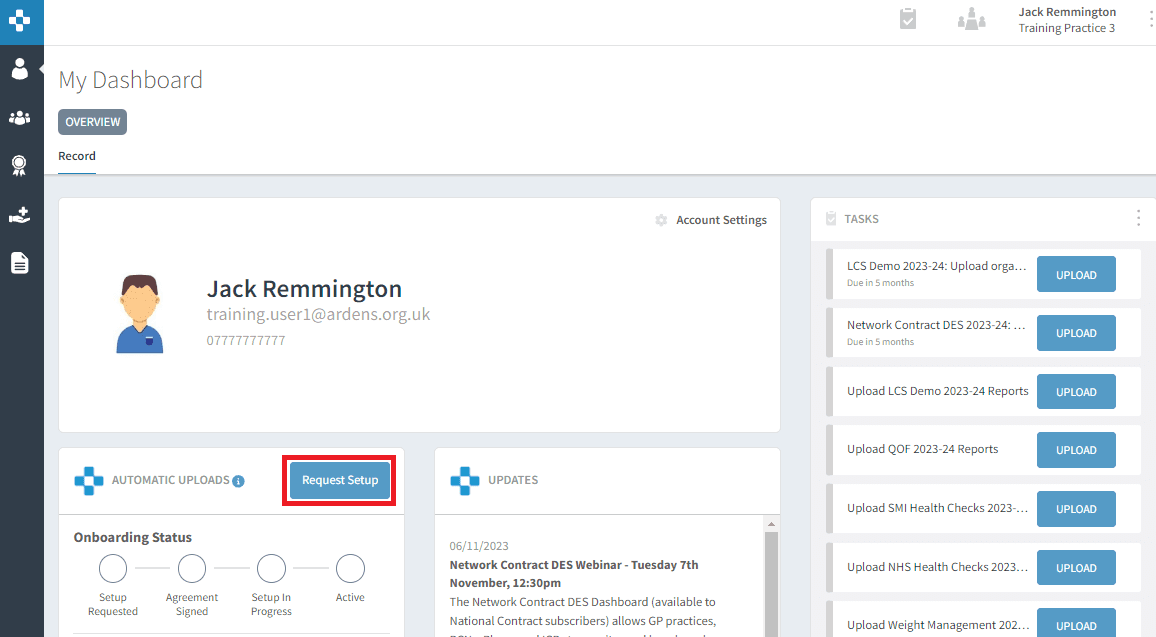
Navigate to the AUTOMATIC UPLOADS section on the Home page
Select Request Setup.
Your onboarding status will update to Setup Requested.
Terms of Supply and Use
A System Administrator must accept the Terms of Supply and Use task within Ardens Manager.
This confirms:
Your organisation agrees to the data processing
Ardens can begin setting up data extraction
Once accepted, the onboarding status will update to Agreement Signed.
Confirmation from Ardens
The Ardens team will review your request and prepare your organisation for data extraction. You will receive an email when you are ready to move to the next step.
Clinical System Configuration
A System Administrator must complete a one-time setup step in your clinical system:
SystmOne : Join the allocated Ardens Manager SRE organisation group.
EMIS Web: Accept the Data Extraction Agreement within EMIS Web.
This step gives Ardens Manager permission to securely access your data.
Automatic Uploads Active
Once setup is complete:
Your onboarding status will show as Active
Data will begin uploading automatically
For SystmOne, uploads usually begin within a few working days after the Friday group acceptance process.
⚙️ Clinical System Setup
The steps below explain how to complete the enabling of automatic uploads by configuring your clinical system to allow data sharing with Ardens Manager.
SystmOne
Log in to SystmOne
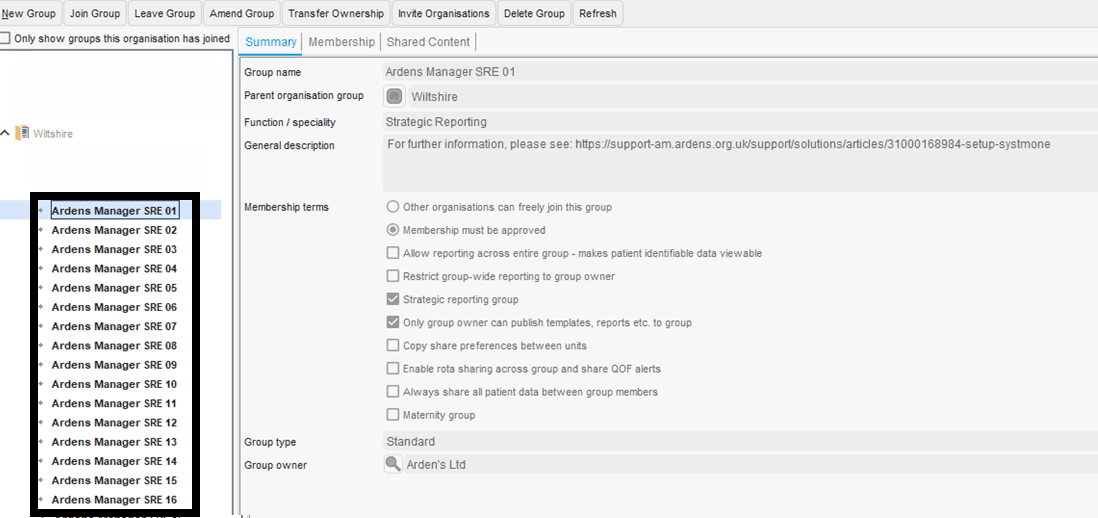
Navigate to Setup > Users & Policy > Organisation Groups
Untick Only show groups this organisation has joined
Scroll to Wiltshire
Locate the relevant SRE organisation group (e.g. Ardens Manager SRE (number)
Right-click the group and select Join Group
⚠️ Please note: SystmOne only allows Ardens to accept organisations into the required working groups once per week on Friday afternoons. Automatic data uploads will begin within the next few working days after this step is completed. Due to system limitations, the number of organisations that can be accepted each week is limited. During periods of high onboarding activity, this may cause a short delay before automatic uploads become active.
EMIS
Log in to EMIS Web
Navigate to EMIS Menu > Configuration > Data Sharing Manager
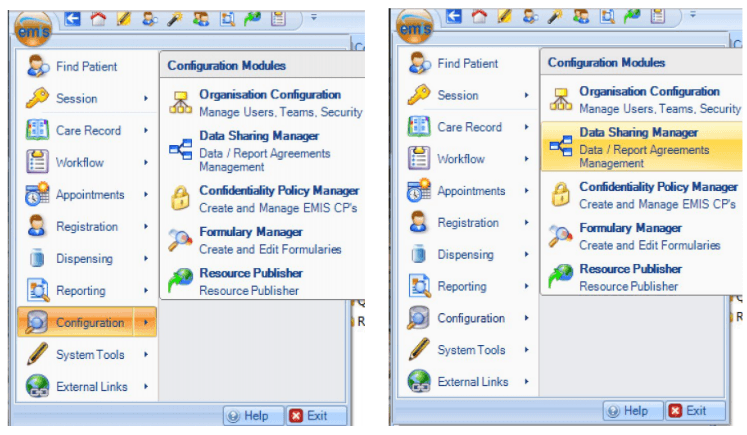
Select Data Distribution in the bottom left panel
Click My Agreements on the EMIS ribbon
Locate Ardens Manager Extraction - (ICB)
Activate the agreement. A green tick indicates the agreement is live
Medicus
Log in to Medicus
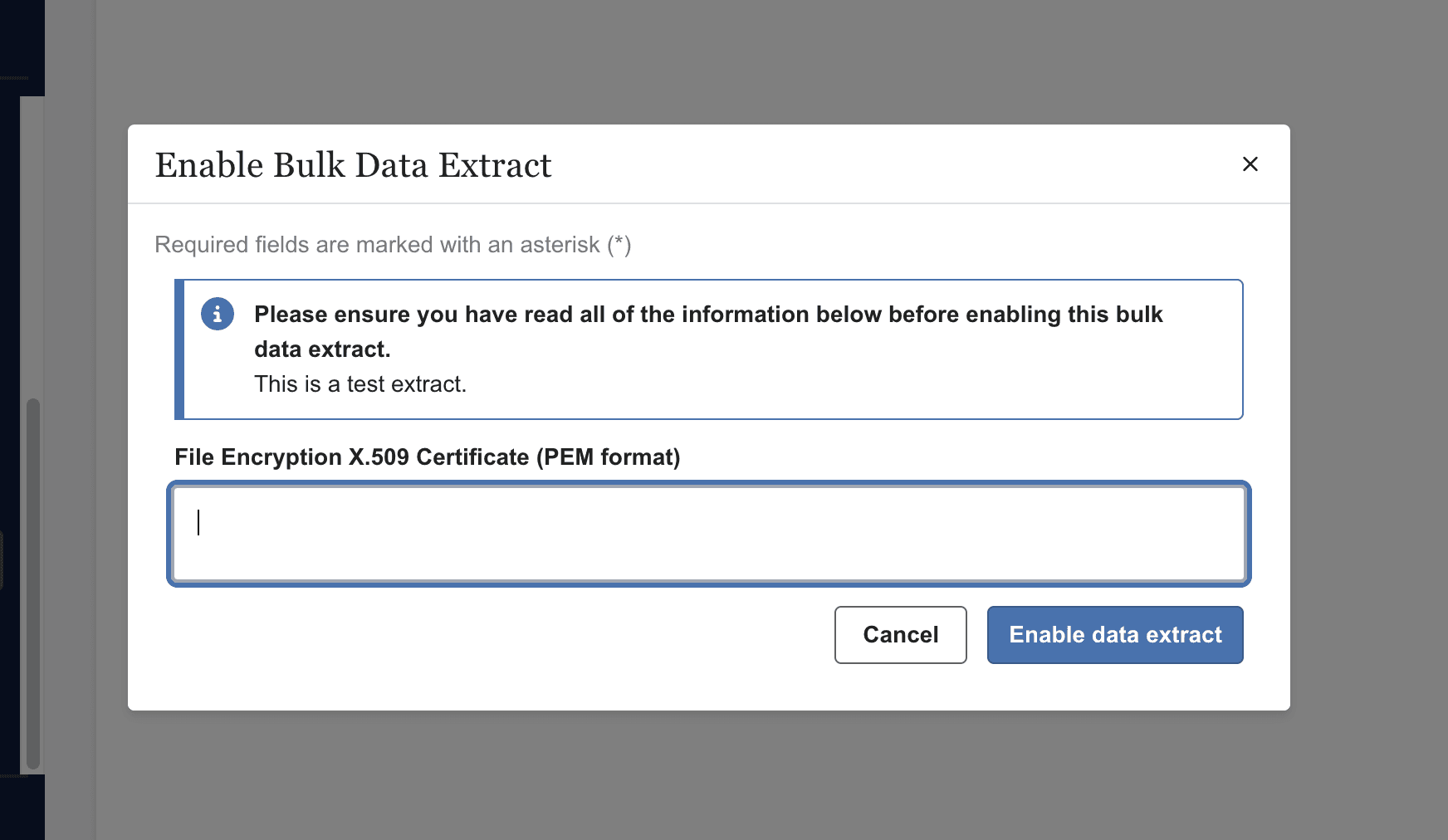
Navigate to Modules > Data Sharing & Integrations > Bulk Data Extracts
Click Enable bulk extract
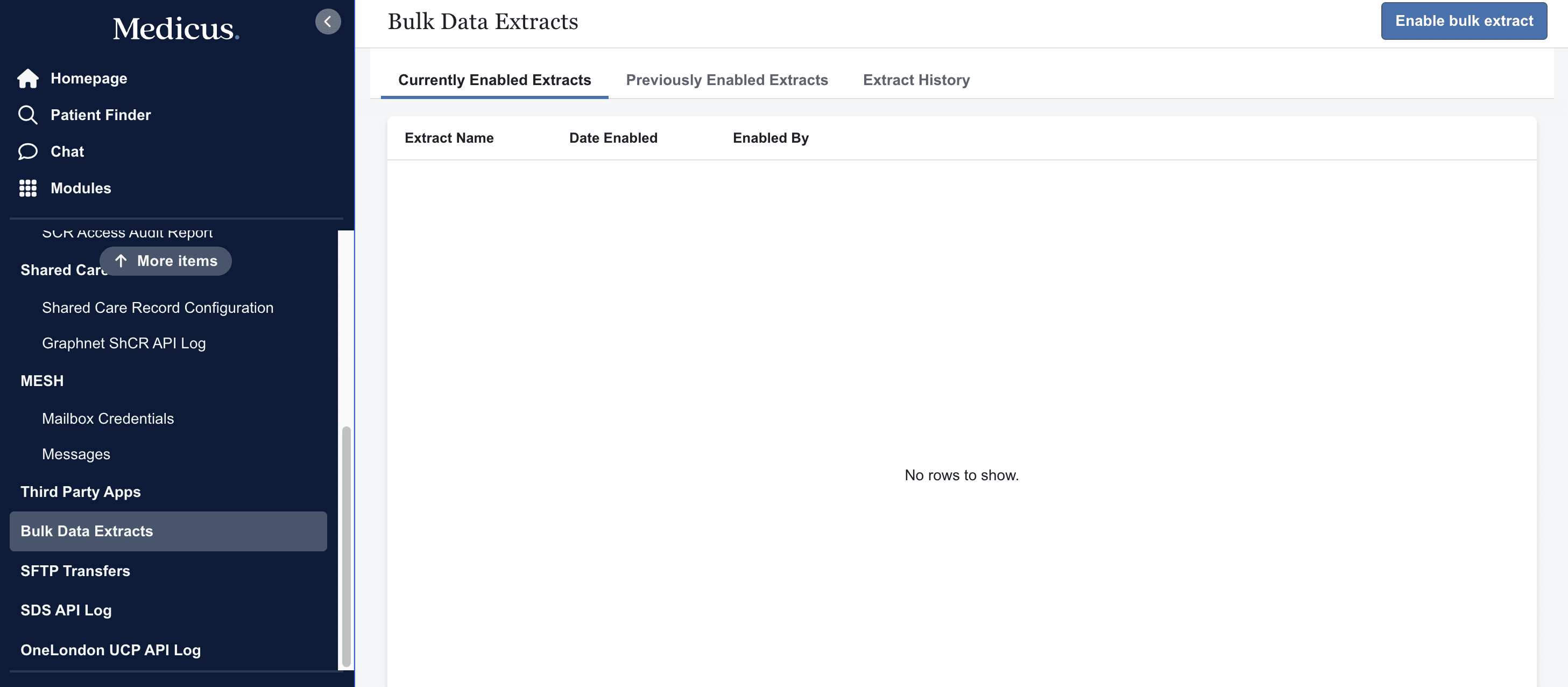
Select Ardens Manager
Enter the File Encryption key provided by Ardens
Click Enable data extract
Confirm completion with the Ardens team.
⚠️Please note:
In most cases, only one System Administrator needs to accept the task for the organisation.
Once accepted, all users within the organisation can access the relevant dashboards based on their permissions.
If a task is not accepted, the associated dashboard or reports may not be visible.
If automatic uploads are not enabled, dashboards will not display your organisation’s data.
❓ FAQs
How often is data uploaded to Ardens Manager?
Data is uploaded automatically on a daily basis once extraction has been enabled, ensuring dashboards remain up to date.
Who needs to complete the setup?
A System Administrator with authority to act on behalf of the organisation must complete the onboarding steps and accept the required agreements.
Why can't I complete the Clinical System step yet?
You need to wait until the Ardens onboarding team confirms the next stage is ready. You will receive an email when the clinical system step can be completed.
Why haven't my automatic uploads started yet?
For organisations using SystmOne, Ardens can only accept practices into the required working groups once per week on Friday afternoons due to system limitations. Once your organisation has been accepted into the group, automatic data uploads will usually begin within the next few working days.
During periods where a high number of practices are being onboarded, there may be a short delay as the number of organisations that can be accepted each week is limited.
Where is data stored and how is it protected?
All data within Ardens Manager:
Is stored within the United Kingdom
Is encrypted at rest using AES-GCM 256
Is transmitted securely using TLS encryption
🏫 Additional Support
To further your understanding of the Ardens Manager platform:
Book training for your GP Practice, PCN or ICB
Complete the Getting Started with Ardens Manager academy module
Contact our Support Team for support in real time