
ℹ️ Introduction
This article explains how to activate your Ardens Manager account and complete the initial setup. By the end of this article, you will be able to securely access your organisation and start using the platform.
Background
To access Ardens Manager, each user must activate their account and be linked to their organisation. This ensures users have secure access to the platform and that data is only visible to authorised staff within their practice, PCN, or organisation.
Account activation typically occurs when an organisation is first set up or when a new user is invited to join the platform.
How Ardens Can Help
Once your account is activated, you can access the Ardens Manager to:
View dashboards and reports that support population health management
Review patient-level data (where access is enabled)
Monitor contract performance and clinical activity
Export reports or patient lists for further action
⚙️Organisation Setup
If your organisation has not yet been set up on Ardens Manager, this must be completed before users can register.
To request setup, complete the Ardens Manager trial setup form. Once completed, a member of the Ardens team will contact you to activate your organisation.
✉️ Registering Your Account
Once your organisation is activated, primary and secondary contacts will receive an email invitation to set up their account.
To register:
Open the invitation email
Follow the steps provided
Create a password to complete registration
⚠️Please note: Each user must have an individual account. Shared accounts are not supported. Users must be added to the platform before they can log in.
Verifying Your Account
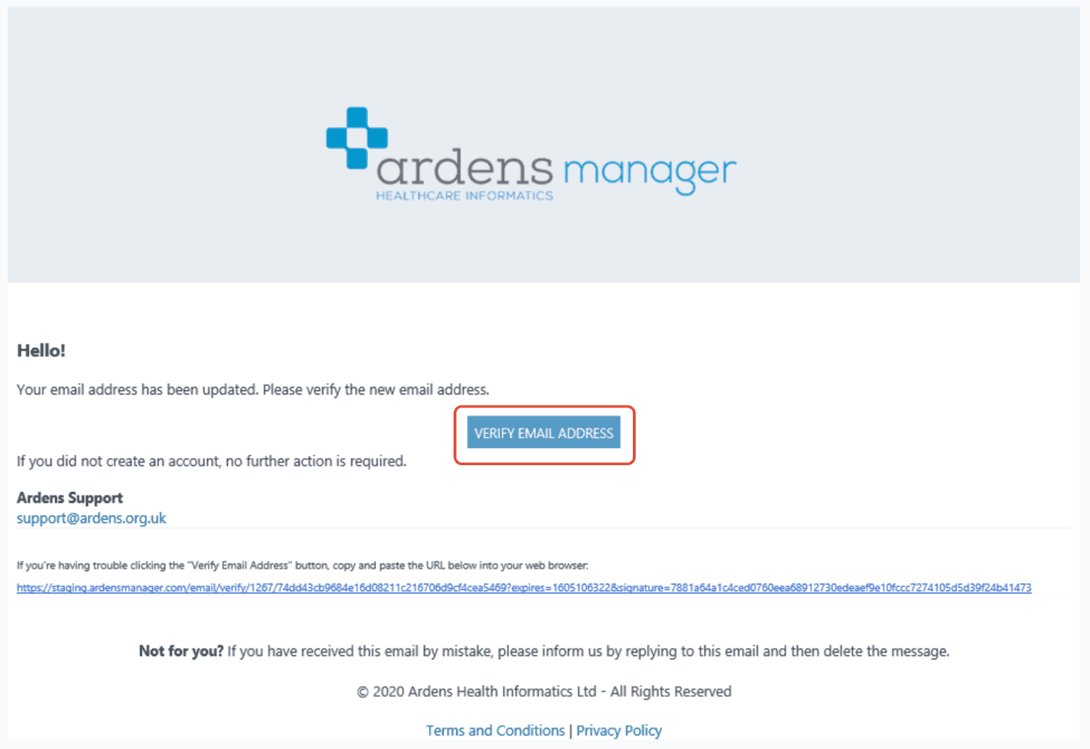
Once registered, you will receive a verification email.
To verify your account:
Open the verification email
Click the Verify link
You will then be directed to the About Me page.
Completing Your Profile
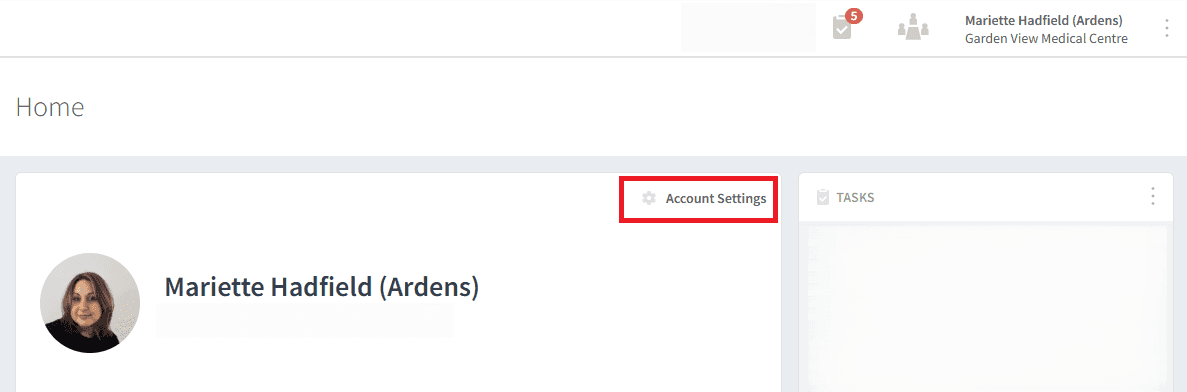
You can update your profile details after logging in.
To edit your profile:
Click on Account Settings from the home page
Click on the pencil icon next to edit your information
Add additional details such as photo, phone number or signature
🔗Joining an Organisation
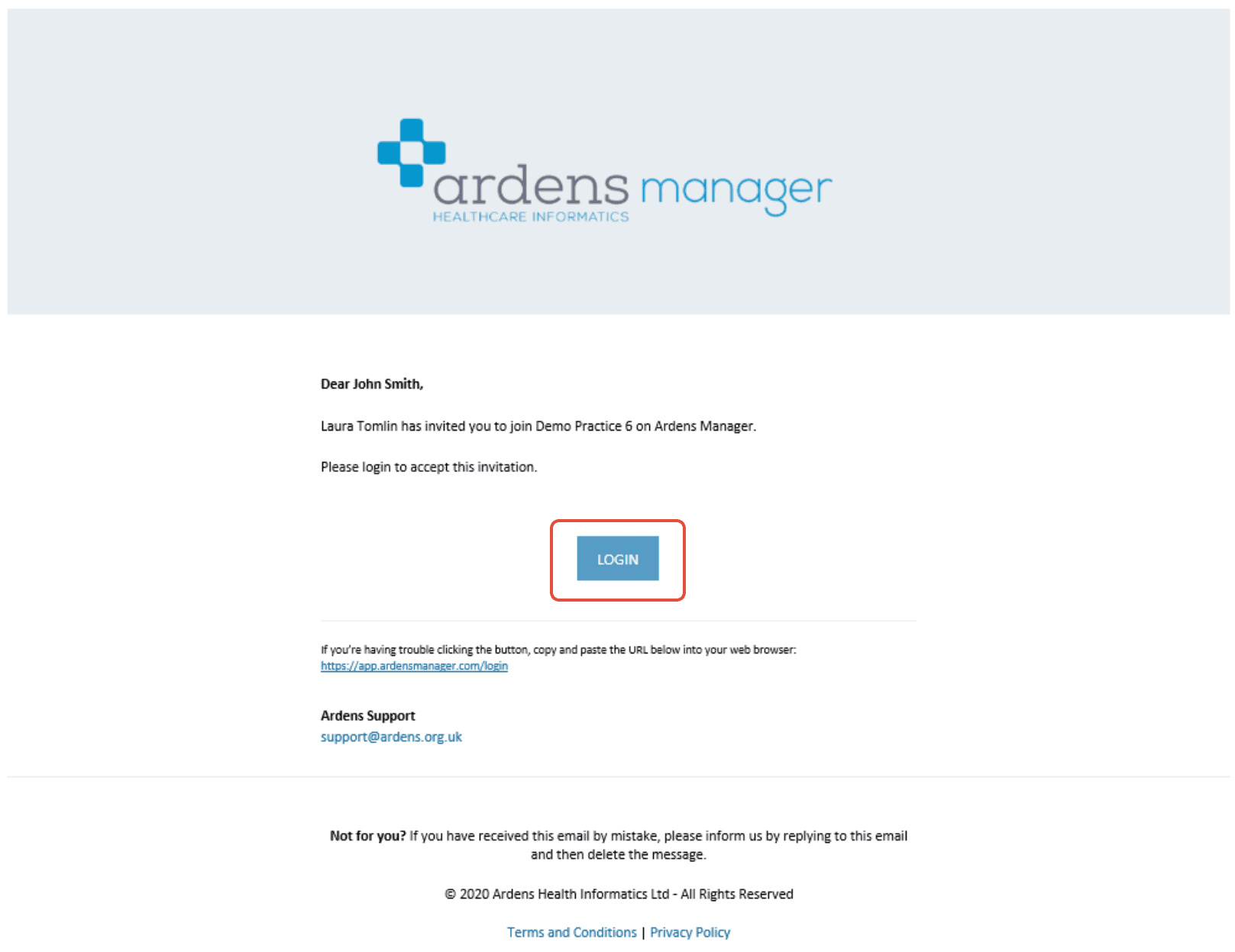
If you are an existing user and another staff member invites you to join an organisation, you will receive an email notification.
To join:
Open the email invitation
Click the login link to access Ardens Manager
Accept the invitation task from your home page
❓FAQs
I have not received my verification email.
Please check your junk or spam filter as emails from Ardens Manager may sometimes end up there.
I can't activate my account.
If you cannot activate your account, check that:
Your organisation has been set up on Ardens Manager
You have received an invitation email
Your email address matches the one used to invite you
🏫 Additional Support
To further your understanding of the Ardens Manager platform:
Book training for your GP Practice, PCN or ICB
Complete the Getting Started with Ardens Manager academy module
Contact our Support Team for support in real time