
ℹ️Introduction
This article explains how to use the Assign, Comment & Review features in Ardens Manager to allocate work, capture discussion notes and record reviews within the platform. By the end of this article, you will be able to coordinate team activity and document outcomes directly in Ardens Manager.
Background
In primary care teams, several users often work together on reports, insights and quality improvement tasks. Without a simple way to assign work, record discussions or capture reviews, it can be difficult to keep track of responsibilities and actions. The assign, comment and review features in Ardens Manager help teams manage tasks, communicate clearly and record reviews directly within dashboards.
How Ardens Can Help
Ardens Manager allows you to assign users to reports or tasks, add comments to capture discussions and actions, and record formal reviews within relevant Services dashboards. Together, these features support clear accountability, better collaboration and consistent documentation across your team.
🙍Assign Users
Open the relevant Ardens Manager dashboard.
Locate a report and click the assign icon to the far right of the report to open a list of users in your organisation.
Select one or more users to assign; this creates a task in each user’s task list.
To remove an assignment, click the X next to the user’s name on the report.

You can also assign users from the Single Report page.

⚠️Please note: The task will remain on the assignee's list until they have manually removed the allocation using the X.
💬Add Comments
Open the relevant Ardens Manager dashboard.
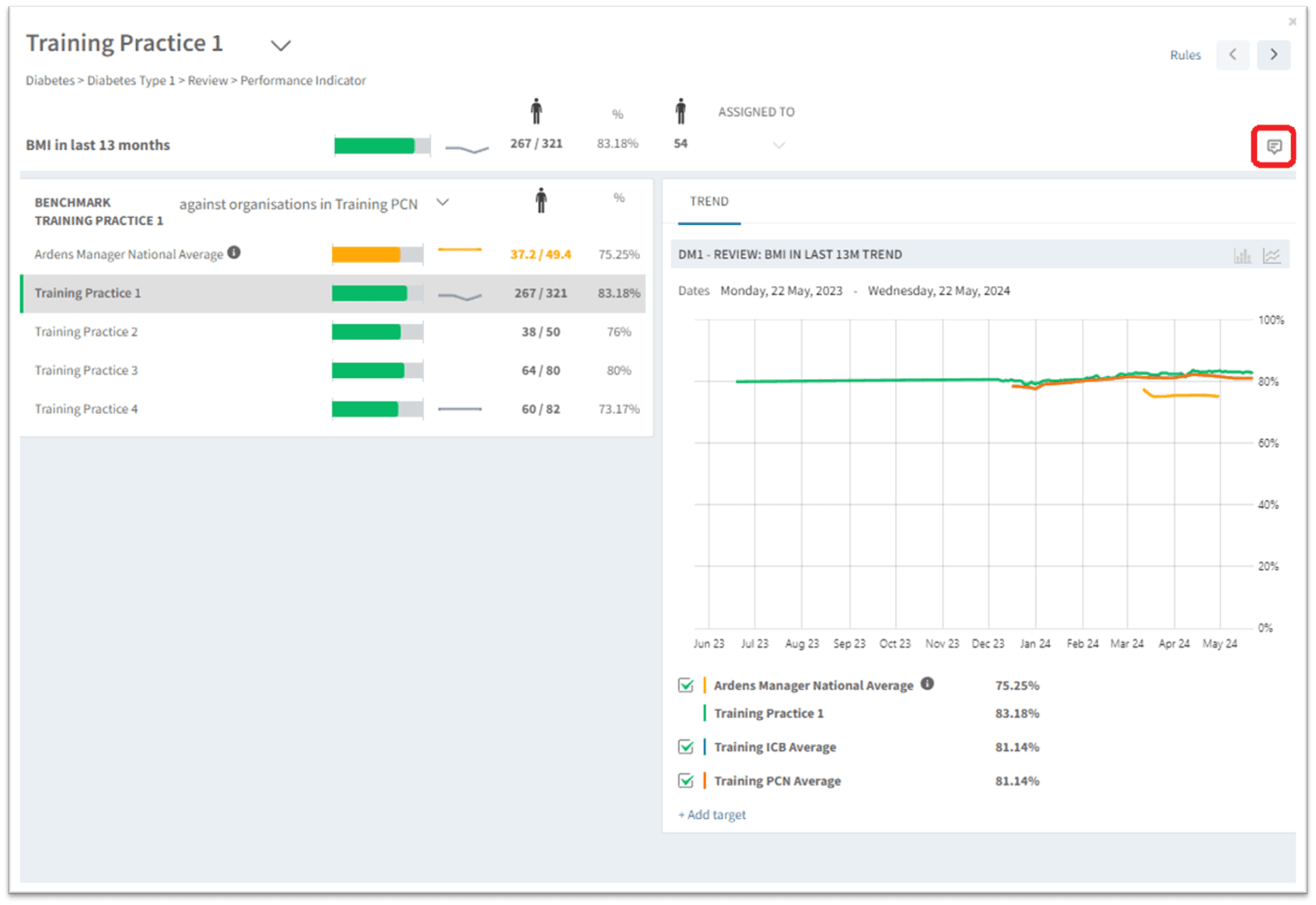
Locate a report, and click View to open the Single Report page.
Click the comments icon in the top right corner to open the comments panel.
Click New to add a comment.
Once added, users can reply to the comment and attach a file if required.
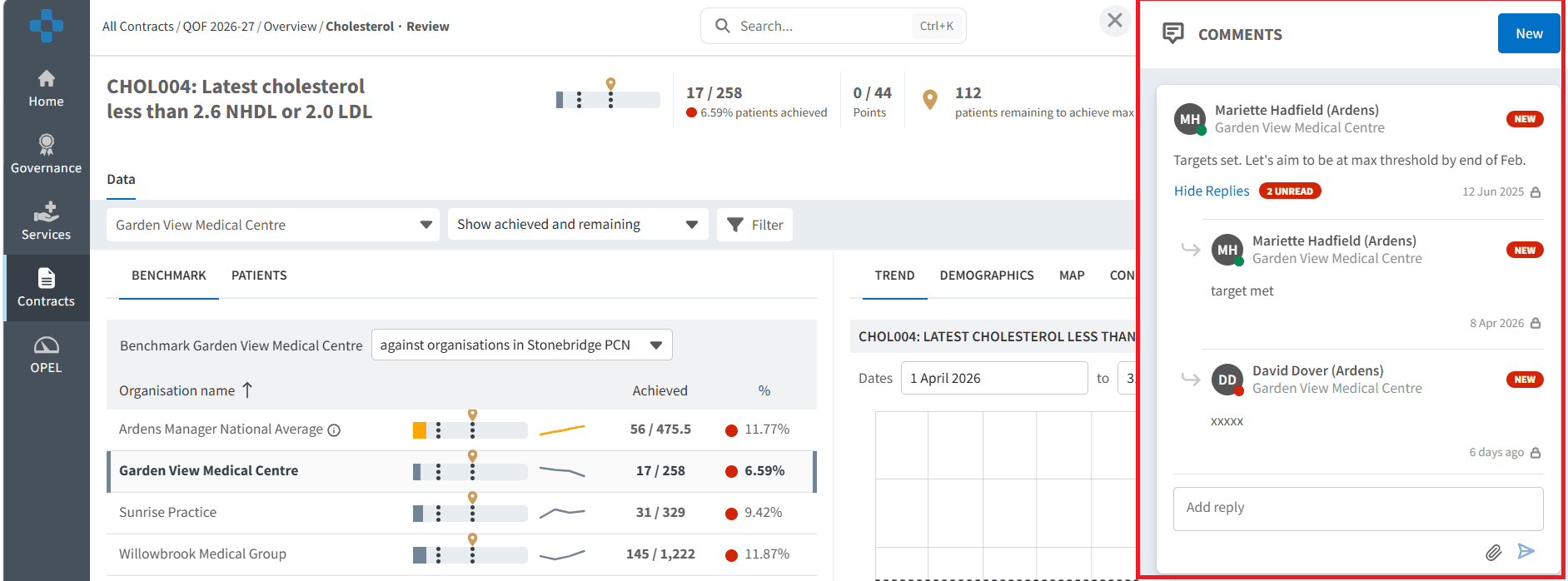
⚠️Please note: Comments are only visible to users logged into the organisation where they were posted.
📝Record a Review
In the Services or Governance dashboards, locate the + (plus) icon at the top-right of the screen.
Click this icon to open the Review box.
Enter the details of the review and add attachments if required.
When complete, click OK to save.

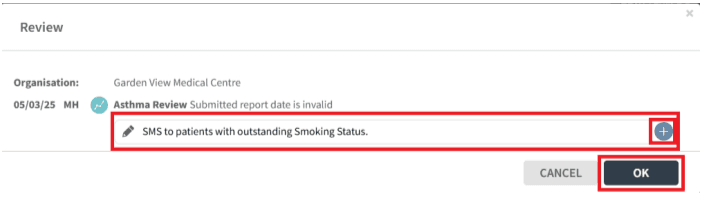
To view previously recorded reviews, navigate to the Review tab of the dashboard.
❓FAQs
Who can be assigned work?
Any user in your organisation listed in the assign dropdown can be allocated to a report or task.
Can comments be viewed by other organisations?
No, comments are only visible to users logged into the organisation where the comment was posted.
Where can I record a review?
Reviews can currently be recorded in Governance and Services dashboards via the + (plus) icon.
Can I add attachments to comments and reviews?
Yes, attachments can be added using the paperclip icon in the comments panel or the + icon in the review entry box.
How do I remove an assigned user?
Click the X next to the user’s name on the report to remove them from the assignment.
🏫Additional Support
To further your understanding of the Ardens Manager platform:
Book training for your GP Practice, PCN or ICB
Complete the Getting Started with Ardens Manager academy module
Contact our Support Team for support in real time