
ℹ️ Introduction
This article explains how to use the Ardens Manager MSK & Rheumatology dashboards to understand prevalence, stratify clinical risk, monitor activity and evaluate the quality of musculoskeletal care. By the end of this guide, you will be able to use these insights to support planning, targeted interventions and quality improvement across your practice, PCN or ICB.
Background
Musculoskeletal (MSK) and rheumatological conditions are a leading cause of pain, disability and long‑term functional impairment. Effective management relies on accurate diagnosis, structured review, medicines optimisation and timely monitoring to reduce disease progression and support quality of life.
For GP practices, PCNs and ICBs, it is important to:
Understand prevalence across common MSK and rheumatology conditions.
Monitor long‑term condition reviews and follow‑up activity.
Identify patients at higher risk of disease progression or complications.
Ensure equitable access to care and multidisciplinary input.
Reduce unwarranted variation in diagnosis, management and outcomes.
The Ardens Manager MSK & Rheumatology dashboards provide population‑level insight to support proactive, consistent and high‑quality MSK care.
How Ardens Can Help
The Ardens Manager MSK & Rheumatology dashboards bring together insights across key musculoskeletal and inflammatory conditions, enabling organisations to:
Analyse prevalence and population characteristics.
Review activity and service demand.
Stratify clinical risk.
Monitor safety and quality of care delivery.
Each dashboard follows a consistent structure, allowing users to work across multiple MSK pathways using a familiar reporting approach.
The dashboards work alongside existing Ardens Clinical resources to support structured reviews and proactive MSK management. To learn more about the clinical resources, access the support articles below:
✅Included in Ardens Manager National Content package: Interested in finding out more or requesting a trial? Contact accounts@ardens.org.uk
📍 Access the Dashboard
Log into Ardens Manager.
Go to Services on the left-hand pane.
Open to Conditions folder.
Click on MSK & Rheumatology.
Click on the required condition tab.
📊 Plan & Forecast Demand
The Overview section enables organisations to analyse coded registers, understand population needs and plan workforce and recall activity accordingly.
Understand Your Population
The MSK & Rheumatology registers provide visibility of patients coded with musculoskeletal or rheumatological conditions, supporting understanding of:
Recorded prevalence.
Population demographics.
Coding patterns and register accuracy.
Size of the cohort requiring review or monitoring.
Condition‑specific risk factors.
This insight supports informed workforce planning and structured review activity.
To review registers:
Click the View button next to the required register report.
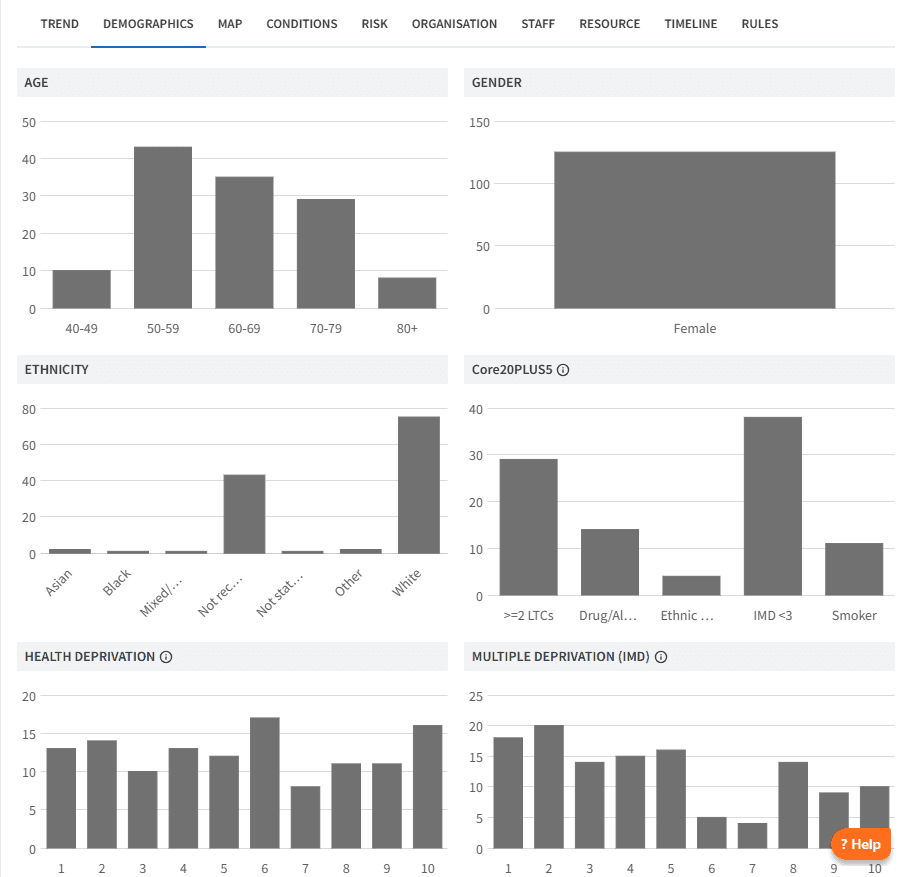
Review the Demographic tab to understand age distribution and deprivation.
Review the Conditions tab for breakdown by long-term condition and multimorbidity.
Review the Risk tab to identify patients in vulnerable or higher-risk groups.
Further insights allow organisations to review diagnosis patterns by clinician and by patient geography, supporting identification of variation and unmet need.
Analyse Trends
Understanding how registers change over time enables organisations to anticipate demand and assess the impact of case‑finding or quality improvement initiatives.
To analyse trends:
Click View next to the required report.
Click on the Timeline tab.
Choose Year (or another timeframe) from the drop down below the chart
This allows you to:
Monitor changes in diagnosis rates.
Identify increases in workload.
Inform capacity planning and commissioning decisions.
🔎 Monitor Activity & Safety
The dashboards provide tools to support clinical governance, patient safety and oversight of service delivery.
Last Month Activity
Dashboards include a summary of activity for the previous month, including:
New diagnoses.
Reviews and monitoring completed.
Workforce involvement by role.
To review activity:
Click View next to the activity report.
Review the Demographic, Conditions, Risk and Staff tabs.
Analyse the Timeline tab to understand recent trends.
Safety Alerts
Safety Alerts highlight patients who may require urgent review or follow-up, such as:
Missing monitoring for high‑risk medicines.
Indicators suggesting disease instability.
Potential medicines‑related risks.
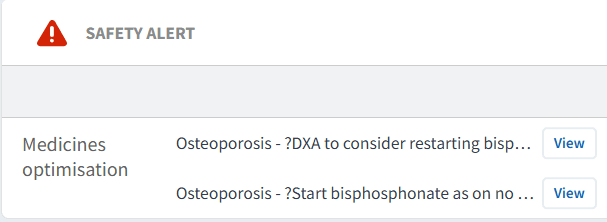
For each report:
Click View.
Select PATIENTS tab.
Review each patient and take appropriate action.
This supports monitoring of workload, capacity and delivery against local priorities.
Case Finders
Case Finder reports identify patients who may have an MSK or rheumatological condition but lack an appropriate diagnosis code.
These reports support:
Improved register accuracy.
Identification of patients requiring formal diagnosis.
Complete population oversight.
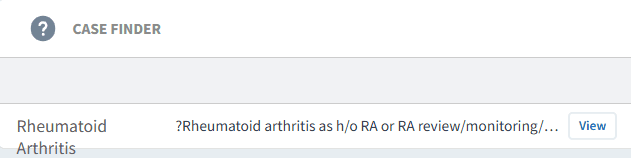
Using case finders:
Click View.
Select PATIENTS tab.
Review each patient record.
If diagnosis is confirmed:
Add the appropriate diagnosis code in the clinical system.
This will move the patient onto the register and remove them from the case finder.
If inclusion is due to a data error:
Amend or remove the incorrect coding in the clinical system.
Performance Indicators
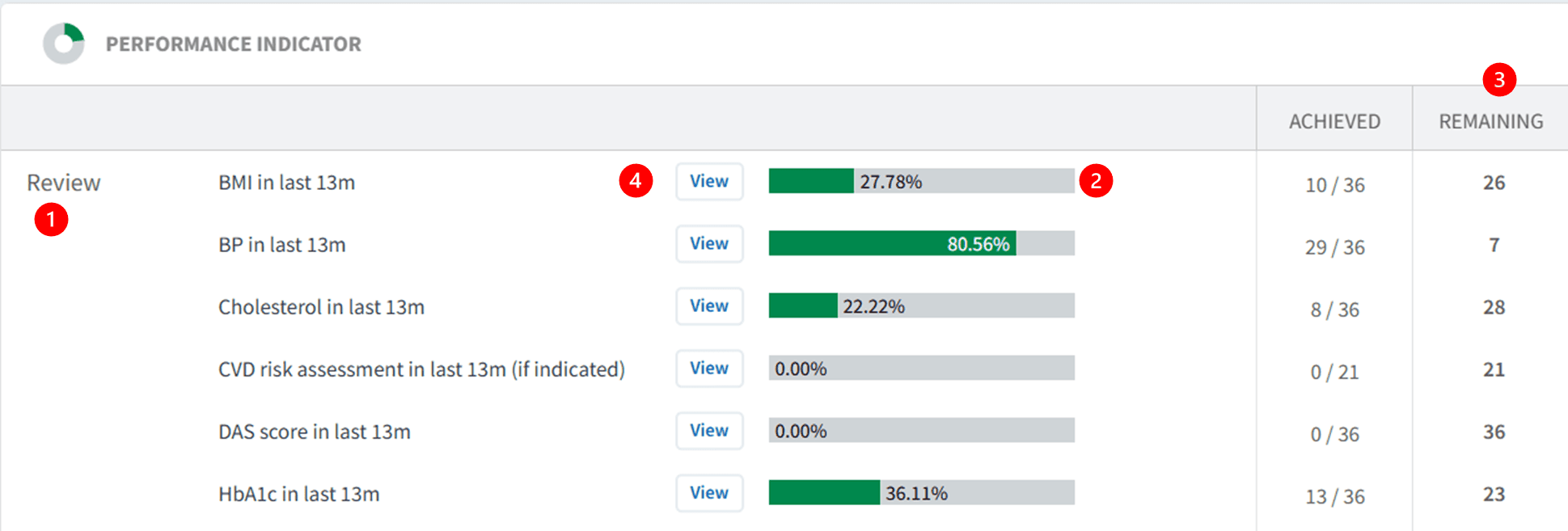
Performance Indicators monitor completion of key care components across MSK & rheumatology pathways, including:
Diagnosis coding.
Structured or annual reviews.
Monitoring requirements.
Target or screening achievement where applicable.
Reviewing performance indicators:
Indicators are grouped by diagnosis, review, target or screening.
Green bars display percentage completion.
The Remaining column highlights outstanding care.
Click View and select Show remaining only to support follow‑up.
⚠️ Please note: Patient data can be exported. Refer to this support article for further information.
Patient View for Follow-up
The Patient View functionality enables clinicians and teams to review outstanding elements of care at an individual patient level.
To access Patient View:
Click View next to the patient’s NHS number
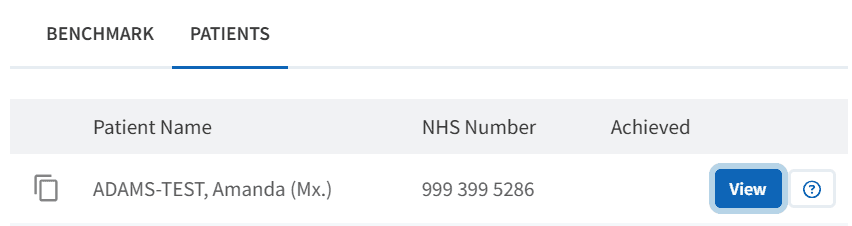
Within the patient view:
View all Ardens Manager findings for the patient across relevant reports
Clearly identify outstanding care elements.
Use this as a prompt prior to reviewing the full clinical record.
To take action:
Click Open in EMIS/SystmOne to review the full clinical record
Assess suitability of alternatives
Consider patient preference and clinical need
Complete any required medication changes
❓ FAQs
What time period does 'Last month activity' refer to?
This reflects activity recorded in the previous calendar month and is updated regularly as data refreshes.
How do case finder reports work?
Case finders identify patients who may meet criteria for diabetes or pre-diabetes but are not coded. These should be clinically reviewed and coded appropriately if confirmed.
🏫 Additional Support
To further your understanding of the Ardens Manager platform:
Book training for your GP Practice, PCN or ICB.
Contact our Support Team for support in real time.