
ℹ️ Introduction
This article explains how to view and export patient lists within Ardens Manager reports. By the end of this article, you will understand how to review patient-level data and export lists for use in your clinical system.
Background
Managing patient populations effectively requires more than aggregated statistics; it requires insight into the individual patients behind the data. Patient-level information identifies specific patients included in reports or dashboards, such as those overdue for a review, vaccination, or routine check.
Access to this information enables teams to filter and prioritise patients based on demographics and clinical needs, supporting proactive care management and performance monitoring.
How Ardens Can Help
Ardens Manager provides access to patient-level data directly from reports and dashboards. This enables teams to quickly identify patients who may require follow-up or review.
With patient-level data access in Ardens Manager, you can:
View individual patients included in reports
Open patient records in your clinical system (EMIS Web and SystmOne)
Export patient lists for further action, such as recall, review, or messaging
🔍View Patient Lists
Open the relevant Ardens Manager dashboard
Locate a report, and click View to open the Single Report page
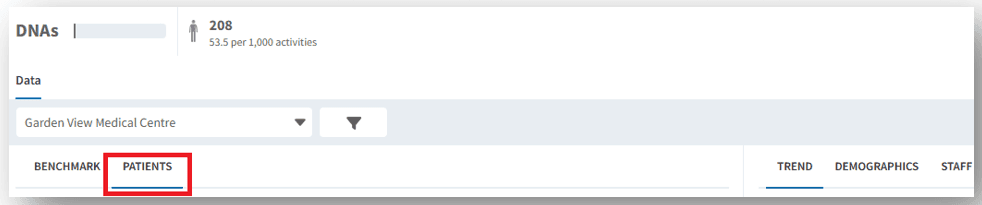
Select the PATIENTS tab to display the list of patients included in that report
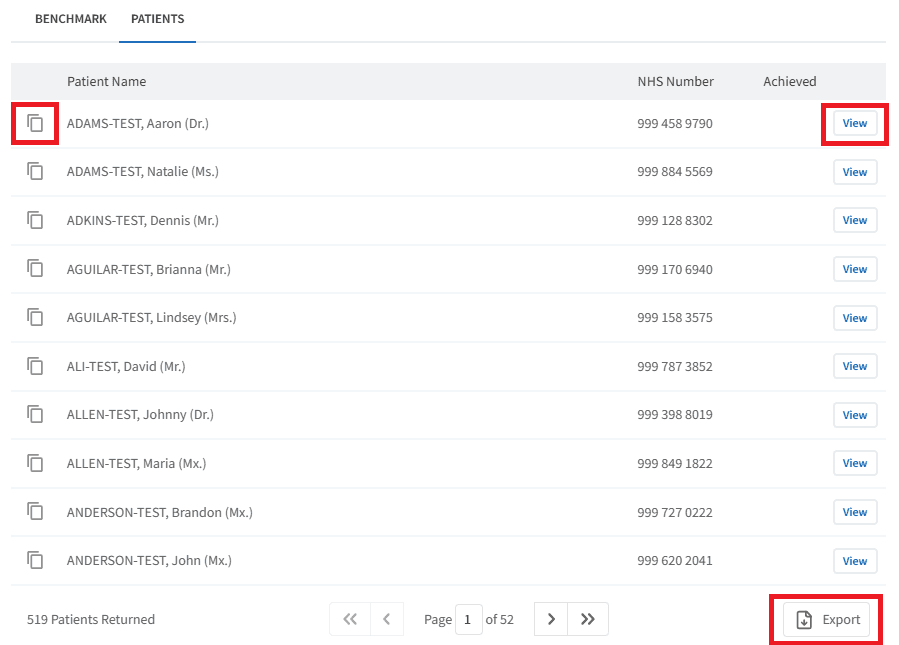
The following actions are available:
Copy: Copies the patient’s NHS number so it can be pasted into your clinical system to access the patient record
View: Opens a patient overview displaying all reports linked to that patient, such as safety alerts, registers, and outstanding actions
Export: Exports the patient list for use outside Ardens Manager
⚠️Please note: Patient-level data is only available when viewing GP practice-level data. Individual patient lists are not available at PCN or ICB group levels.
⬇️Export Patient Lists
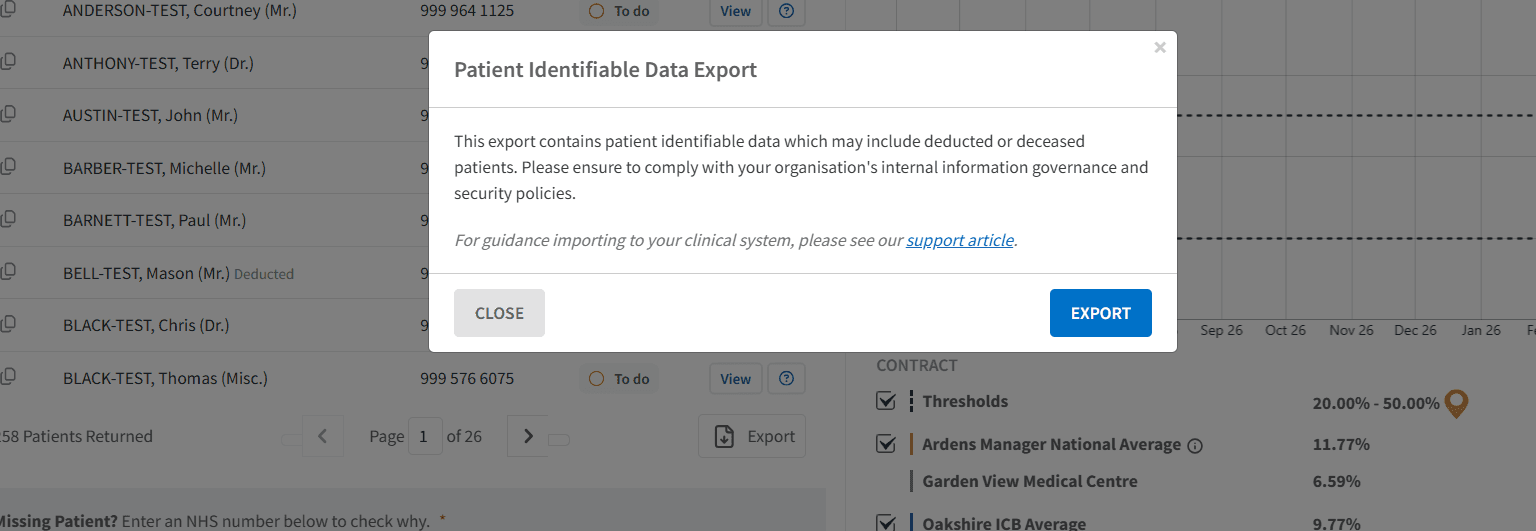
In the PATIENTS tab, click the Export button
Select the option required:
CSV (.csv): A standard spreadsheet file for use with third-party platforms
EMIS Web Import (.txt): Formatted for direct import to EMIS Web
SystmOne Import (.zip): Formatted for direct import to SystmOne
Select EXPORT to download the file to your computer
⬆️Import Patient Lists
If you export a patient list for use in a clinical system, it can be imported to support actions such as recalls, reviews, or patient follow-up. The process differs slightly depending on the system used.
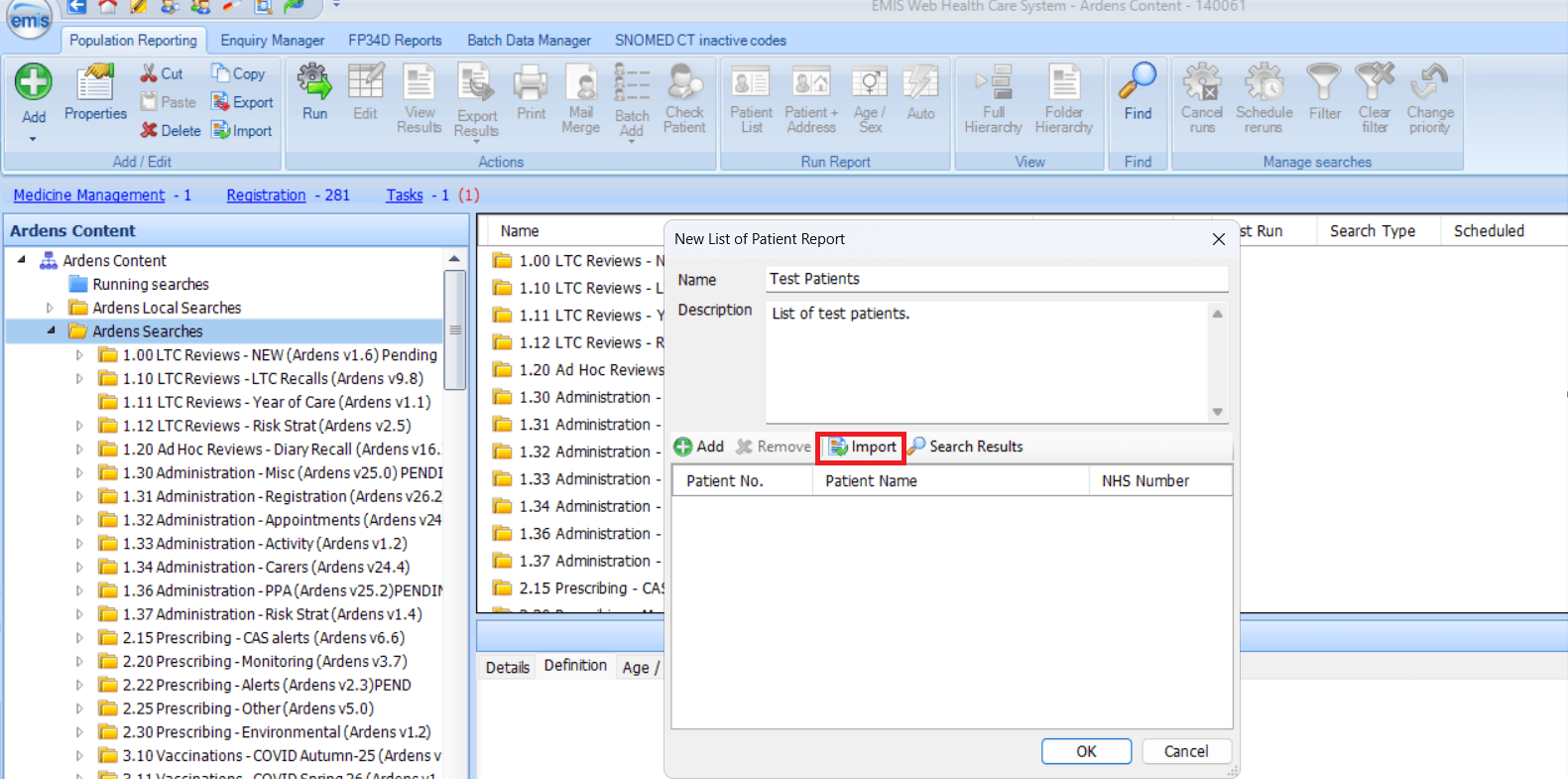
Importing for EMIS Web
Go to Population Reporting
Create or select an existing search folder
Ensure the required folder is selected and click Add > Patient > List of Patients
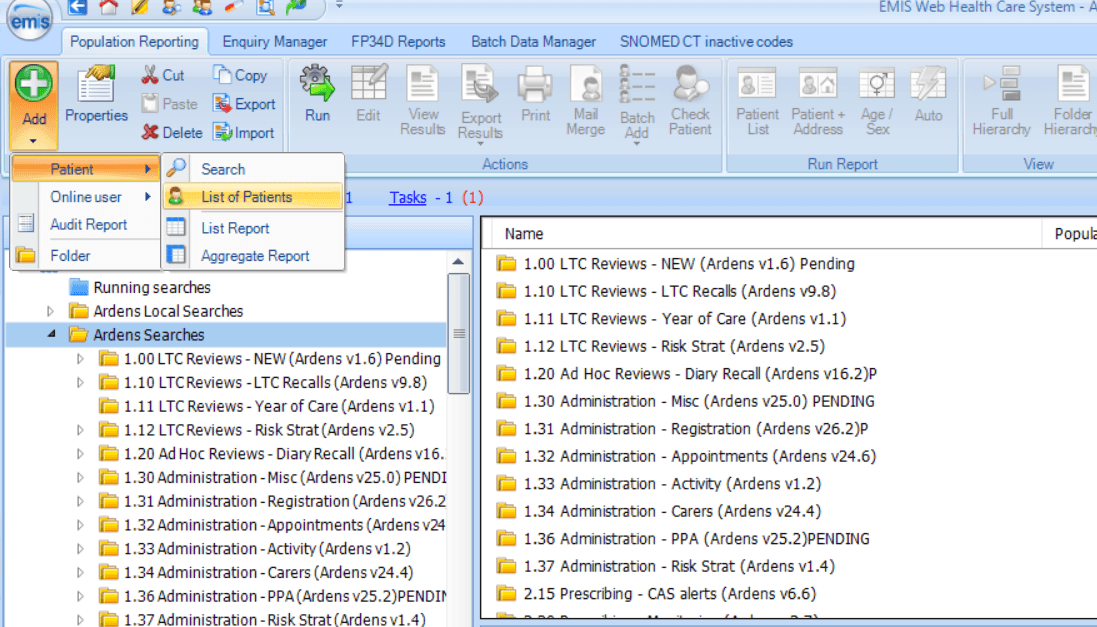
Enter a name and description for the patient list
Select Import, then choose the file you downloaded
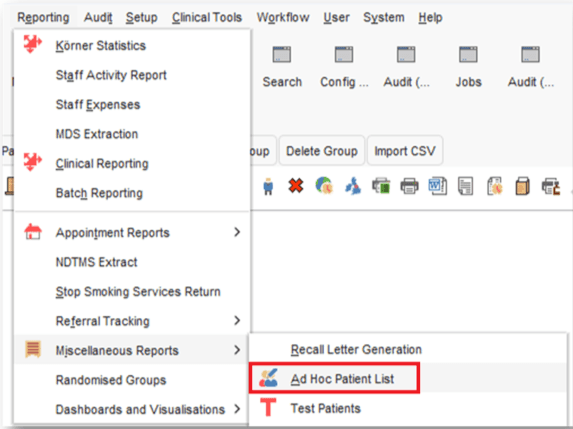
Importing for SystmOne
Go to Reporting > Miscellaneous Reports > Ad Hoc Patient List
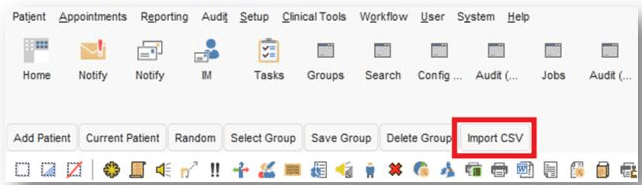
Select Import CSV
Choose the file downloaded from Ardens Manager to import the patient list
❓FAQs
Who can view patient-level data?
Users with patient access enabled who are logged in with a Smartcard and have the appropriate RBAC codes.
Why can’t I view historic patient data?
Patient-level access is only available for the most recent data upload in Ardens Manager.
Can I export patient lists for all reports?
Export options are available on the PATIENTS tab for all reports.
Where can I use exported patient lists?
Patient lists can be imported into clinical systems (e.g., EMIS Web, SystmOne) or used with third-party messaging tools to support recalls or follow-up.
Is patient data available at PCN/ICB level?
No. Patient-level data is currently only available when viewing individual GP practice data.
🏫Additional Support
To further your understanding of the Ardens Manager platform:
Book training for your GP Practice, PCN or ICB
Complete the Getting Started with Ardens Manager academy module
Contact our Support Team for support in real time