
ℹ️ Introduction
This article explains how to use the Patient Review and Snooze functionality within Ardens Manager to record review activity, track completed work, and manage patients within operational and clinical workflows. By the end of this article, you will be able to add reviews against patients, apply snooze statuses to reports, and understand how this functionality improves visibility of outstanding work across dashboards and patient lists.
Background
Previously, users could not manually exclude patients from reports within Ardens Manager. This meant:
Report counts were not always an accurate reflection of outstanding work
Teams could not easily identify which patients had already been reviewed or contacted
Patients could repeatedly appear in operational workflows even where action had already been completed
The Patient Review and Snooze feature has been introduced to improve visibility and workload management across proactive care, safety alerts, prescribing workflows, and operational reporting.
How Ardens Can Help
The Patient Review and Snooze functionality within Ardens Manager helps practices and PCNs manage operational and clinical workflows more effectively by providing greater visibility of completed and outstanding work.
Using this functionality, users can:
Record review activity against patients
Add contextual notes against one or multiple reports
Temporarily or permanently snooze patients from active worklists
Reduce duplicate review work across teams
Improve accuracy of “work to do” counts across dashboards and reports
This helps teams:
Better understand remaining workload
Quickly identify which patients have already been reviewed or contacted
Reduce repeated review of patients where action has already been completed
Manage proactive care and operational workflows more consistently across teams
📍 Access Patient Review
The Review functionality is available within the Patient View.
There are two ways to access this:
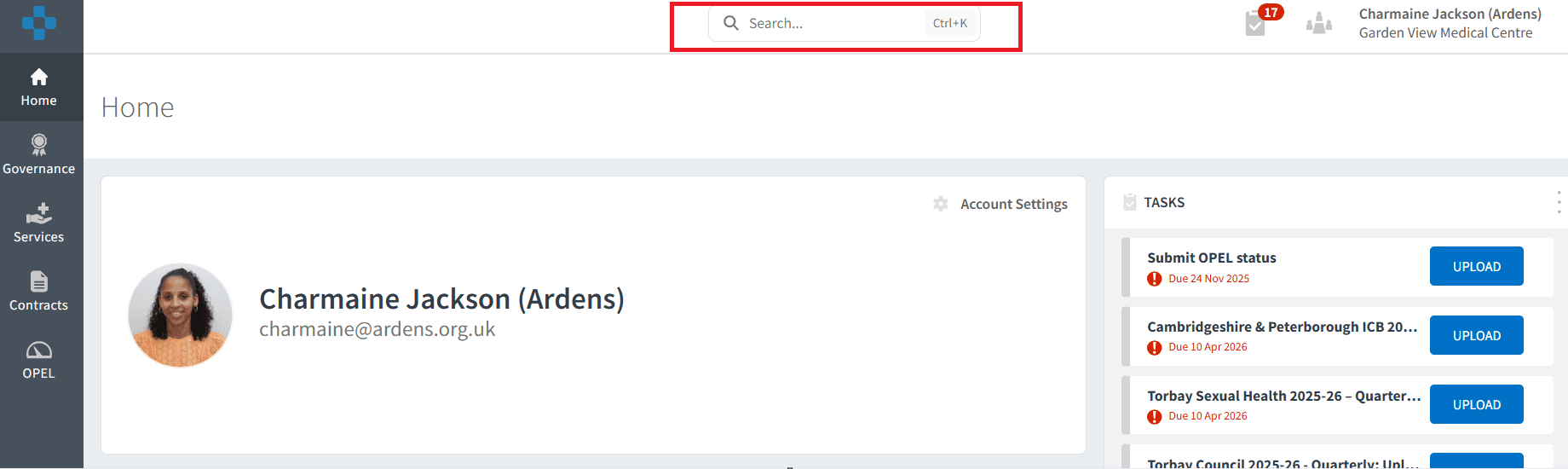
Search for a patient using the search bar at the top of the page using their NHS number
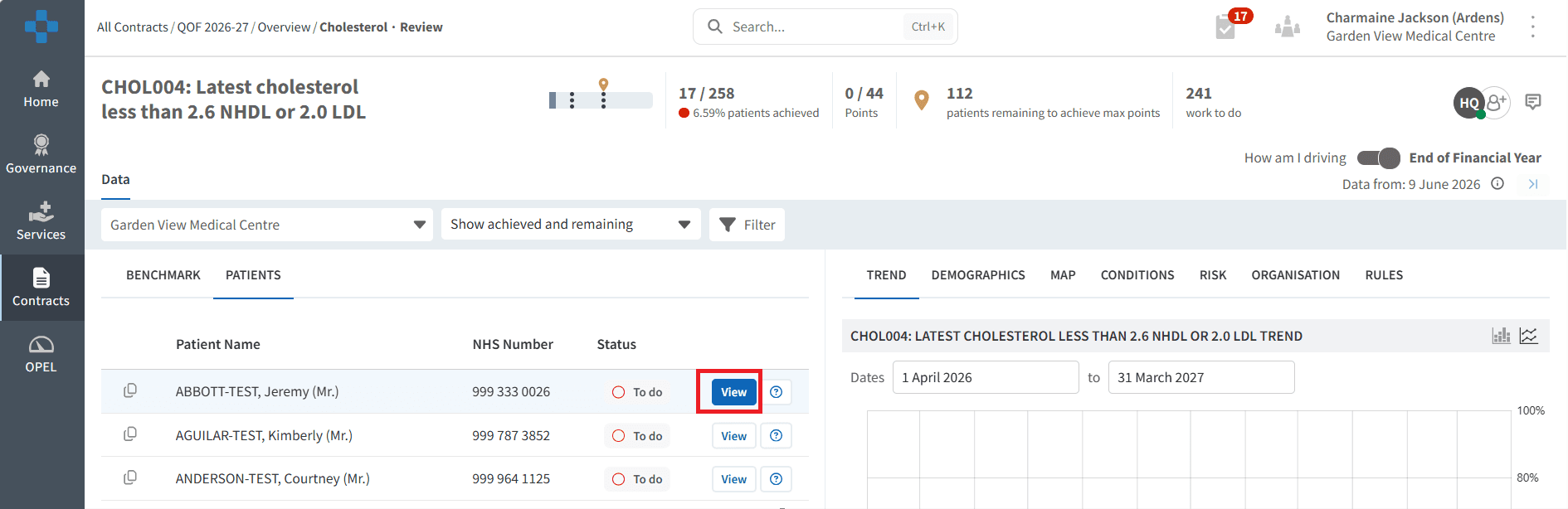
Open a patient directly from a report by selecting the View button within the patient list
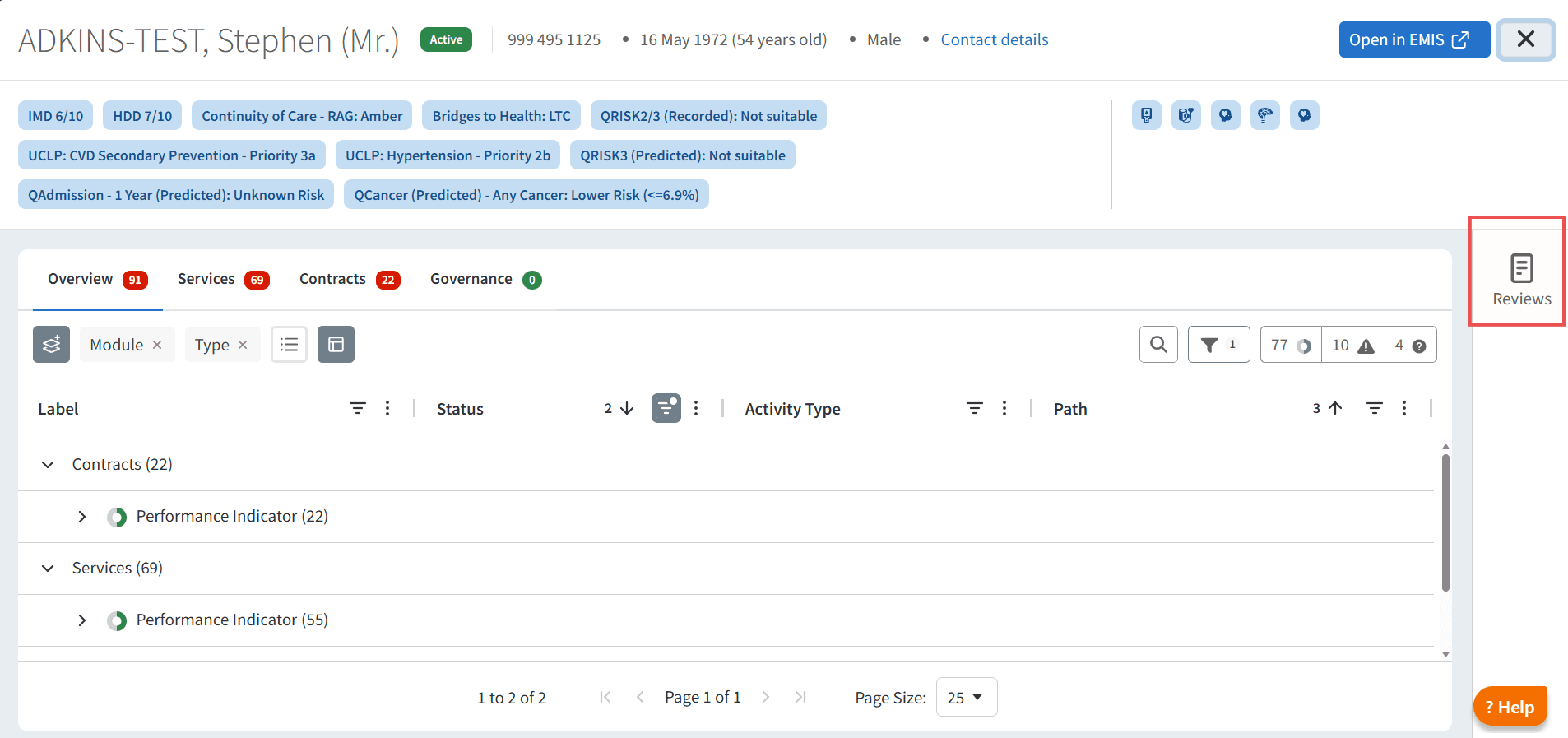
Both methods open the Patient View, where the Reviews panel is displayed on the right-hand side.
The Review functionality is available on reports that inherently require work to do, including:
Safety Alerts
Performance Indicators
Case Finders
Other report types can also be configured to support this functionality where appropriate.
🔎 View Existing Reviews
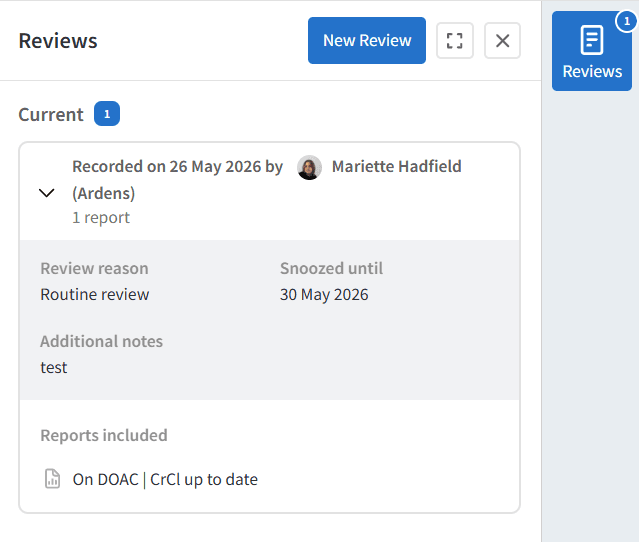
Opening the Reviews tray displays any current or expired reviews previously added for the patient.
Selecting an existing review will display:
Review details
Associated reports
Snooze status information
Notes previously entered by users
This helps teams understand what action has already been completed and improves continuity when multiple users are working through the same operational workflows.
Create a New Review
To add a new review:
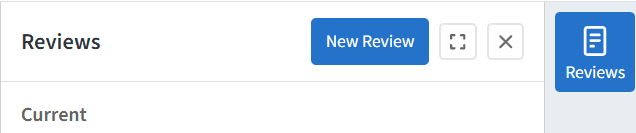
Open the Reviews tray within the Patient View
Select New Review
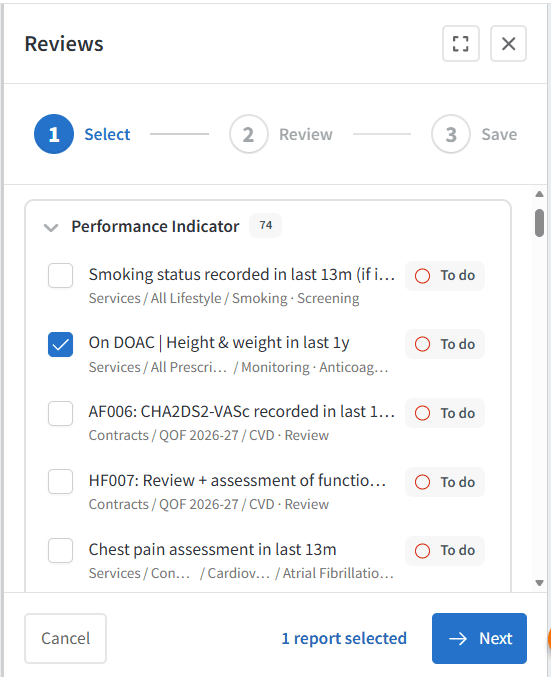
Choose the report or reports you want the review to apply to
Click Next
A single review can be applied across multiple reports simultaneously. By default, the To do filter is applied to help users focus on active workload items.
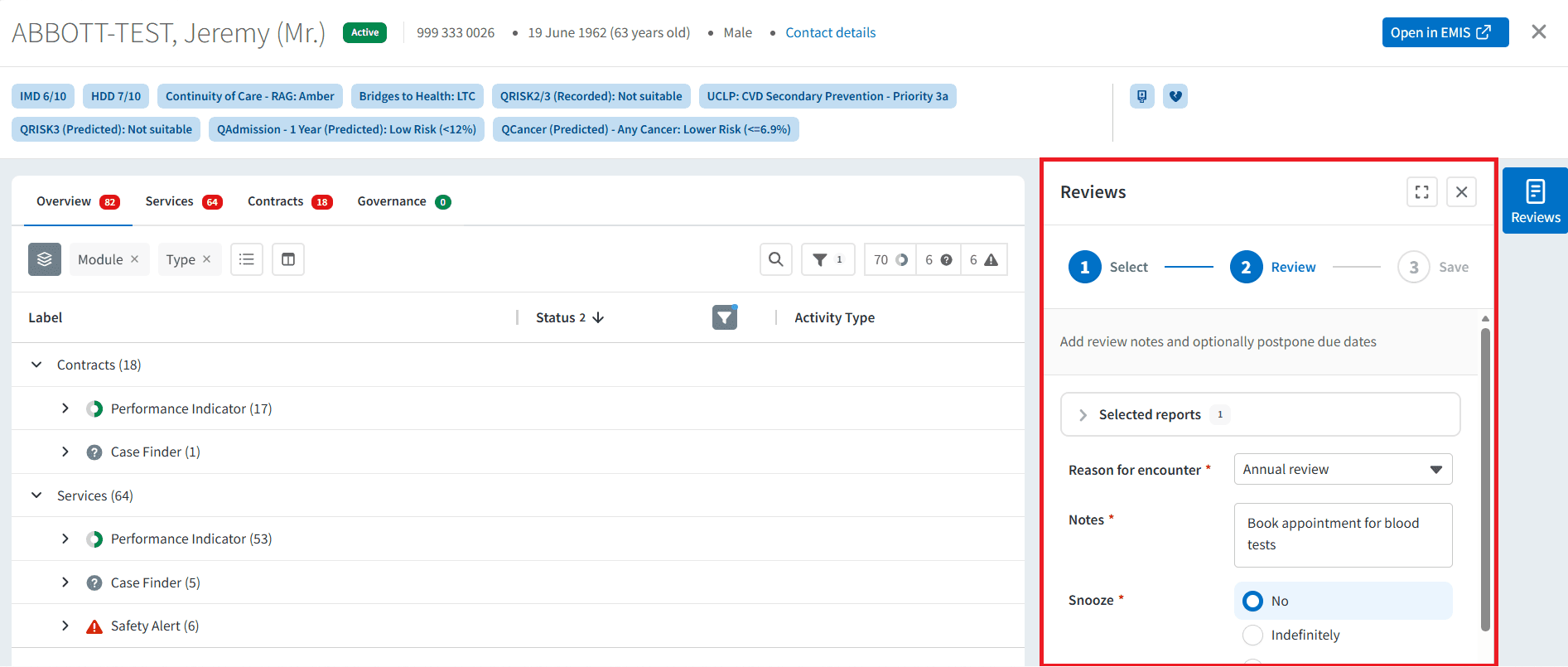
Add Review Notes & Snooze Status
After selecting the relevant reports, enter the details of the review completed.
At this stage, you can also choose whether to snooze the patient for the selected report(s).
The available snooze options are:
Snooze Options | Description |
No | Adds a review only and does not change the patient's status. |
Indefinitely | Permanently removes the patient from the active work to do count. |
Until | Removes the patient from the "work to do" count until a selected future date. |
This allows teams to manage different workflow scenarios appropriately.
Save and Copy the Review
Once the review details and snooze settings have been entered:
Check the summary information
Select Save & Copy
Saving the review will:
Update the patient’s review status
Apply the snooze status (if selected)
Automatically copy the review details to your clipboard
The copied text can then be pasted directly into the patient record within the clinical system to support consistent documentation across systems.
⚠️ Please note: We are working to automate this step and plan to make this functionality available later this year.
View Snoozed Patient Statuses
Patients with an active snooze status remain visible within patient lists but are clearly marked as snoozed.
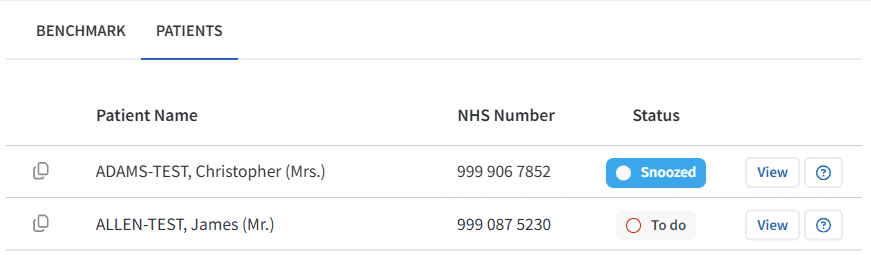
⚠️ Please note: Hover over the snoozed icon to view details of the review.
This helps teams quickly identify:
Patients already reviewed
Patients deferred until a future date
Patients removed from active workflow
Work to do counts displayed across dashboards and reports are automatically adjusted to exclude snoozed patients, helping provide a more accurate representation of remaining workload.

This functionality is available across:
Dashboard report counts
Single report pages
Patient lists
The Patient View
💡 Example Use Cases
Case Finding: Patients can be marked as reviewed and snoozed indefinitely where coding is unavailable or no further action is possible, allowing work to do counts to accurately reduce to zero
Safety Alerts and Prescribing Workflows: Users can record completed actions, such as arranging monitoring or future blood tests, and snooze the patient until follow-up is due
Performance Indicators: Patients can be marked as reviewed where indicators cannot reasonably be achieved despite clinical review or intervention
❓ FAQs
Can I apply one review to multiple reports?
Yes. A single review can include multiple reports, allowing users to complete related workflow actions at the same time.
Does snoozing remove the patient from the report completely?
No. The patient remains visible within the report and patient list but is excluded from active work to do counts while snoozed.
What happens when a snooze date expires?
Once the snooze date is reached, the patient automatically returns to the active work to do count for that report.
Can I still view previous reviews after a patient is snoozed?
Yes. All current and expired reviews remain visible within the Reviews tray in the Patient View
🏫 Additional Support
To further your understanding of the Ardens Manager platform:
Book training for your GP Practice, PCN or ICB
Complete the Getting Started with Ardens Manager academy module
Contact our Support Team for support in real time