
ℹ️ Introduction
This article explains how to use the Trends & Targets feature in Ardens Manager to monitor activity over time and set trajectory targets. By the end of this article, you will understand how to proactively track performance and progress towards goals.
Background
Primary care teams often need to understand how performance changes over time and measure progress against planned targets. Without clear trend insights or trajectory tracking, it can be difficult to identify variation, spread workload efficiently or recognise when performance is drifting off track. The Trends & Targets feature combines visual trend analysis with local target setting to support proactive performance management.
How Ardens Can Help
The Trends & Targets feature in Ardens Manager enables you to visualise performance over time at practice, PCN, ICB or other organisational group levels, helping you identify trends, monitor variation and track progress.
You can set local trajectory targets to compare performance against agreed benchmarks, including contractual indicators where applicable.
You can also apply one or more breakdown filters (such as age, deprivation, clinical condition or staff member) to analyse how different population groups perform over time. Multiple filters can be combined to create an aggregated trend, making it easier to identify patterns, monitor inequalities and compare performance across groups.
Key benefits include:
Monitoring progress against expected performance throughout the year
Supporting more effective planning and resource allocation
Providing visual evidence for performance reviews or commissioning discussions
How to Access
Open the relevant Ardens Manager dashboard
Locate a report, and click View to open the Single Report page
By default, the Trend tab is selected on the right-hand side of the screen
📈Trends
Select an organisation on the left-hand side of the screen to view individual data. To view the entire group, leave all organisations unselected.
Update the time frame using the Dates fields.
Change the graph type (bar or line) as required.
Use the legend below the chart to select or deselect organisations, averages and thresholds displayed on the graph
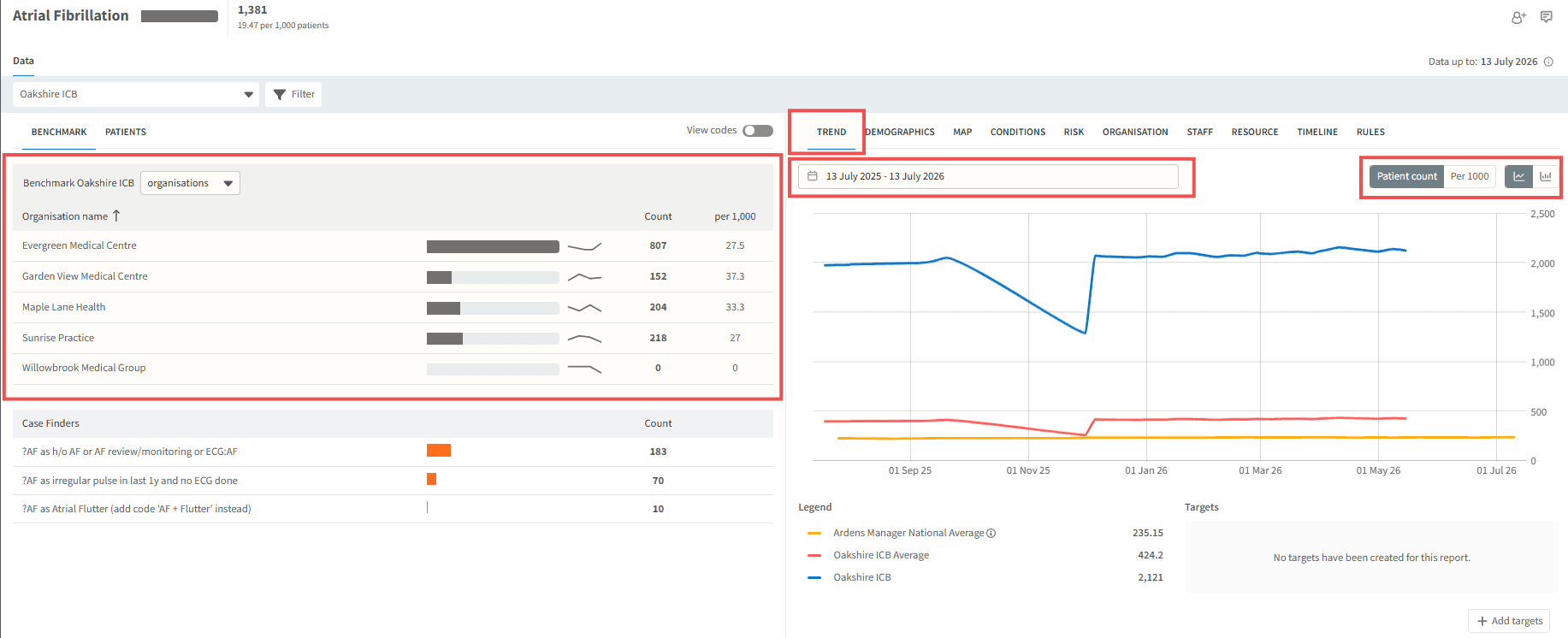
⚠️Please note: Group-level (e.g. PCN or ICB) trends are calculated from organisations within the group that have accepted the data sharing agreement and have uploaded data. If you see gaps in PCN data, it is likely that not all practices within the group have uploaded data for the same timeframe.
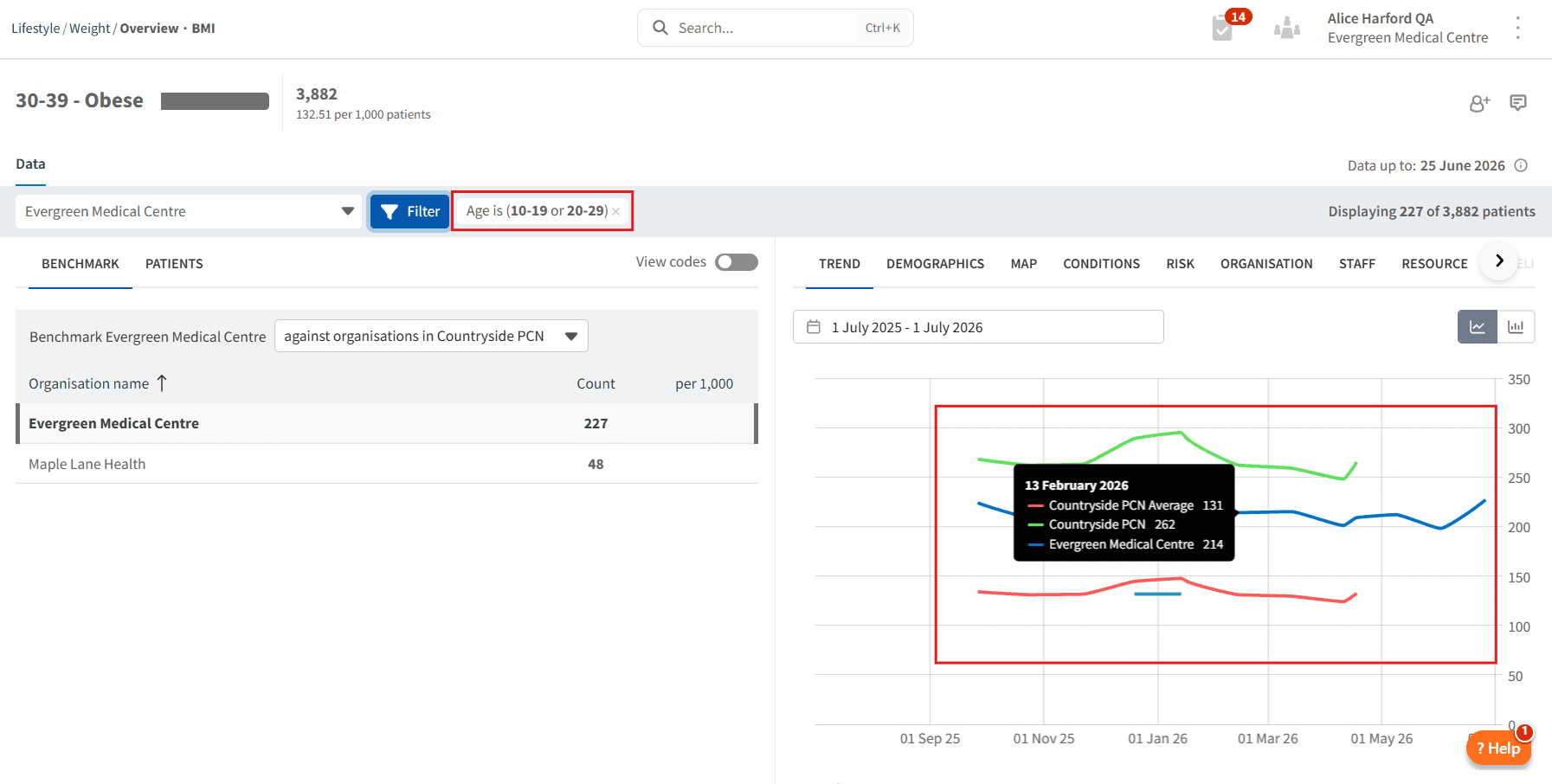
💡 Enhancement: Trend graphs now automatically reflect any breakdown filters you apply, allowing you to analyse filtered data over time directly within Ardens Manager. Combine multiple filters to create an aggregated trend and benchmark performance against other organisations or group averages.
Example uses:
Analyse how obesity rates have changed over time for patients aged 10-19 and 20-29
Compare prescribing trends by GP or other staff members to support workforce planning
Combine multiple filters to understand trends for specific patient cohorts
🎯Targets
At the bottom of the Trend tab, click +Add target

Click Add new target
Enter Start date / Start value / End date / End value
Click the Save icon

The target will appear as an overlay line on the trend chart. Local targets can be displayed alongside contractual targets where applicable, and you can add multiple targets for different reporting periods.

⚠️Please note: You can only add targets for the organisation you are currently logged into. However, you can view targets set by any organisation within your data sharing agreement.
❓FAQs
Who can set targets?
You can only add targets for the organisation you are logged into, but you can view targets set by others in your data sharing group.
Why are there gaps in my trend chart?
Group-level trends (e.g., PCN) may show gaps if not all practices in the group have uploaded data for the same timeframe.
Can I compare local targets with contractual targets?
Yes, localised targets can be shown in comparison with contractual targets if applicable.
How do I remove or edit a target?
To remove a target click on the x next the target set line.
🏫Additional Support
To further your understanding of the Ardens Manager platform:
Book training for your GP Practice, PCN or ICB
Complete the Getting Started with Ardens Manager academy module
Contact our Support Team for support in real time