
ℹ️ Introduction
This article explains how to view and monitor Local Contract activity within Ardens Manager. By the end of this guide, you will be able to navigate Local Contract dashboards, review performance and payment data, understand reporting rules, and access patient-level activity to support contract delivery and reporting.
Background
Local Contracts require accurate, consistent, and timely recording of activity to support monitoring, reporting, and payment calculations. Although activity is often recorded within the clinical system, understanding how this translates into contract performance can be difficult without a centralised reporting view.
Ardens Manager brings together Local Contract activity into a single dashboard, enabling organisations to:
Monitor performance against contract requirements
Understand population‑level delivery
Identify activity gaps and variation
Improve data quality
Support operational and financial planning
This helps ensure contract reporting is transparent, standardised, and aligned with commissioner requirements.
How Ardens Can Help
Ardens Manager supports Local Contract monitoring through dedicated dashboards and reporting tools designed to simplify oversight and improve visibility of contract activity.
Using Ardens Manager, you can:
Access dedicated dashboards for each locality or contract area
Monitor activity, performance, and payment information
Review centrally maintained contract rules and reporting logic
View report criteria, inclusions, and exclusions for transparency
Filter dashboards by activity type or service area
Upload organisational activity where required
Export reports in PDF or CSV format for submissions or reconciliation
Assign reports to team members for follow-up or review
By consolidating activity and payment information into one platform, Ardens Manager helps reduce administrative workload and supports proactive contract management.
✅Included in Ardens Manager Local Content package: Interested in finding out more or requesting a trial? Contact accounts@ardens.org.uk
📍 Access the Dashboard
Log in to Ardens Manager
Select Contracts on the left panel
Select your local dashboard
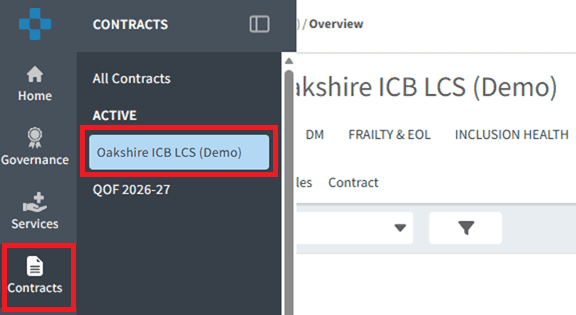
🧭 Navigate the Dashboard
When opening the dashboard, you will be directed to the Overview tab by default. This provides a summary of contract activity and performance data.
Additional service-specific tabs may also be available depending on your contract setup, for example:
Procedures
Health Checks
Screening
Long-Term Conditions
These tabs allow users to focus on specific contract areas and monitor activity in more detail.

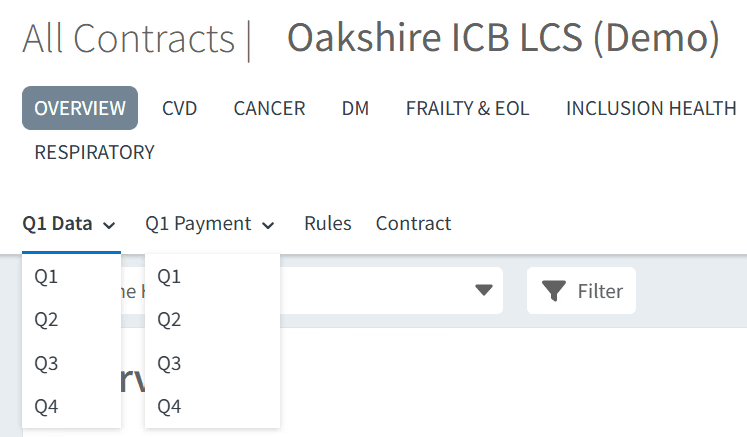
Reporting periods are configured according to commissioner requirements and may be set monthly or quarterly:
M1 = April
Q1 = April-June
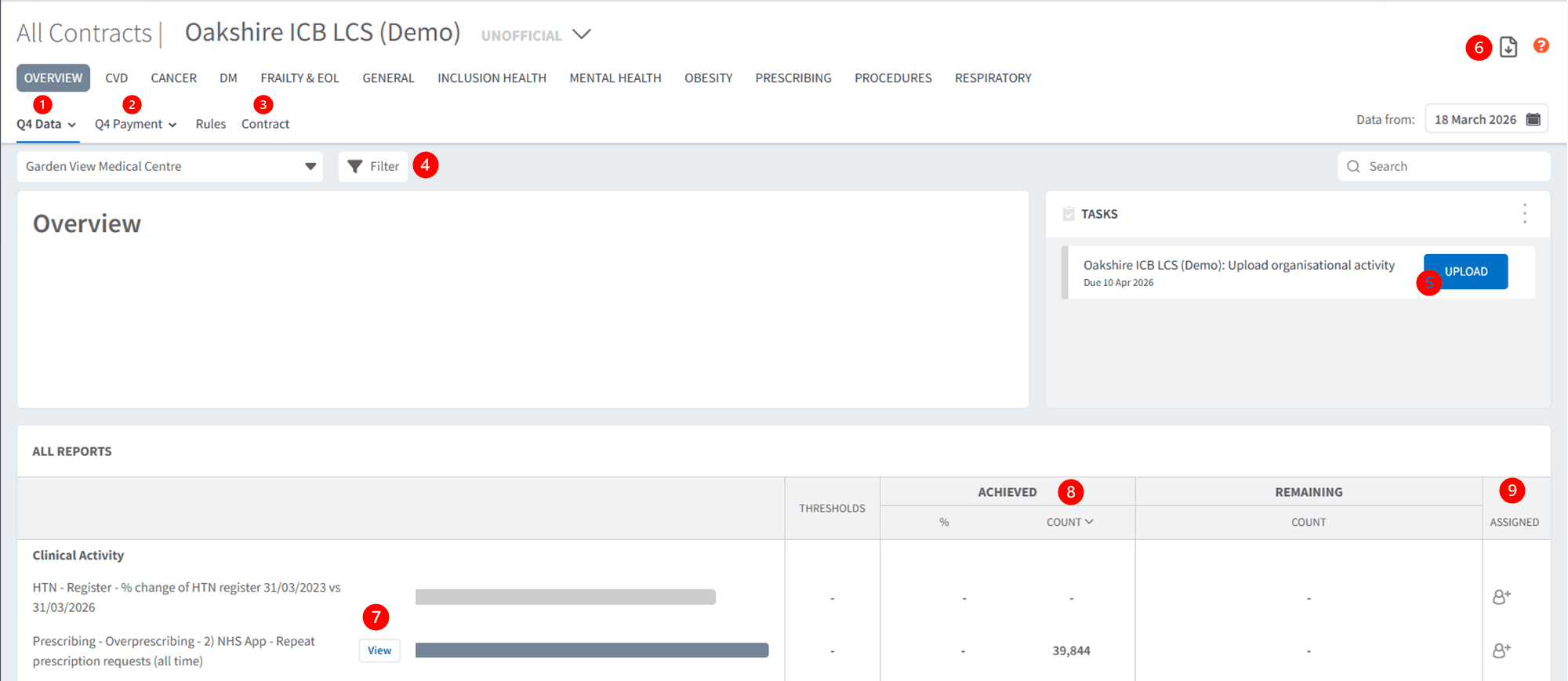
The dashboard can be further navigated as follows:
Select your reporting period to monitor performance data.
Select your reporting period for payment data.
View contract details, including report criteria and payment information.
Use the Filter to show only the report types you want to view.
Click Upload to submit Organisational Activity (where required).
Export data by PDF or CSV format.
Click View to open the report breakdown and patient list.
The Count column shows the number of patients or activities included in the report.
Use Assign to allocate reports or actions to team members.
🔎 View Report Criteria
Each Local Contract report includes interactive business rules to provide transparency around how activity is calculated.
Select View next to the required report.
Select the Rules tab.
Review the full reporting logic applied to the report.
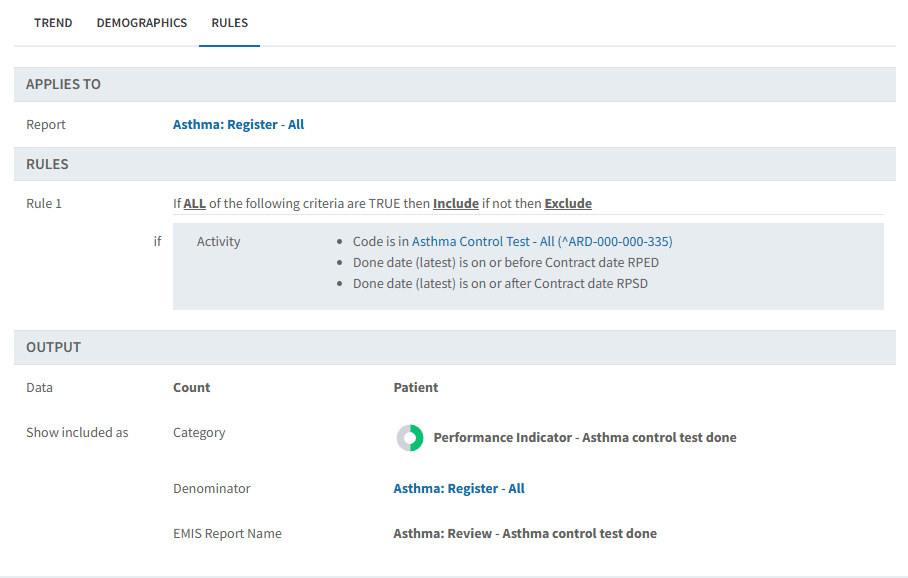
For more information on rules and reporting logic, refer to the related support article.
❓ FAQs
Why does my performance differ from figures recorded in EMIS/SystmOne?
Ardens Manager applies contract‑specific rules, including consultation type, timeframe, code requirements and one‑per‑patient restrictions. These may lead to differences when compared with raw clinical‑system searches.
What should I do if I think activity or patient is missing from a report?
Before contacting Support, we recommend reviewing the relevant Data Quality report and using the Check Patient functionality to understand why a patient or activity has or has not been included.
Why can't I see payment data for some services?
Payment views only display for services where the commissioner provides tariff and payment rules. Some contracts use non‑financial reporting only.
Can I export reports for submission to commissioners?
Yes. Use the Export button (PDF/CSV) to download data for claims, audit or reconciliation purposes.
Can activity completed by a subcontractor be included?
Yes, where supported by the Local Contract. The subcontractor must first be configured within Ardens Manager using the correct ODS code. Find out more in the Subcontractor Activity support article.
PCNs can be added as subcontractors where the Local Contract supports subcontractor activity reporting. This enables eligible activity completed through the PCN to be included within supported reports.
🏫 Additional Support
To further your understanding of the Ardens Manager platform:
Book training for your GP Practice, PCN or ICB
Complete the Getting Started with Ardens Manager academy module
Contact our Support Team for support in real time