
ℹ️ Introduction
This article explains how to access and review the Report Rules and Code Sets in Ardens Manager. By the end of this article, you will understand how to review the logic, criteria and SNOMED codes used to generate dashboard reports.
Background
Ardens Manager dashboards contain a wide range of reports designed to monitor clinical activity, contracts and service delivery across GP practices, PCNs and ICBs. Each report is built using a defined set of business rules, which specify the inclusion criteria, time parameters and clinical codes used to generate the results.
Understanding these rules can help users:
Clarify how reports are calculated
Identify which clinical codes are included in a report
Investigate why patients appear or do not appear in a report
Validate figures for contract monitoring or audit purposes
How Ardens Can Help
Ardens Manager provides transparent, interactive rules for each report, allowing users to review the search criteria and SNOMED code sets used to generate results.
Within the Rules view, users can:
Review the logic used to generate a report
View SNOMED code groups and clusters
Explore linked reports that use the same code sets
Understand the parameters and conditions applied to the data
This functionality helps users interpret dashboard results with confidence and investigate discrepancies where required.
📍Accessing Report Rules
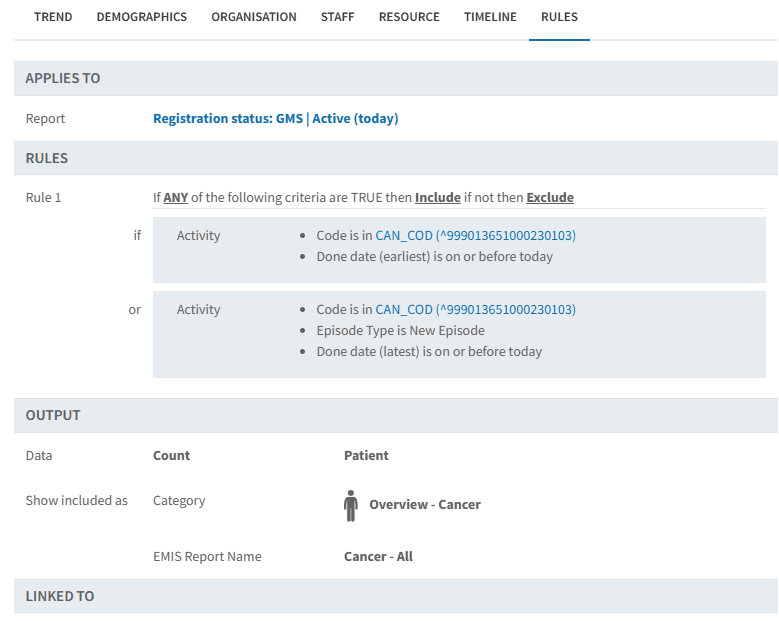
From a Report
Login to Ardens Manager
Navigate to the required dashboard
Locate the report, and click View to open the Single Report page
Select the RULES tab on the right-hand side of the screen
From a Dashboard
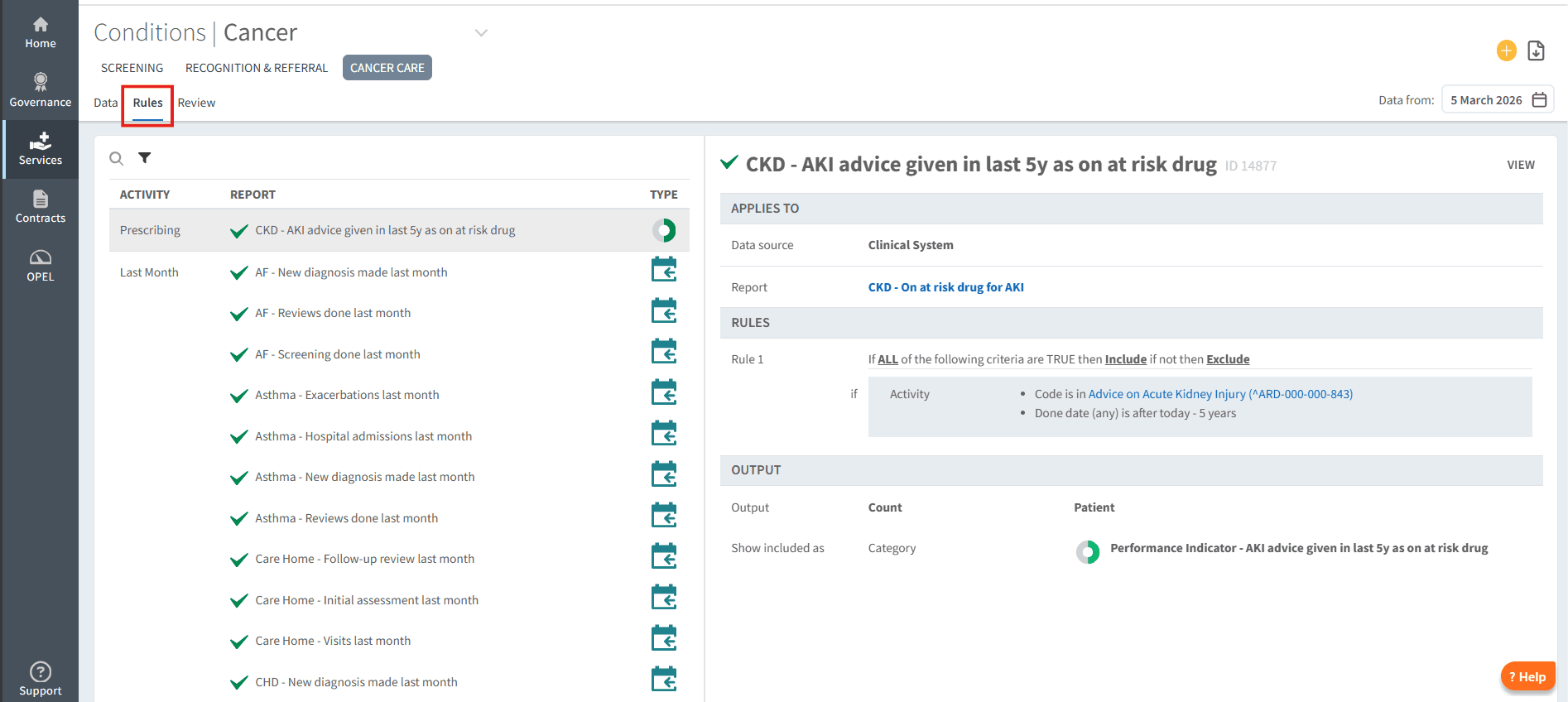
Open the relevant Ardens Manager dashboard
Select the Rules tab located at the top of the dashboard
A list of report rules will be displayed
Select the required rule to open and review the rule set
🧠Understanding Rules & Code Sets
Each report rule provides transparency about how the report is calculated. Typical information shown may include:
The source of the report
Conditions required for inclusion
Any date ranges or parameters applied
SNOMED code sets or clusters used in the search
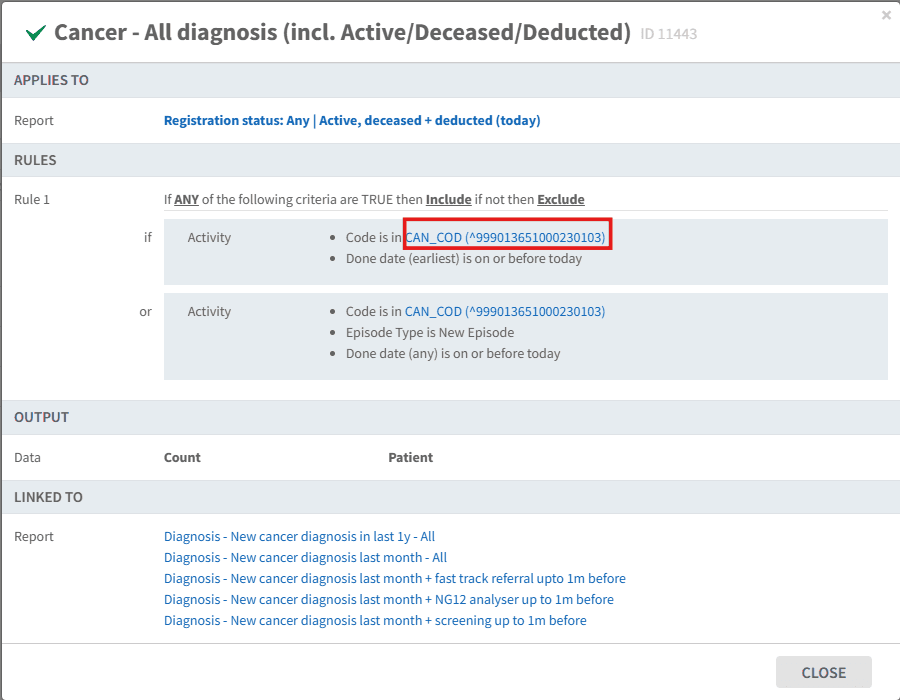
Some reports include code clusters or grouped code sets. To view the codes:
Click the blue hyperlink within the rule
A detailed view will open, displaying the SNOMED codes included in that cluster
Additional information, such as time parameters or linked reports, may also be shown
This allows users to fully understand which clinical codes are included within the report logic.
❓FAQs
Why would I need to view the report rules?
Viewing the rules helps you understand how a report is calculated and which criteria determine whether patients or activity are included.
Why might figures differ from reports in my clinical system?
Ardens Manager uses centrally maintained logic and standardised code sets, which may differ slightly from locally built searches. Reviewing the rules can help explain these differences.
Can I see which other reports use the same code sets?
Yes. When viewing a code cluster, linked reports that use the same code set may be displayed.
What do the contract date acronyms mean?
When reviewing contract rules, you may see the following abbreviations:
Acronym | Meaning |
RPSD | Reporting Period Start Date |
RPED | Reporting Period End Date |
PPSD | Payment Period Start Date |
PPED | Payment Period End Date |
QSSD | Contract Start Date |
QSED | Contract End Date |
🏫Additional Support
To further your understanding of the Ardens Manager platform:
Book training for your GP Practice, PCN or ICB
Complete the Getting Started with Ardens Manager academy module
Contact our Support Team for support in real time