
ℹ️ Introduction
This article explains how to install and use Ardens Desktop with Ardens Manager. Ardens Desktop connects Ardens Manager with your clinical system, making it easier to move between patient records while reviewing dashboards and reports.
Background
When reviewing patient lists within Ardens Manager dashboards, users often need to open the corresponding patient record in their clinical system to review or take further action.
Ardens Desktop is a lightweight application installed on your device that connects Ardens Manager with your clinical system using NHS IM1 Pairing Integration. It runs in the background on your device and automatically connects to your clinical system when it is open. This enables you to open patient records directly from Ardens Manager and quickly switch between records using the Swap Patient feature.
How Ardens Can Help
Ardens Desktop improves workflow by allowing users to move directly from dashboard insights to patient records. Once installed, users can:
Open a patient record directly from a report
Quickly review patient details in their clinical system
Use the Swap Patient feature (Version 2) to move between the same patient record in both applications.
Take action on patients identified through Ardens Manager dashboards
⚙️ Before You Begin
Uninstall v1
If you already have the original Ardens Desktop version 1 installed, we recommend uninstalling it before installing Version 2.
To uninstall v1:
Open the start bar
Search for Ardens Desktop
Once you found it, you should see an option to uninstall (right-click on the app if not)
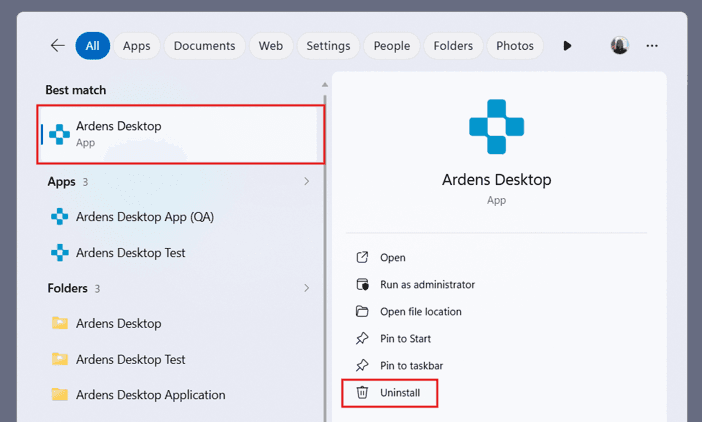
You might be redirected to Windows where you should continue the uninstallation process

You can now begin the process of installing version 2
System Requirements
Ardens Desktop requires the following minimum specifications:
Windows 10 or Windows 11 (64-bit)
8 GB memory
10 GB available storage
A current installation of EMIS Web or SystmOne
⚙️Install Ardens Desktop
Download and Install
Before installing Ardens Desktop, please ensure you follow any local IT approval processes within your organisation.
To complete the initial installation of Ardens Desktop, follow the steps below:
Download the latest Ardens Desktop Version 2 installer via this link
Locate and open the downloaded file
Select Install
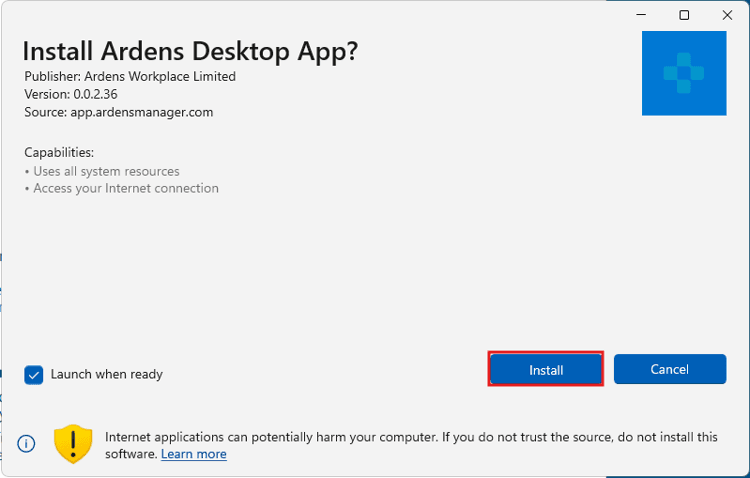
Once the installation has completed, select Launch.
The application may take a few moments to open. Once loaded, you will see the login screen.

⚠️ Please note: Once the application is installed it will open every time your computer starts. It usually runs in the background rather than staying open as a large desktop window. To confirm it is running, look for the Ardens icon in the Windows system tray at the bottom right of your screen
ℹ️ For IT Teams: If you are planning to deploy the software across multiple devices please contact us for more information on deploying via InTune.
Sign In
To use Ardens Desktop V2, you will need to sign in using your NHS CIS2 credentials.
Select Login
Sign in using your NHS CIS2 credentials
Once authentication is complete, Ardens Desktop v2 is ready to use
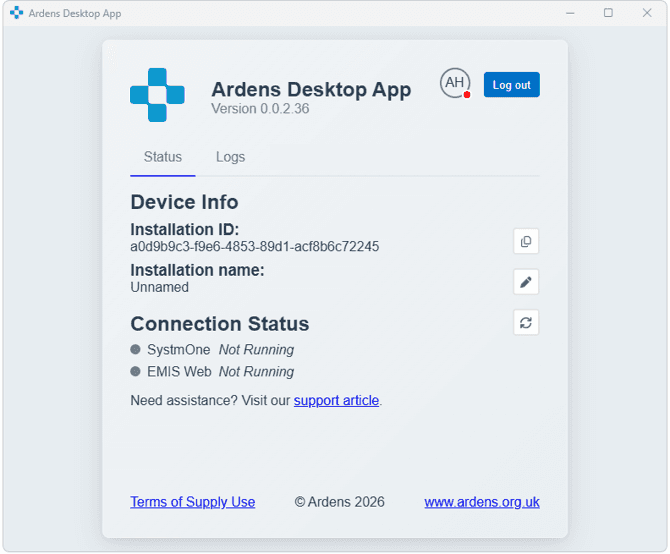
⚠️ Please note: You will need to log in each time you wish to use the app to open Patients in Ardens Manager.
Device Approval (SystmOne)
Once the installation is complete, Ardens Desktop will attempt to connect to SystmOne automatically.
When the connection is made for the first time, SystmOne will display a prompt to approve the device connection. Review the connection request and select Approve to allow Ardens Desktop to connect.
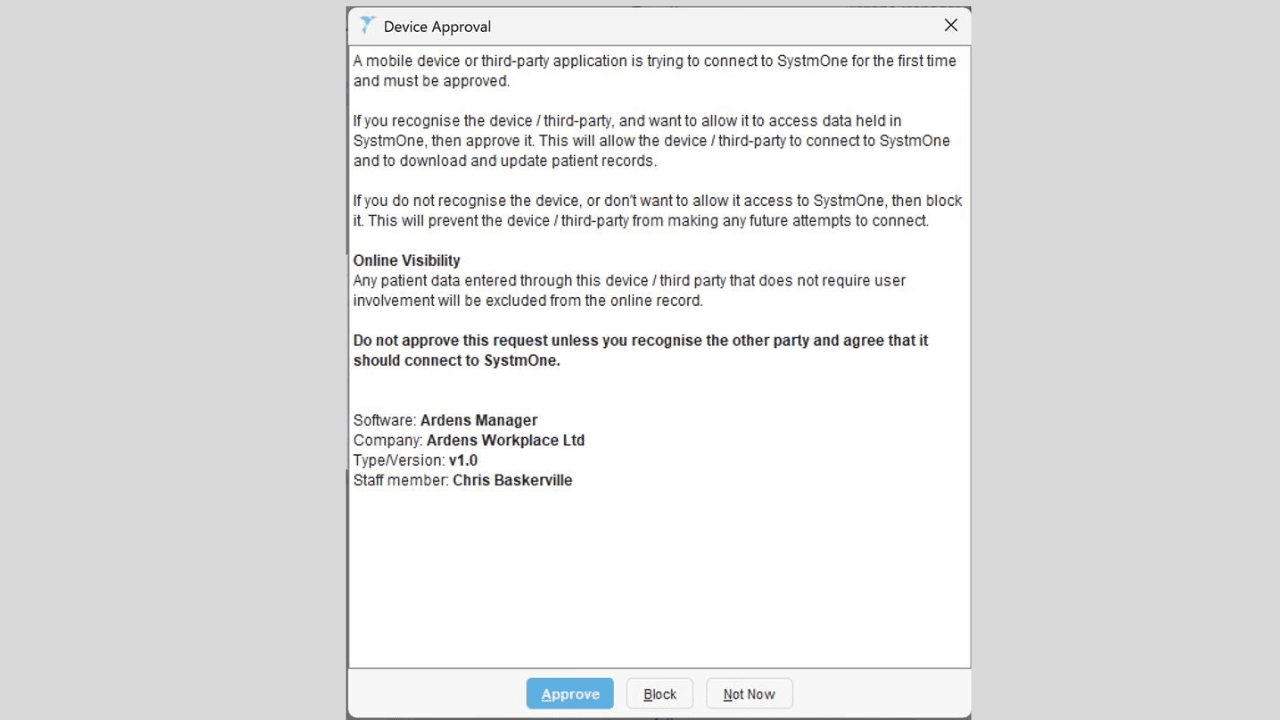
Once approved, Ardens Desktop will be able to open patient records directly from Ardens Manager.
⚠️ Please note: This step is only required once per device.
Checking Connection Status
Ardens Desktop runs in the background and links Ardens Manager to your clinical system.
You can check the connection status from the system tray (bottom right corner of your screen).
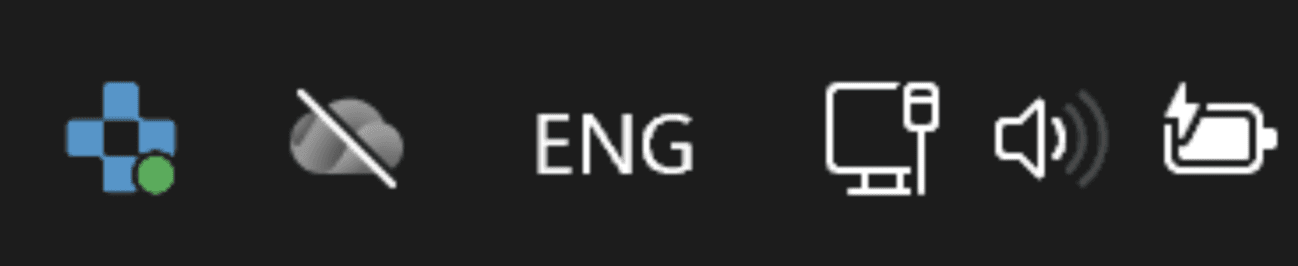
The icon colour indicates the connection status:
Green icon – Successfully connected
Red icon – Not connected
If the icon shows red, ensure your clinical system is open and that you are logged in.
If Ardens Desktop is installed but not working, close both the Ardens Desktop and your clinical system, then reopen Ardens Desktop first, then reopen the clinical system.
🔎 Open a Patient Record
Once Ardens Desktop is installed, you can open a patient record directly from a report. Ensure Ardens Desktop is running and shows a green connection status in the system tray.
Open the relevant Ardens Manager dashboard
Open a report and navigate to the PATIENTS tab
Select View next to a patient
In the Patient View, select Open in EMIS / SystmOne
The patient record will automatically open in your clinical system.
⚠️ Please note: Ardens Desktop Version 2 also includes the Swap Patient feature, allowing you to quickly switch between the same patient record in Ardens Manager and your clinical system.
🔒Information Governance
Ardens Desktop does not store identifiable patient data. It only interacts with the clinical system to open a patient record and does not read or write information to the record.
The application adheres to strict information governance and clinical safety standards, supported by external accreditation and regular penetration testing.
❓FAQs
Do I need Ardens Desktop to use Ardens Manager?
No. Ardens Manager can still be used without Ardens Desktop. However, Ardens Desktop enables you to open patient records directly from the platform, improving your workflow when reviewing patients.
I'm having trouble downloading or opening the installation file. What should I do?
If you're unable to download the installer or the installation file won't open, this is usually due to a local device or security setting. Please contact your local IT team for further assistance.
Can I use both versions of Ardens Desktop?
Both versions of Ardens Desktop remain available. However, we recommend using only one version at a time. If you are installing Ardens Desktop Version 2, we recommend uninstalling the original version before installation.
Features such as Swap Patient are only available in Ardens Desktop Version 2.
How can I check if Ardens Desktop is installed?
Look for the Ardens icon in your system tray (bottom right corner of your screen). A green icon indicates the application is connected to your clinical system.
How can I check the connection status to EMIS Web or SystmOne?
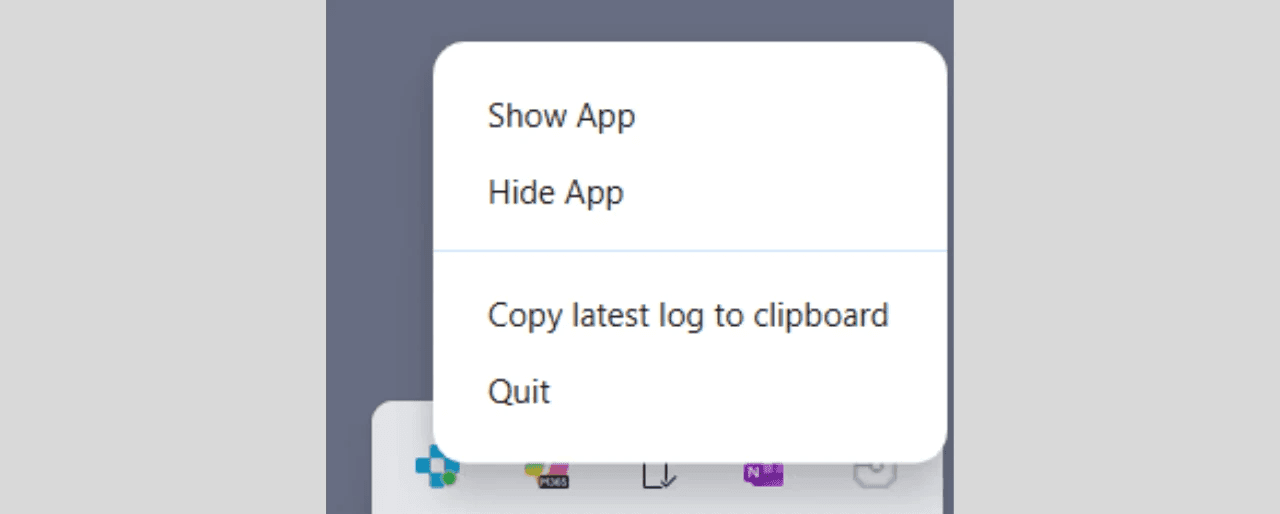
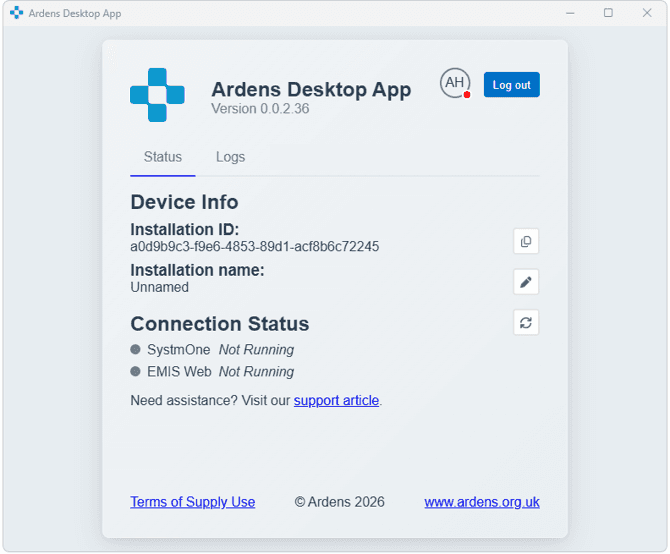
If you are using both SystmOne and EMIS Web you can click on the Ardens icon in your system tray and select Show App which will allow you to view the status for each system.

Why does EMIS Web show as disconnected?
This would suggest a connection issue on your local device. First, quit both EMIS Web & Ardens Desktop - this can be done by right clicking on the Ardens icon in your system tray. Then reopen Ardens Desktop from the Start menu followed by EMIS Web. Once you have logged into EMIS Web the connection should be restored. If you continue to experience issues, please contact support.
Why does SystmOne show as disconnected?
This may be because Ardens Desktop has not been granted access to connect to your SystmOne device. First, quit both SystmOne & Ardens Desktop - this can be done by right clicking on the Ardens icon in your system tray. Then reopen Ardens Desktop from the Start menu followed by SystmOne. Once you have logged into SystmOne you should be presented with a pop up to approve the connection. If you continue to experience issues, please contact support.
How do I find my Device ID
You may be asked by our Support team for your Device ID. This can be found by clicking on the Ardens icon in your system tray and selecting Show App. Your Device ID will be listed in the Installation ID field.
How do I locate the device logs for Ardens Manager?
You may be asked by our Support team to send your device logs to assist with troubleshooting. These log files help our Support Team investigate connection issues. They do not contain patient-identifiable information.
To locate these files, follow the steps below:
Click on the Ardens icon in your system tray
Click on Copy latest log to clipboard
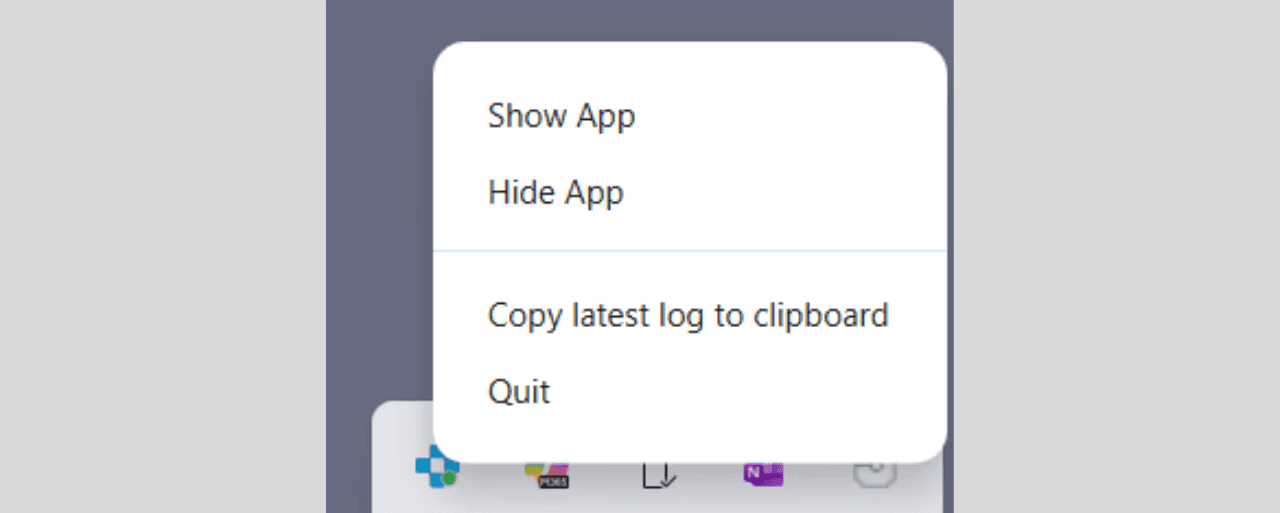
Copy this file into an email as requested by our Support team
🏫 Additional Support
To further your understanding of the Ardens Manager platform:
Book training for your GP Practice, PCN or ICB
Complete the Getting Started with Ardens Manager academy module
View the Using Ardens Desktop support article to learn more about its features
Contact our Support Team for support in real time