
ℹ️ Introduction
This article explains how to use the OPEL Dashboard in Ardens Manager to track operational pressures within general practice.
By the end of this guide, you will understand how to record and monitor OPEL status, review practice and group‑level data, and use trend insights to support safe workload management.
Background
The Operational Pressures Escalation Levels (OPEL) Framework was originally developed for secondary care and is now used by some areas to monitor operational pressure in General Practice. OPEL submissions help ICBs identify pressure points, provide targeted support and ensure system‑wide visibility of capacity challenges.
This article is suitable for:
GP practices submitting OPEL status
PCNs, Federations and ICBs reviewing system pressures
Staff responsible for operational planning and escalation management
The module allows organisations to submit a manual OPEL status and review a weekly calculated status based on appointment activity.
⚠️ Please note: The OPEL module must be activated for your organisation. Contact support@ardens.org.uk to enable this feature.
How Ardens Can Help
Ardens Manager supports OPEL monitoring through:
A dedicated OPEL dashboard showing real‑time pressures
Manual OPEL submission form for practices
Calculated OPEL status, refreshed weekly using appointment data
Group‑level visibility for commissioners
Trend monitoring tools
Tasks and email notifications to ensure timely submissions and escalation follow‑up
OPEL monitoring is accessed from the OPEL module within Ardens Manager.
✅Included in Ardens Manager National Content package: Interested in finding out more or requesting a trial? Contact accounts@ardens.org.uk
🔎 Understanding OPEL Levels
Practices can indicate their pressure level using the four OPEL categories:
Green: Business as usual - your capacity is such that you are able to maintain patient flow and are able to meet anticipated demand within available resources.
Amber: Busier than usual but coping - you are starting to show signs of pressure.
Red: Busier than usual and struggling to cope - you are experiencing major pressures compromising patient flow.
Black: Unable to cope and scheduled appointments are requiring cancellation - you are continuing to experience escalating levels of pressure. There is increased potential for patient care and safety to be compromised.
Statuses appear in two forms:
Submitted Status: Manually entered by the practice.
Calculated Status: Automatically generated weekly from appointment data.
📍Access the Dashboard
Dashboard
Log into Ardens Manager.
Select OPEL Module from the left side bar
Open the OPEL Pressure Monitoring dashboard.
Group View
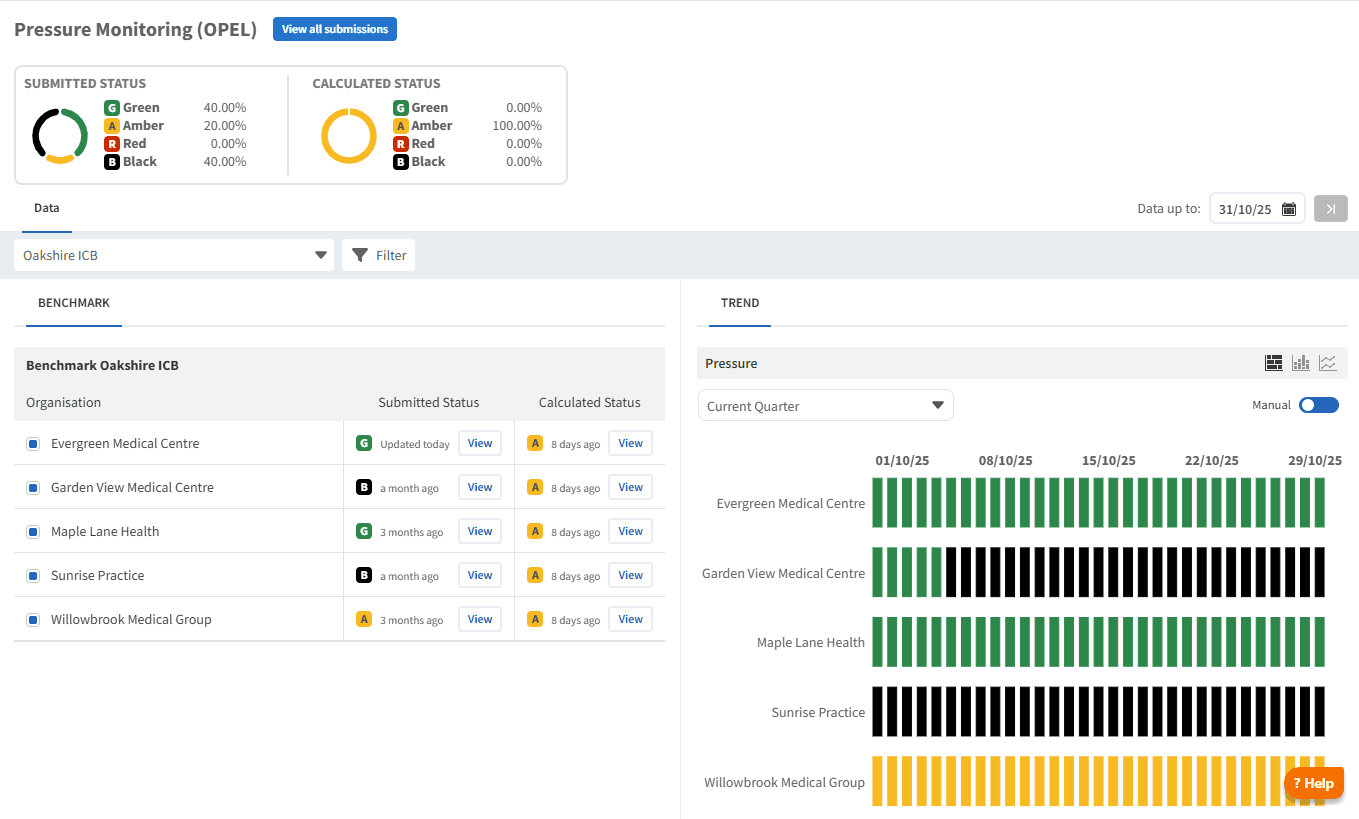
The Group View provides an overview of operational pressure across all practices sharing data.
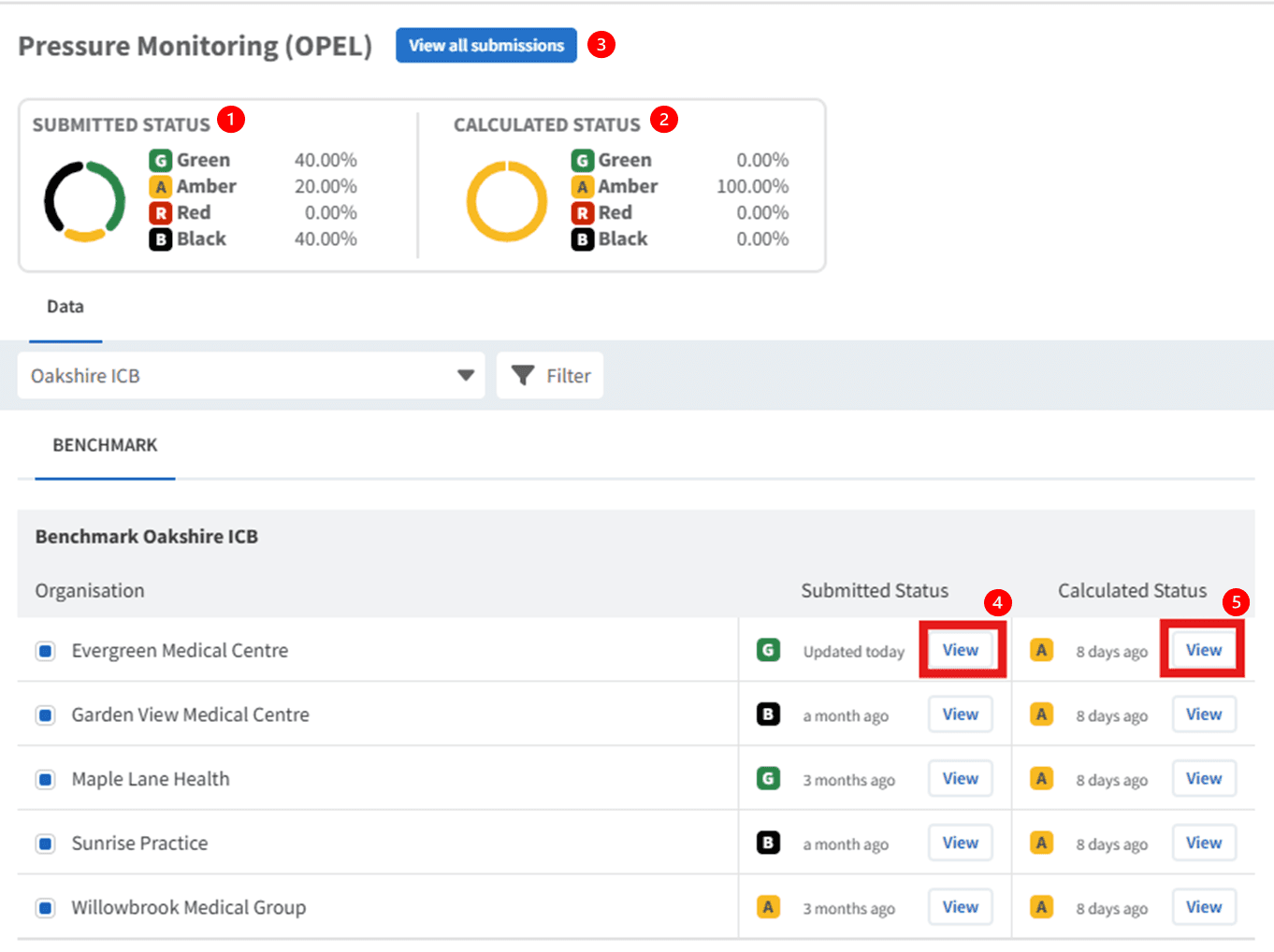
What you can see:
Current submission status for all practices (% in each OPEL status)
Current calculated status for the area (% in each OPEL status)
All manual submissions for review.
View submitted status (opens the submission form for any comments.
View calculated status (shows scoring breakdown used to determine the OPEL level)
⚠️ Please note: Comparison timeframes are only available in the line chart format.
Practice View
When logged in as a practice, your own practice is selected automatically.
If you share data, you can benchmark your status against other practices using the Benchmark tool.
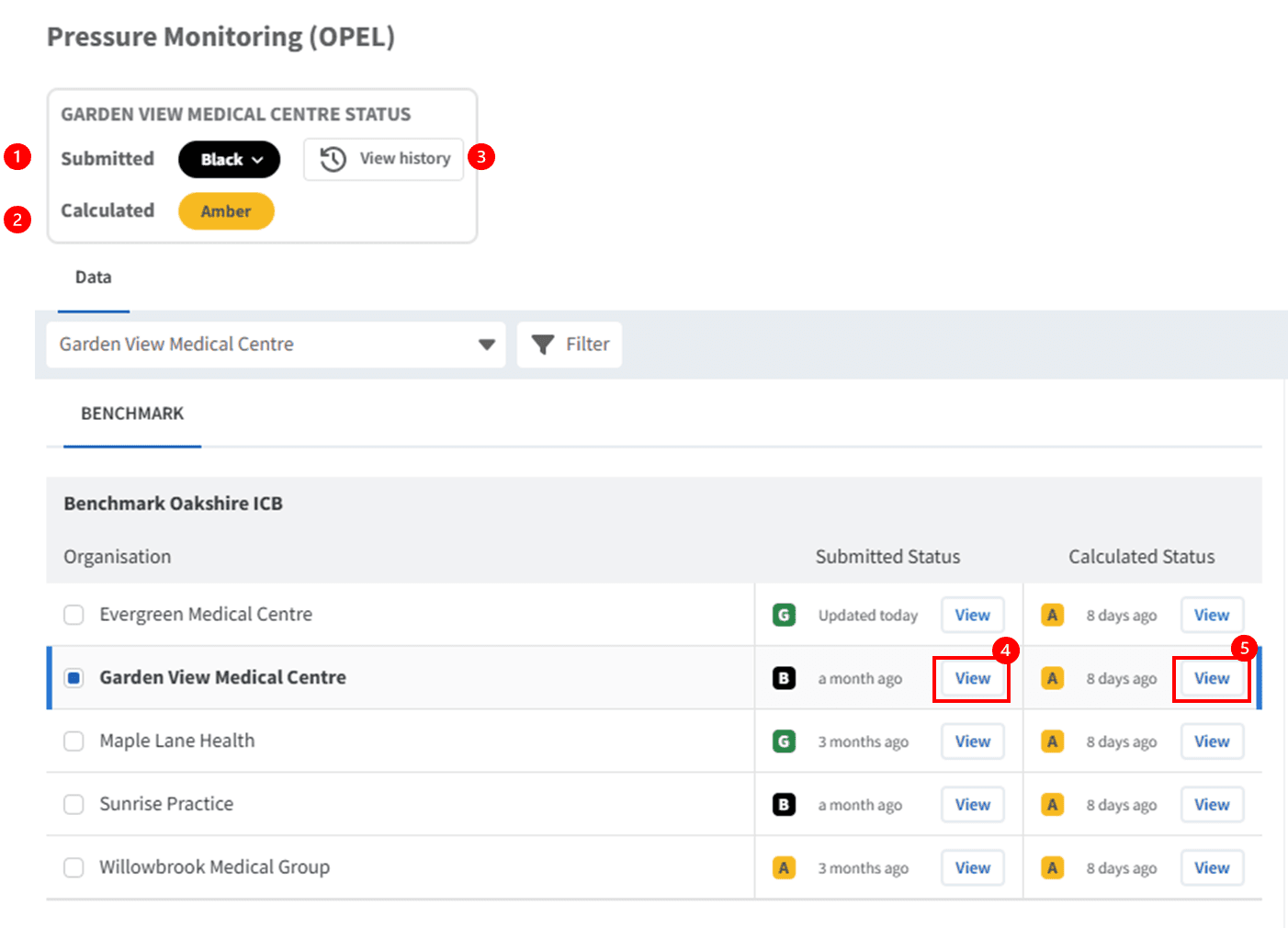
What you can see:
Your Current Submitted status (click to update).
Your Calculated Status (updated weekly)
History of previous submissions (view or edit drafts)
View Submitted Form with comments
View Calculated Status with scoring breakdown
🔎 Monitor Trends
Trend monitoring helps practices and commissioners identify patterns over time.
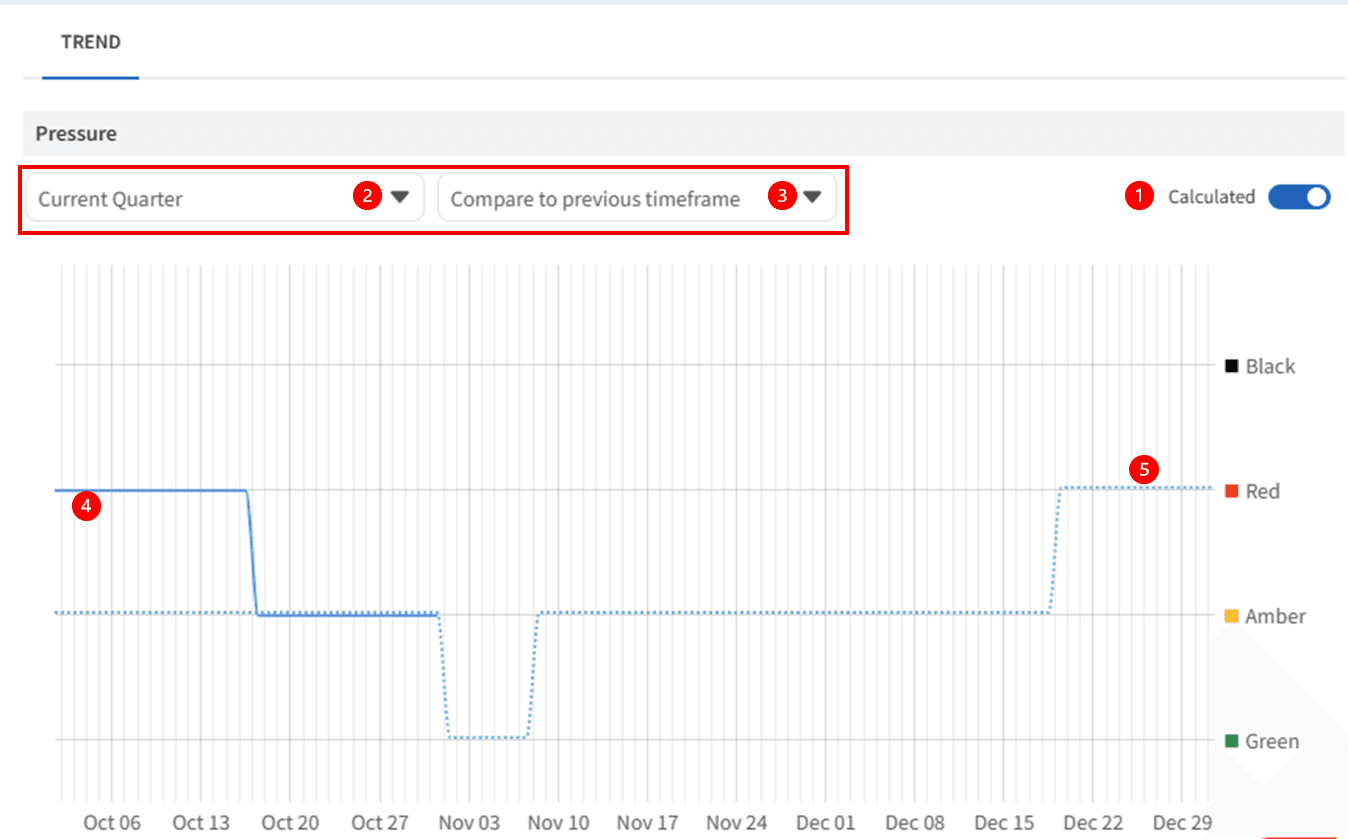
Trend Chart Features
Toggle between Submitted and Calculated data.
Choose a timeframe.
Add a comparison timeframe.
Solid line indicates the selected data.
Dotted line indicates comparison data.
📝 Completing Submissions
Manual OPEL Submissions
Practices can submit their OPEL status via:
Tasks
The OPEL Dashboard
⚠️ Please note: Only one submission is allowed per date.
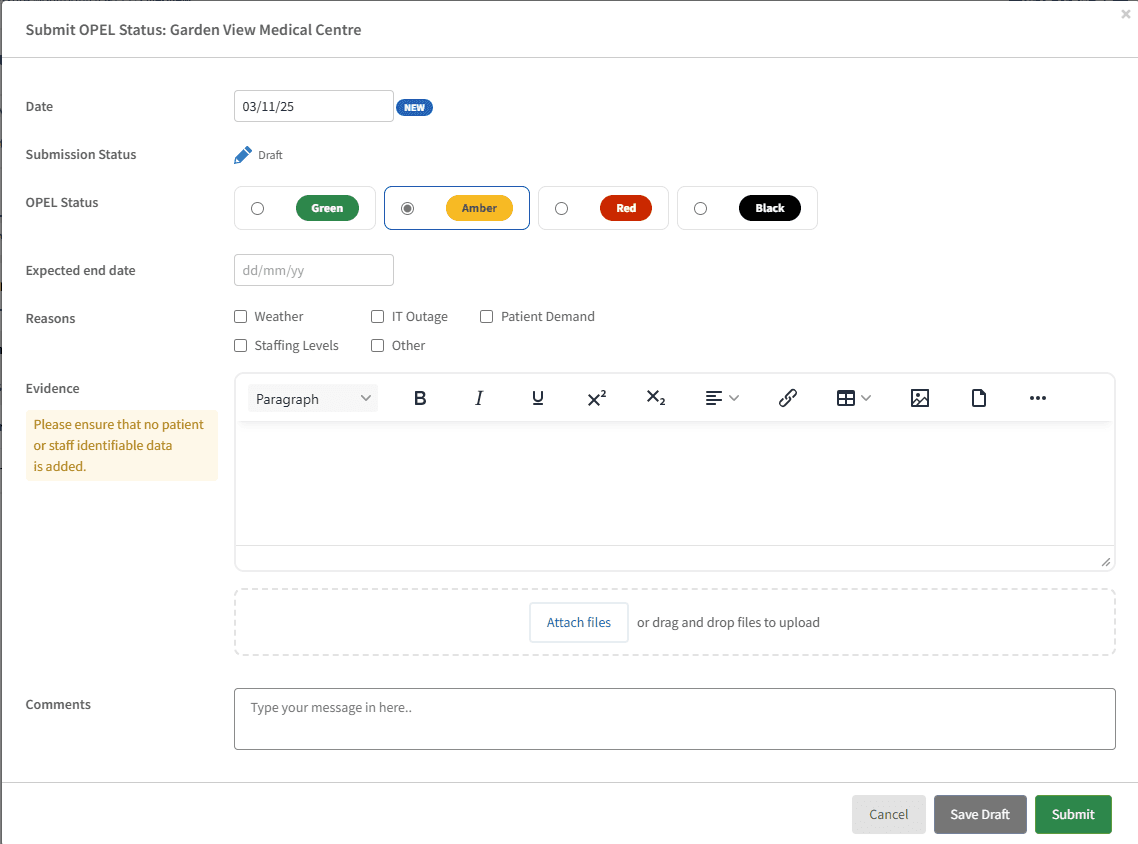
Completing the Form
Date Picker: Select the date of the pressure status.
OPEL Status: Choose the pressure level (Green /Amber/ Red Black).
Expected End Date: Appears for Amber, Red, or Black. Enter the date you expect the situation to return to normal.
Reasons: choose the reason your practice is under pressure. Select at least one reason if the OPEL level is Amber, Red, or Black.
Evidence: Upload files or add additional information to give context.
Comments: Both Practice and ICB can add comments.
Form Actions
Choose one of the following options to manage your submission:
Cancel: Close form without saving.
Discard Draft: Deletes draft.
Save Draft: Resume later.
Submit: Sends to ICB for review.
Submission Statuses
The form can have one of the following statuses:
Submitted - Upon submission, the form details are locked and cannot be edited, but comments are allowed for all parties. ICB users can choose to Acknowledge or Query the submission.
Acknowledged - This becomes the acknowledged status. No further edits can be made.
Queried - Returned for updates. If required, the Practice can make changes re-submit for ICB review using the Clarified button.
Clarified - Updated and resubmitted by the Practice, awaiting review. Form details are locked and cannot be edited. Both Practice and ICB can continue to add comments and attachments. The ICB can Acknowledge or Query the submission.
🔢 Calculated Status
Ardens Manager automatically calculates the OPEL status for practices and updates it weekly. This status is determined based on a points system using appointment data.
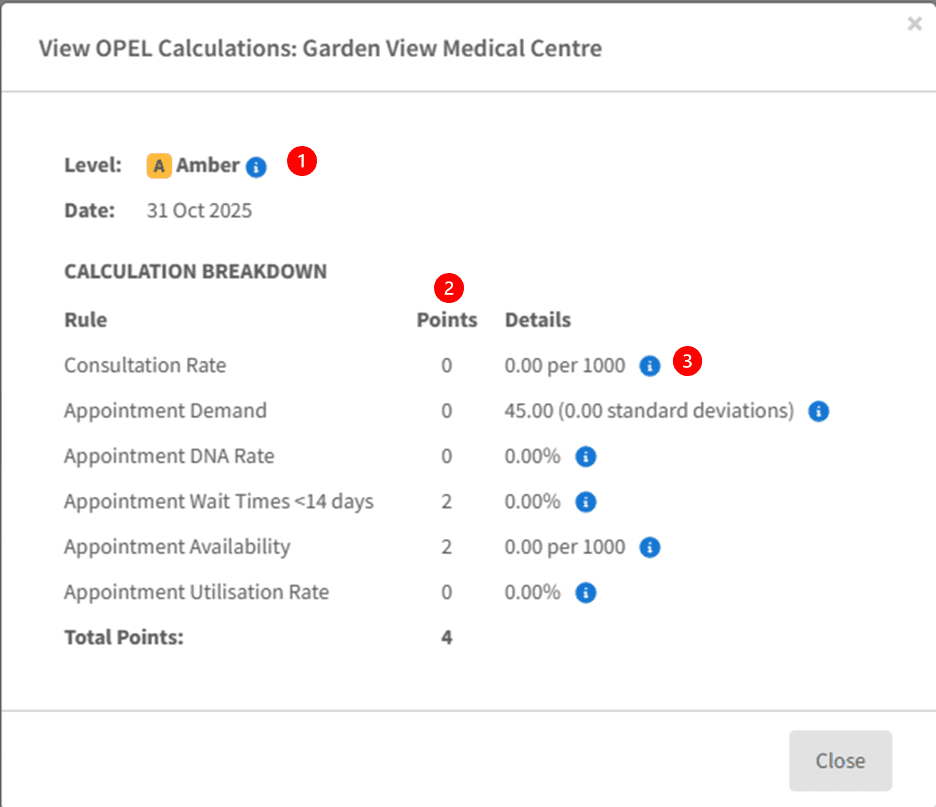
Click the information icon (i) to view the point thresholds for each status.
View the point totals for each category that contribute to the overall score.
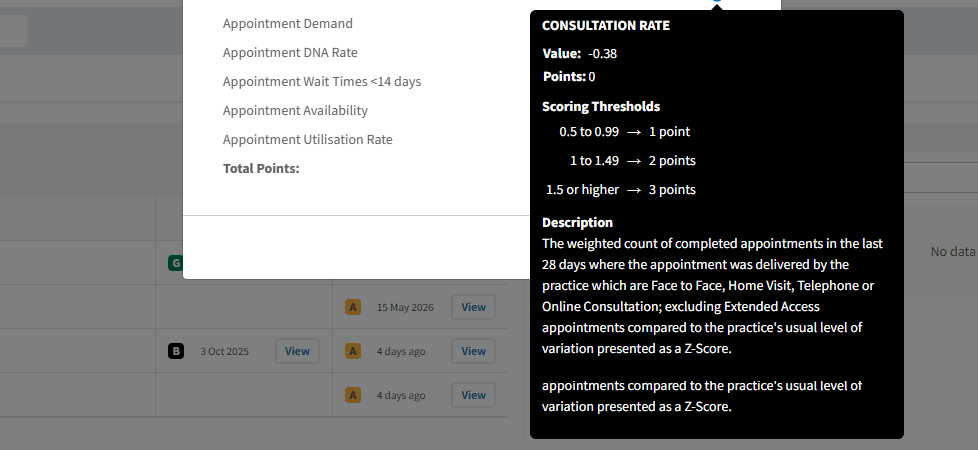
Click the information icon (i) for a detailed breakdown of the scoring thresholds in this report, along with description.
🔔 Tasks and Notifications
Tasks
Ardens Manager automatically generates OPEL‑related tasks:
For Practices:
Reminder to submit OPEL status
Click Upload to view and action.

For ICBs:
Tasks to review submissions
Click Review to view and action.

Email Notifications
Ardens Manager also sends automated emails:
For Practices:
Reminder emails to submit OPEL status.
If last status was Green, a reminder is sent 7 days after last submission.
If last status was Amber, Red, or Black, a reminder is sent the next weekday following submission.
For Groups:
Notifications when practices submit or resubmit Red/Black status.
Alerts when submissions required Acknowledgement.
Query notifications sent to practices.
Email Setup:
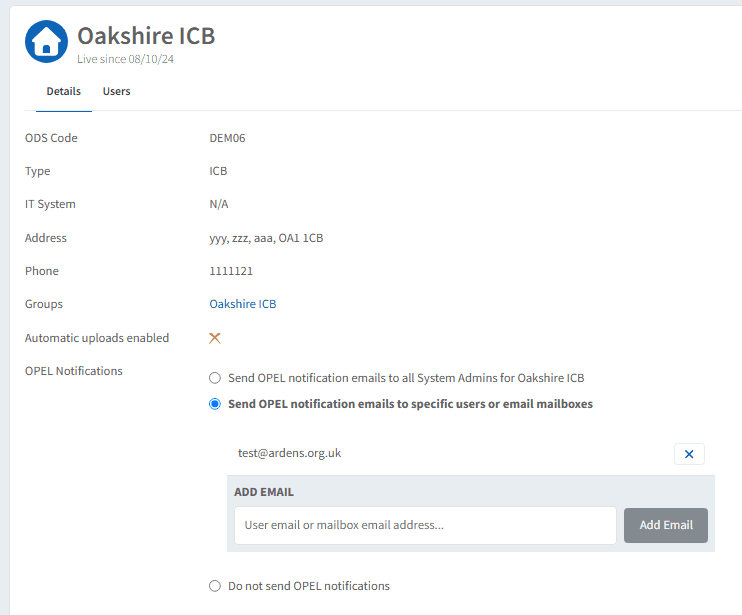
Each organisation with OPEL enabled has an OPEL Notifications section in Organisation Settings:
Managed by a System Admin
Allows configuration for
All System Admins
Selected users/mailboxes
Or disabled notifications
❓ FAQs
Why can't I see the OPEL Module in Ardens Manager?
The OPEL module must be activated for your organisation. Please contact support@ardens.org.uk to enable this.
What is the difference between Submitted and Calculated OPEL Status?
Submitted Status is entered manually by the practice using the OPEL form. Calculated Status is automatically generated weekly, based on appointment activity and scoring thresholds.
How often should practice submit their OPEL status?
Practices should submit OPEL status when operational pressure change. Reminder are generated for guidance.
Can Practices edit a submission after is has been sent to the ICB?
Once submitted, the form is locked. Changes can only be made if the ICB queries the submission, returning it to the practice for updates.
Why does my calculated status differ from my submitted status?
Calculated status uses appointment‑based metrics and may not always match the operational context captured in your manual submission. Both views help provide a balanced view of pressure levels.
🏫 Additional Support
To further your understanding of the Ardens Manager platform:
Book training for your GP Practice, PCN or ICB.
Contact our Support Team for support in real time.