
We’re updating our Knowledge Base
We’re currently transitioning Ardens Clinical support articles to this new Knowledge Base. Content will be added progressively, so you may find limited articles available at this stage.
In the meantime, you can access our full support resources on our existing sites:
We’ll continue to expand this site, so please check back regularly.
ℹ️ Introduction
This article explains how to create an EMIS Web account for Ardens. By the end of this guide, you will have the required account set up with the appropriate permissions to allow Ardens to support configuration, searches, reporting, and Ardens system maintenance activities.
Background
At Ardens, we take Information Governance and data security seriously. Information regarding our compliance standards and accreditations can be found on the Ardens Trust Centre.
The EMIS Web account requested by Ardens is an Analyst account. This account enables Ardens to:
Configure Ardens resources
Run searches and reports
Support system setup and maintenance
The account does not provide access to patient care records. Although limited patient demographic information may technically be visible within EMIS Web, this functionality is not used as part of the services provided by Ardens.
How Ardens Can Help
Creating an account allows the Ardens team to efficiently assist with:
Initial setup and configuration
Ongoing maintenance and optimisation
Troubleshooting searches and reports
Once the account has been created, please email the following details securely to emis-deployment-team@ardens.org.uk.
Practice name
EMIS username
Password
EMIS site number
⚠️Please note: supplying these login details constitutes acceptance of the Ardens Terms and Conditions.
⚙️ Create the EMIS Web Account
Step 1 – Open Organisation Configuration
Within EMIS Web:
Click on the EMIS ball (menu)
Select Configuration > Organisation Configuration
Click Add > Add New User on the EMIS Web ribbon
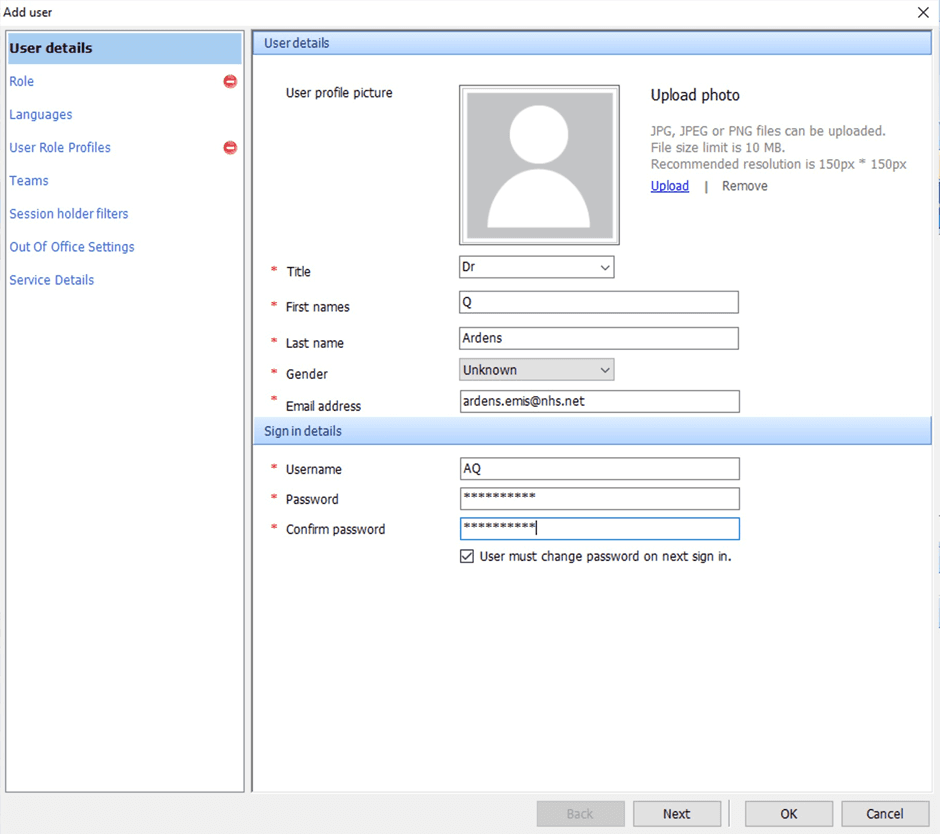
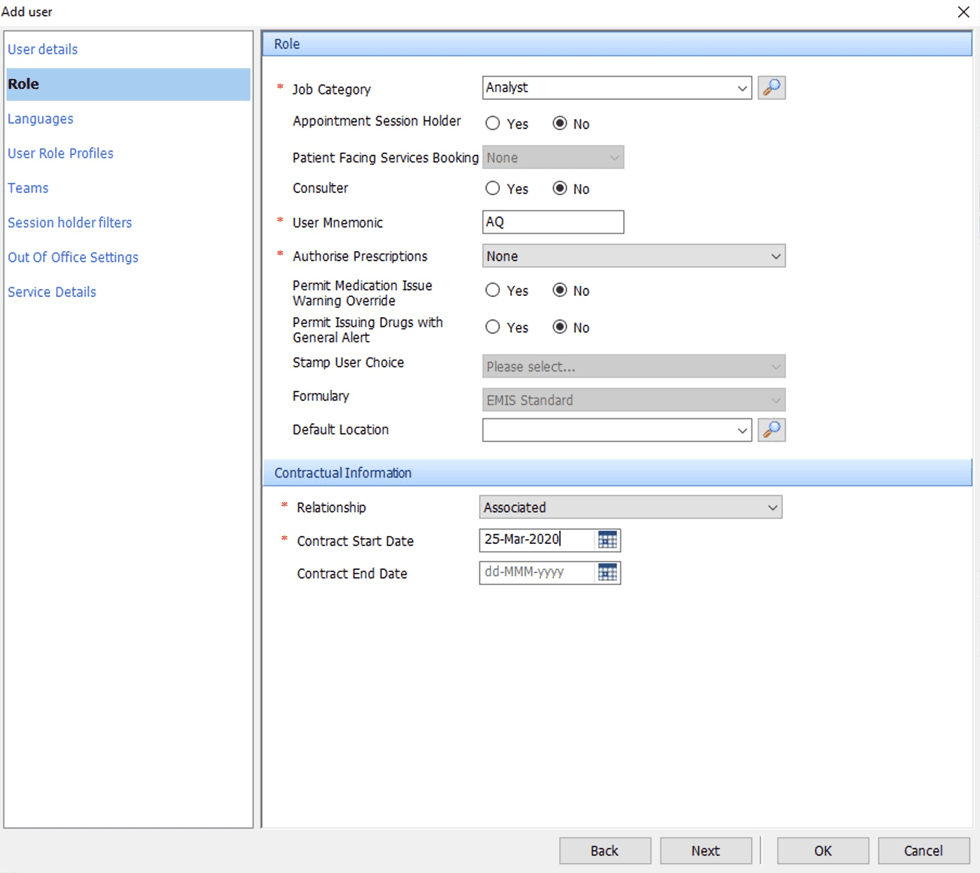
Step 2 – Complete User Details, Role and Languages
Complete the user setup window as shown below.
User Details
Role
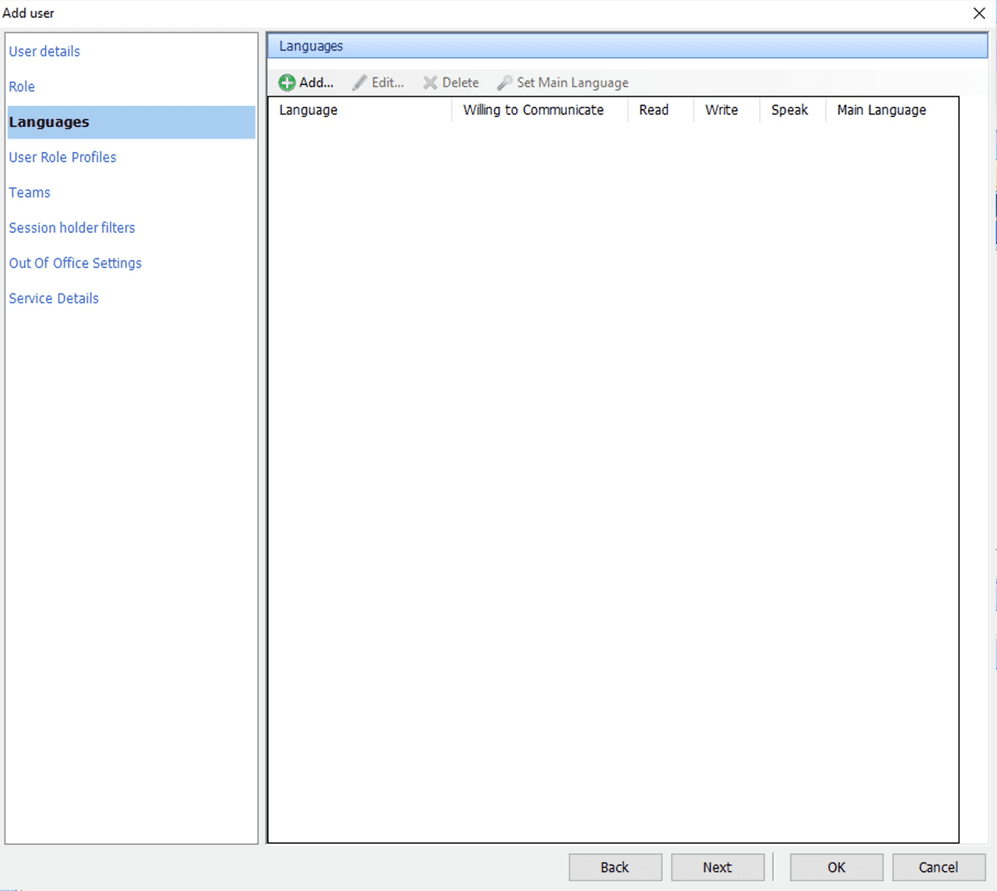
Languages
No changes are required on this page.
Step 3 – Add Required RBAC Codes
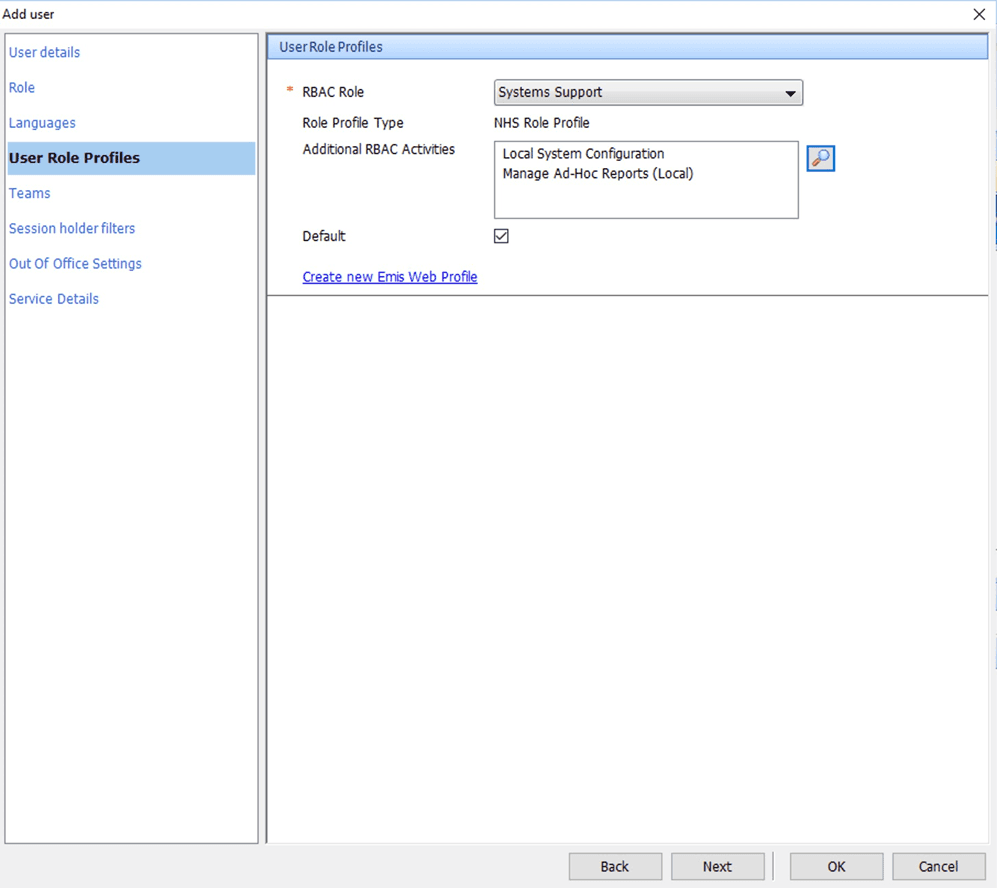
Under User Role Profiles page, add the following RBAC codes to allow Ardens to access Searches and Reports for configuration purposes.
Add RBAC Code B0994
Select the magnifying glass icon
Enter
B0994into the search fieldDouble-click Manage ad-hoc reports (local)
Select OK
Add RBAC Code B1700
Repeat the steps above using:
B1700 – Local System Configuration
Step 4 – Teams and Session Holder Filters
No changes are required under:
Teams
Session Holder Filters
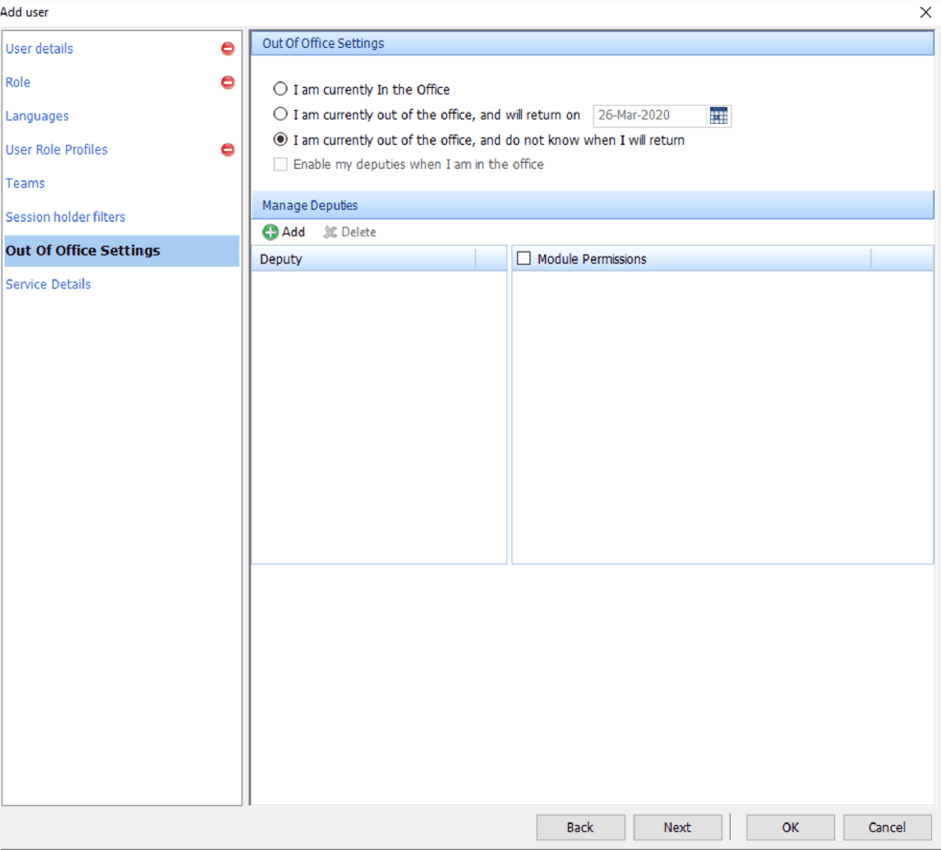
Step 5 – Configure Out of Office Settings
Under Out of Office Settings
Select “I am currently out of the office, and do not know when I will return”
Assign a deputy user, usually the Practice Manager or IT Manager.
This ensures that any workflow items sent to the account in error are automatically redirected appropriately.
Step 6 – Save the Account
Select OK in the bottom-right corner to create the account
⚠️Please note: do not forget to email details securely to emis-deployment-team@ardens.org.uk.
❓FAQs
Why does Ardens require an EMIS Web account?
Ardens requires an EMIS Web account to support practices with configuration, searches, reporting, and ongoing Ardens system maintenance activities.
Will Ardens have access to patient records?
No. The Analyst account does not provide access to patient care records. While limited patient demographic information may technically be visible within EMIS Web, Ardens does not use this functionality as part of its services.
🏠 Additional Learning
To further your understanding of the Ardens resources:
Complete the Getting Started with Ardens academy collection
Book training for your GP Practice, PCN or ICB
Contact our Support Team for support in real time