
We’re updating our Knowledge Base
We’re currently transitioning Ardens Clinical support articles to this new Knowledge Base. Content will be added progressively, so you may find limited articles available at this stage.
In the meantime, you can access our full support resources on our existing sites:
We’ll continue to expand this site, so please check back regularly.
ℹ️ Introduction
This article explains how to use Ardens Reports within EMIS Web. By the end of this guide, you will understand how Ardens Reports can help monitor performance, identify patients requiring action, support contractual requirements, and provide valuable insights into your practice population.
Background
Healthcare organisations rely on accurate and timely information to support patient care, monitor performance, and meet contractual and regulatory requirements. Identifying patients who require reviews, monitoring achievement against targets, and understanding population health trends can be challenging without effective reporting tools.
Ardens Reports are designed to provide practices, Primary Care Networks (PCNs), and Integrated Care Boards (ICBs) with ready-built reporting tools that support clinical management, operational planning, and quality improvement activities.
How Ardens Can Help
Ardens Reports provides access to a comprehensive suite of reports that enable organisations to monitor activity, performance, and patient cohorts without manually building reports.
Key benefits include:
Monitoring QOF and contractual performance
Identifying patients requiring reviews or interventions
Supporting population health management
Providing operational and clinical insights
Reducing time spent creating reports manually
Supporting quality improvement initiatives
Enabling proactive patient care
Ardens Reports can be accessed directly within EMIS Web through the Ardens reporting folders.
📍Access Reports
Ardens Reports are available within the Ardens folder structure in EMIS Web.
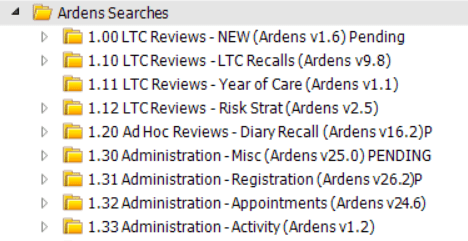
To locate Ardens Reports:
Go to Population Reporting
Select the Ardens folder
Expand the relevant reporting category to view available reports
⚙️ Run Reports
Once you have identified the report you wish to run:
To run the report by folder:
Right-click on the relevant report folder
Click Yes to Run all reports in this folder?
This will queue each report to run, and will display results once complete
⚠️Please note: Be cautious if you are running a parent report containing a number of subfolders and reports, as this may cause your EMIS system performance to slow down
To run individual reports:
Select the relevant report folder
Right-click on the individual search or report
Click Yes to Run all reports in this folder?
This will queue each report to run, and will display results once complete
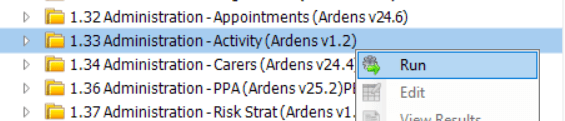
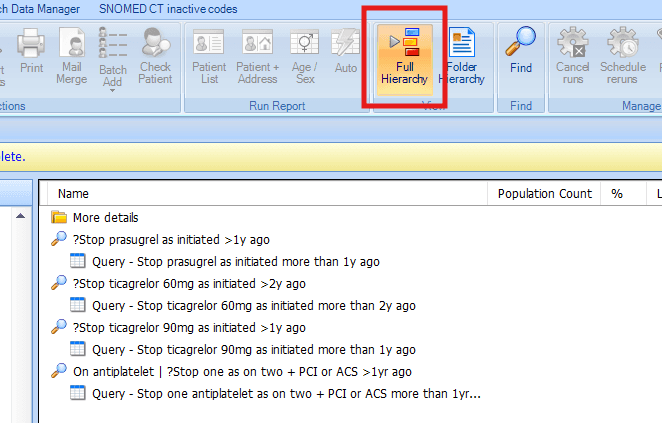
⚠️Please note: The magnify glass before the name denotes a search and the paper icon denotes a report. When a search or report is indented under another search, this denotes that the search/report is based on the results of the top search.
📊View Results
Once you have run the reports, there are a number of ways you can view their results.
To view the results of a search:
Click on the Population Included tab to view all patients who meet the criteria of the search
Click on the Population Excluded tab to view all patients who have not met the criteria of the search
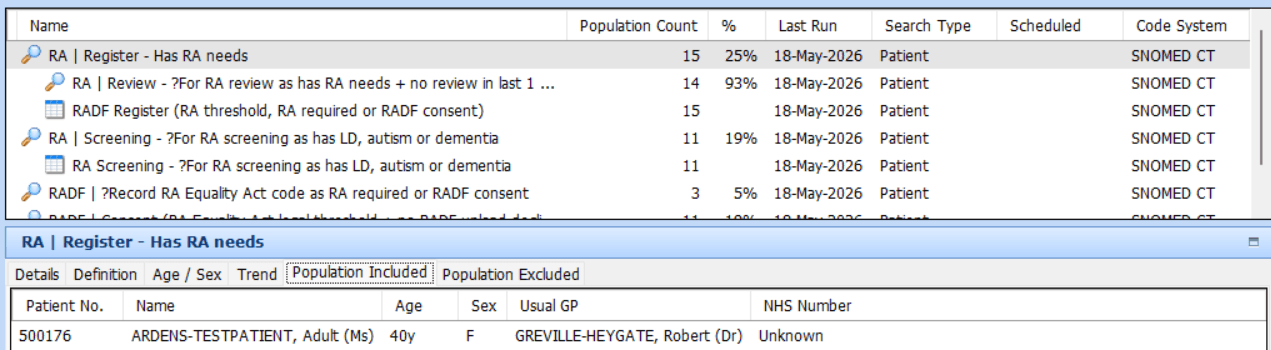
Right-click on the patient to view options to access their record or check why they have or have not met the criteria of the search
To view the results of a report:
Select the relevant report and click View Results on the EMIS ribbon
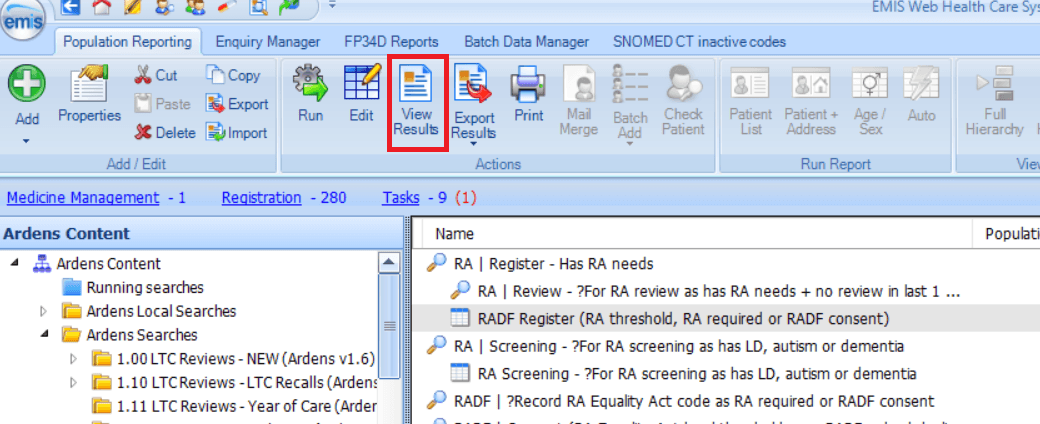
To view the searches that a report is based on, select the Full Hierarchy option on the EMIS ribbon.
⬇️ Export Reports
There may be occasions when you may wish to export the results of a report, for example, to upload to a third-party messaging platform for bulk messages.
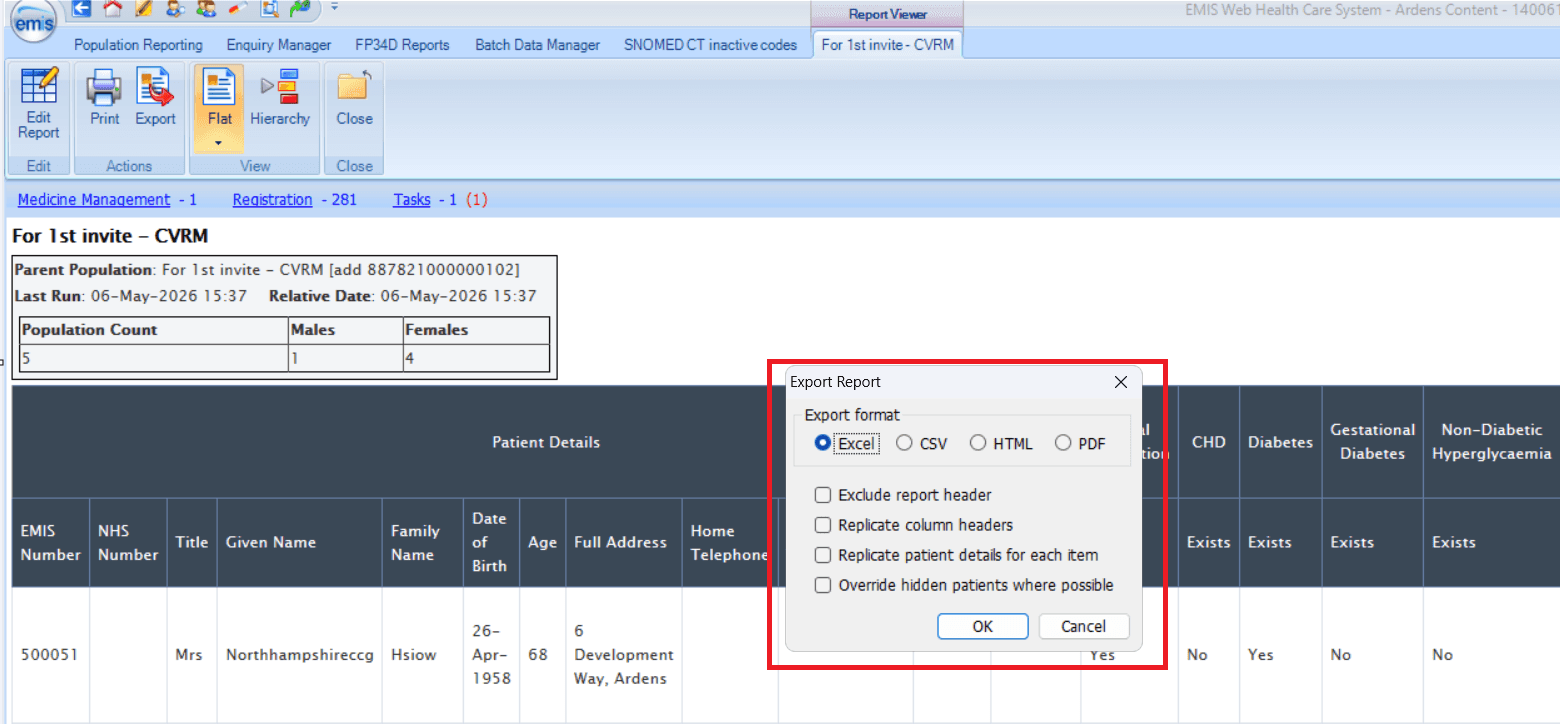
To export a report:
Click View Results on the EMIS ribbon once the report has been run
Click Export on the EMIS ribbon
We recommend selecting the CSV option
Tick the relevant export options
Click OK and save to a preferred location
📃Copy Reports
Ardens Reports are regularly maintained to reflect changes in national guidance, contractual requirements, and Ardens content updates.
For this reason, Ardens does not recommend copying and modifying Ardens reports as a standard approach, as any copied reports will no longer receive future updates and maintenance from Ardens. This may result in report logic becoming outdated over time.
Where possible, we recommend using the original Ardens reports and searches provided within the Ardens folder structure.
However, there may be occasions where a practice wishes to use an existing Ardens report against a different patient cohort. For example:
Reviewing long-term conditions for housebound patients only
Monitoring a specific care home population
Analysing activity for a locally defined patient group
In these circumstances, it is possible to:
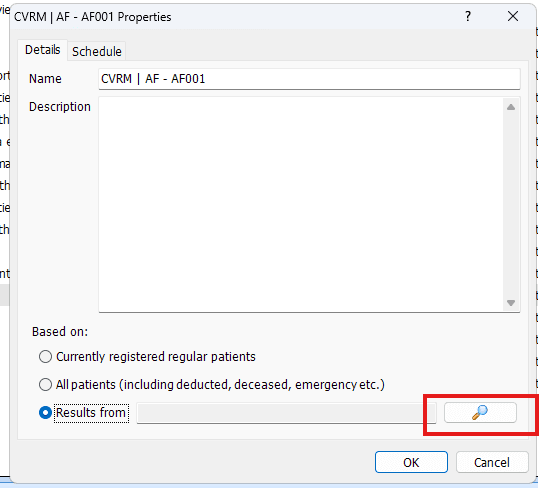
Copy the required Ardens report into a local practice folder.
Change the Parent Search (Results From) to an alternative search.
Run the report against the new patient cohort.
⚠️ Please note: Any copied reports are maintained locally and will not automatically receive future Ardens updates. Practices should periodically review copied reports to ensure they remain appropriate and aligned with current reporting requirements.
❓FAQs
Who can access Ardens Reports?
Access to reports is determined by EMIS Web user permissions. Users with appropriate reporting access can run Ardens Reports.
How often are reports updated?
Reports are updated every 21 days by the Ardens team. Practices can manually download or request a search update between scheduled dates via the Ardens Portal.
Can report results be exported?
Yes, a report can be exported as a CSV file. Once the report is open, click on the Export option.
Why do figures sometimes differ between Ardens Manager and searches in EMIS Web or SystmOne?
Small differences do not always mean there is a problem. Ardens Manager and clinical system searches may show different figures if they are using different dates, patient groups, rules, or refresh times.
Common reasons include:
different reporting periods or run dates
different numerator, denominator, or cohort logic
different inclusion or exclusion rules
activity recorded outside the main practice system workflow
timing differences between data refreshes
local or platform-specific reporting variations
If the difference seems larger than expected, check that you are comparing:
the same report or search
the same reporting period or run date
the same numerator and denominator
the same patient cohort or contract rules
If figures still do not align, use the report breakdown or Check Patient in Ardens Manager to understand why a patient is included or excluded.
🏫 Additional Support
Complete the Getting Started with Ardens EMIS academy course
Book training for your GP Practice, PCN or ICB
Contact our Support Team for support in real time