
We’re updating our Knowledge Base
We’re currently transitioning Ardens Clinical support articles to this new Knowledge Base. Content will be added progressively, so you may find limited articles available at this stage.
In the meantime, you can access our full support resources on our existing sites:
We’ll continue to expand this site, so please check back regularly.
ℹ️ Introduction
This article explains how to activate the Ardens data sharing agreement within EMIS Web using Resource Publisher. Once activated, your organisation will be able to securely receive Ardens resources and ongoing content updates directly into EMIS Web.
Background
Ardens resources, including templates, alerts, and protocols, are distributed through EMIS Resource Publisher. If the relevant data sharing agreement is not activated, Ardens content cannot be deployed or updated within your EMIS Web organisation.
This article may be suitable for practice managers, IT leads, administrators, or any staff responsible for EMIS Web configuration and maintenance.
How Ardens Can Help
Activating the Ardens data sharing agreement ensures your organisation can automatically receive the latest Ardens clinical content and updates through EMIS Resource Publisher.
Benefits include:
Access to the latest Ardens templates, alerts, and protocols
Automatic delivery of future content updates
Secure sharing of approved Ardens resources within EMIS Web
Support for maintaining consistent clinical workflows across your organisation
✅ Activate Agreement
Step 1 - Open Data Sharing Manager
Login to EMIS Web
Click on the EMIS menu (ball)
Select Configuration > Data Sharing Manager
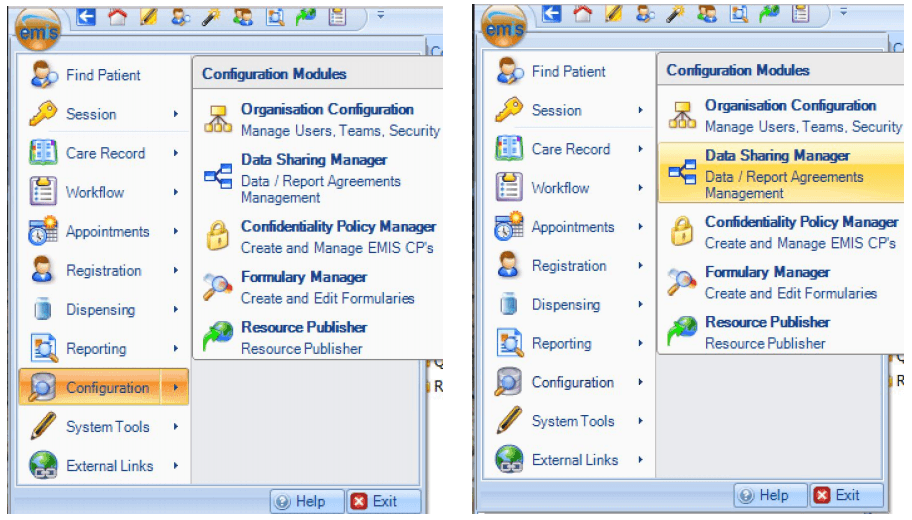
Within the bottom-left panel, select Resource Publisher
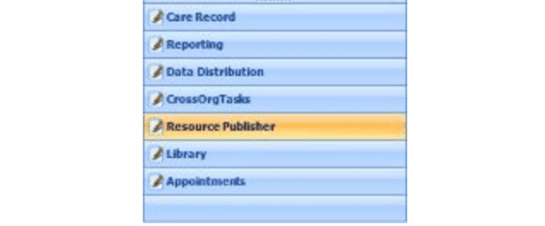
Step 2 – Locate the Ardens Agreements
The following Ardens agreements should be displayed in the left-hand panel:
Ardens Starter
Ardens Plus
Ardens Pro
⚠️Please note: depending on your subscription, you may not see all agreements listed.
Agreement status is identified by the following icons:
✅ Green tick = Active
❌ Red cross = Inactive
Step 3 – Activate the Agreement
Select the required Ardens agreement
Select Activate Agreement from the top ribbon menu
Repeat this process for any additional Ardens agreements shown (for example, Plus or Pro).
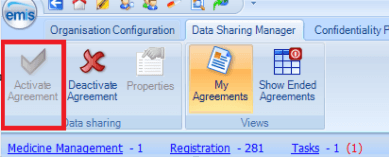
Step 4 – Confirm Activation
After a few moments, the agreement should display a green tick to confirm it is active.
Once activated, your organisation will be able to receive Ardens EMIS content via Resource Publisher.
❌ Remove Agreement
If requested to remove an agreement:
Login to EMIS Web
Click on the EMIS menu (ball)
Select Configuration > Data Sharing Manager
Within the bottom-left panel, select Resource Publisher
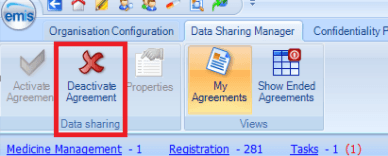
Locate the Ardens agreement, select and click Deactivate Agreement on the EMIS ribbon
This will update the agreement symbol to a red cross
❓FAQs
Why can I not see all Ardens agreements listed?
The agreements displayed are dependent on your organisation’s current Ardens subscription level.
What does the green tick mean?
A green tick confirms the agreement is active and your organisation can receive Ardens content updates.
Do I need to activate more than one agreement?
Yes, if multiple Ardens agreements are available to your organisation, each agreement should be activated individually.
How long does activation take?
Activation is usually completed within a few moments, after which the agreement status will update to a green tick.
🏠Additional Support
To further your understanding of the Ardens resources:
Book training for your GP Practice, PCN or ICB.
Contact our Support Team for support in real time.