
We’re updating our Knowledge Base
We’re currently transitioning Ardens Clinical support articles to this new Knowledge Base. Content will be added progressively, so you may find limited articles available at this stage.
In the meantime, you can access our full support resources on our existing sites:
We’ll continue to expand this site, so please check back regularly.
ℹ️ Introduction
This article explains how to use Ardens Reports within SystmOne. By the end of this guide, you will understand how Ardens Reports can help monitor performance, identify patients requiring action, support contractual requirements, and provide valuable insights into your practice population.
Background
Healthcare organisations rely on accurate and timely information to support patient care, monitor performance, and meet contractual and regulatory requirements. Identifying patients who require reviews, monitoring achievement against targets, and understanding population health trends can be challenging without effective reporting tools.
Ardens Reports are designed to provide practices, PCNs, and ICBs with ready-built reporting tools that support clinical management, operational planning, and quality improvement activities.
How Ardens Can Help
Ardens Reports provides access to a comprehensive suite of reports that enable organisations to monitor activity, performance, and patient cohorts without manually building reports.
Key benefits include:
Monitoring QOF and contractual performance
Identifying patients requiring reviews or interventions
Supporting population health management
Providing operational and clinical insights
Reducing time spent creating reports manually
Supporting quality improvement initiatives
Enabling proactive patient care
📍Access Reports
Ardens Reports are available within the Ardens folder structure in SystmOne.
To locate the reports:
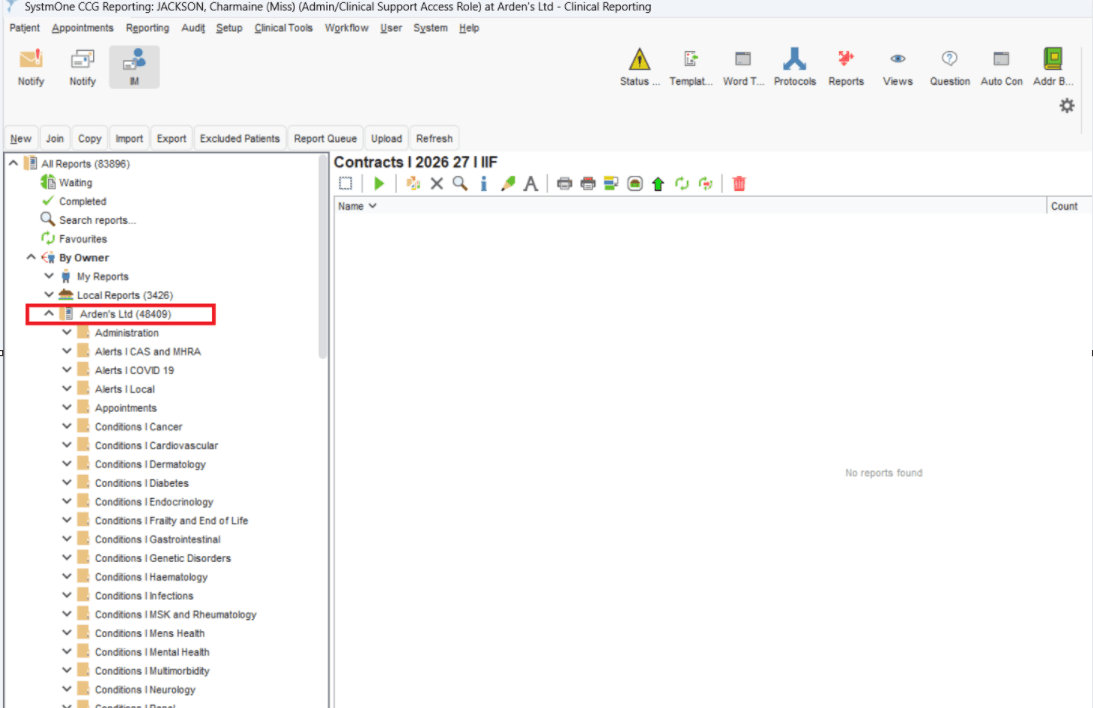
Go to Clinical Reporting
Expand the Arden's Ltd folder
Expand the relevant reporting category to view available reports
⚙️Run Reports
Once you have identified the report you wish to run.
To run the report:
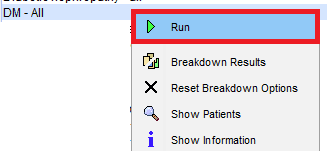
Right-click on the report and select Run
You will see a clock icon for a short period of time in the flag column, which will then turn to a green tick to indicate it has completed
📊 View Results
Once you have run the reports, there are a number of ways you can view their results.
Show Patients
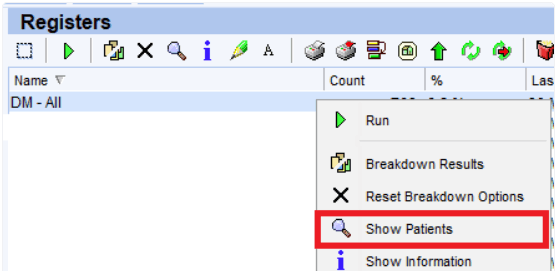
Right-click on the report and select Show Patients, to see basic demographic details for the patients such as NHS number, date of birth, and address.
Breakdown Results
Right-click on the report and select Breakdown Results, this allows you to create a bespoke output from the results
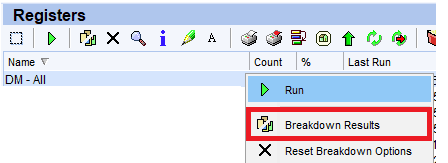
The default options you will see are the patient count, the options on the left allow you to select other information you wish to include.
Click Refresh on the toolbar once complete to see a column for each breakdown.

⬇️Export Report
There may be occasions when you may wish to export the results of a report, for example, to upload to a third-party messaging platform for bulk messages.
To export the report:
Run the required report
Right-click on the report and select Show Patients
Choose an appropriate output:
Use the AccuRx - Mobile Numbers output if preparing patient lists for messaging
Alternatively, use Breakdown Results to select the specific data fields you wish to export
Once the required data is displayed, right-click and select Open as CSV
Open the CSV file in Excel to filter, sort, and analyse the data as required
❓FAQs
How do I know when a report has finished running?
After selecting Run, a clock icon will appear in the flag column while the report is processing. Once complete, the clock icon changes to a green tick.
Can I customise the information displayed in a report?
Yes. Select Breakdown Results, choose the fields you want to include from the options available, and then click Refresh to display the additional columns.
Why do figures sometimes differ between Ardens Manager and searches in EMIS Web or SystmOne?
Small differences do not always mean there is a problem. Ardens Manager and clinical system searches may show different figures if they are using different dates, patient groups, rules, or refresh times.
Common reasons include:
different reporting periods or run dates
different numerator, denominator, or cohort logic
different inclusion or exclusion rules
activity recorded outside the main practice system workflow
timing differences between data refreshes
local or platform-specific reporting variations
If the difference seems larger than expected, check that you are comparing:
the same report or search
the same reporting period or run date
the same numerator and denominator
the same patient cohort or contract rules
If figures still do not align, use the report breakdown or Check Patient in Ardens Manager to understand why a patient is included or excluded.
🏫 Additional Support
Complete the Getting Started with Ardens SystmOne academy course
Book training for your GP Practice, PCN or ICB
Contact our Support Team for support in real time