
We’re updating our Knowledge Base
We’re currently transitioning Ardens Clinical support articles to this new Knowledge Base. Content will be added progressively, so you may find limited articles available at this stage.
In the meantime, you can access our full support resources on our existing sites:
We’ll continue to expand this site, so please check back regularly.
ℹ️ Introduction
This article explains how to access and use the Ardens Clinical Templates within EMIS Web. By the end of this guide, you will understand how Clinical Templates support consistent data recording, improve consultation efficiency, and help ensure key clinical information is captured accurately.
Background
Accurate and structured clinical data is essential for patient care, reporting, quality improvement, and contractual requirements. Consistently recording information can be challenging across different primary care roles when managing multiple long-term conditions, preventive care activities, and administrative processes.
The Ardens Clinical Templates provide a standardised approach to data entry within EMIS Web, helping practices record information efficiently while supporting clinical workflows and data quality.
How Ardens Can Help
Ardens Clinical Templates are designed to support clinicians and practice staff throughout patient consultations and administrative workflows.
Key benefits include:
Standardised and consistent clinical coding
Improved data quality and reporting
Reduced administrative burden
Support for national and local clinical guidance
Faster data entry through structured templates
Improved recall, monitoring, and long-term condition management
Templates can be launched directly from a patient's record using a variety of methods.
📍Access Clinical Templates
There are several ways to access Ardens templates within EMIS Web.
Open Consultation
Access a patient record
Select the Consultation tab or click Add > Consultation
Select Run Template on the EMIS ribbon
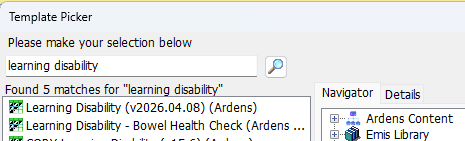
Within the Template Picker screen, search for the relevant template
Ardens templates will have 'Ardens' in brackets
Double-click or select the template and click OK to launch
Template Launcher
Press F12 on your keyboard
Select the relevant Ardens template launcher on the Protocol Launcher prompt
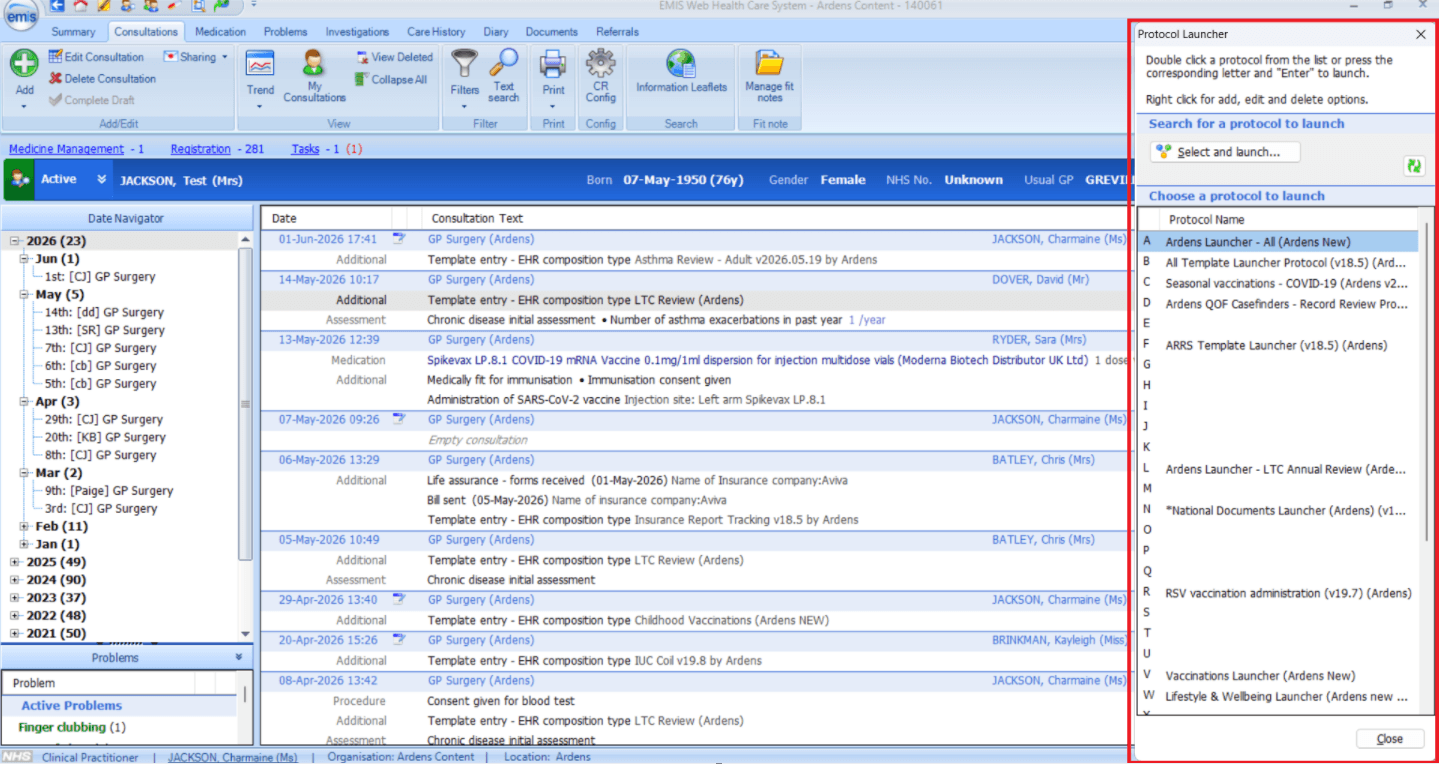
To add a new Ardens launcher:
Right-click on an available letter or number
Search for the relevant template launcher
Double-click or select and click OK to add
⚠️ Please note: Template launchers need to be added to each individual user's F12 Protocol Launcher. There is currently no functionality in EMIS Web to set this organisation-wide.
Patient Record
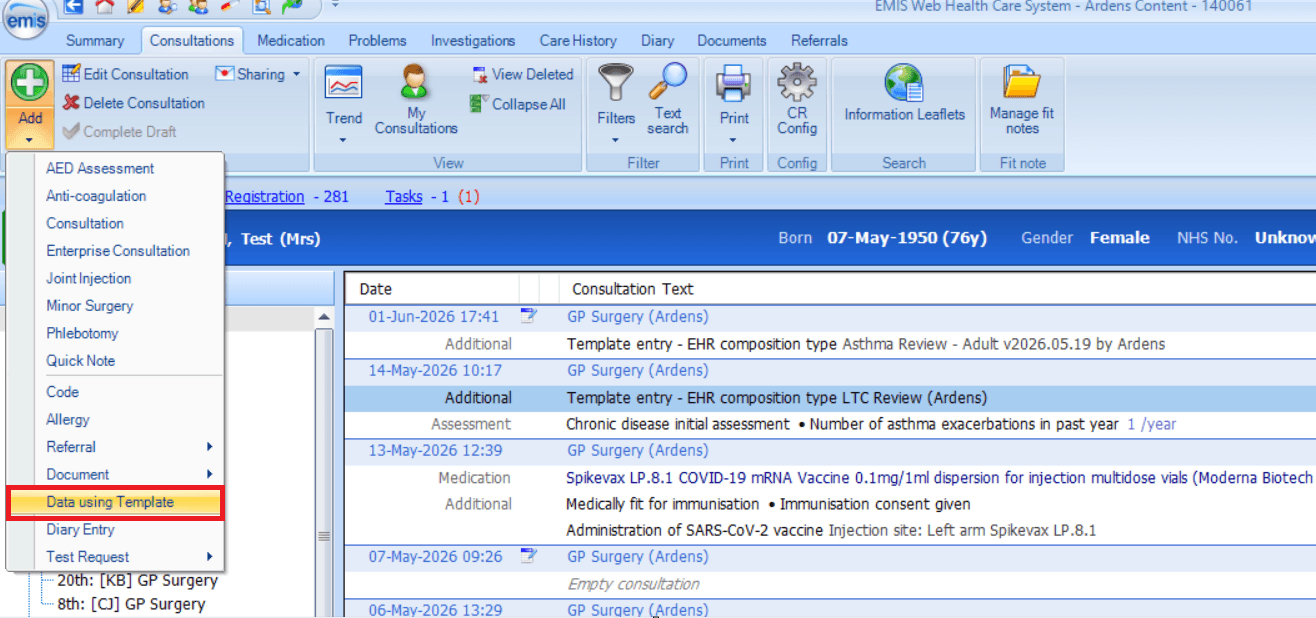
Access a patient record
Select Add > Data using Template
Within the Template Picker screen, search for the relevant template
Ardens templates will have 'Ardens' in brackets
Double-click or select the template and click OK to launch
📝Using the Clinical Templates
Ardens provides a wide range of Clinical Templates covering both clinical and administrative workflows. These include templates for:
Long-term conditions
Procedures
Pharmacy and medication reviews
Safeguarding
Reception and Admin processes
When launching, each template is divided into pages on the left-hand side, designed for primary care staff to access the information they need at that time.
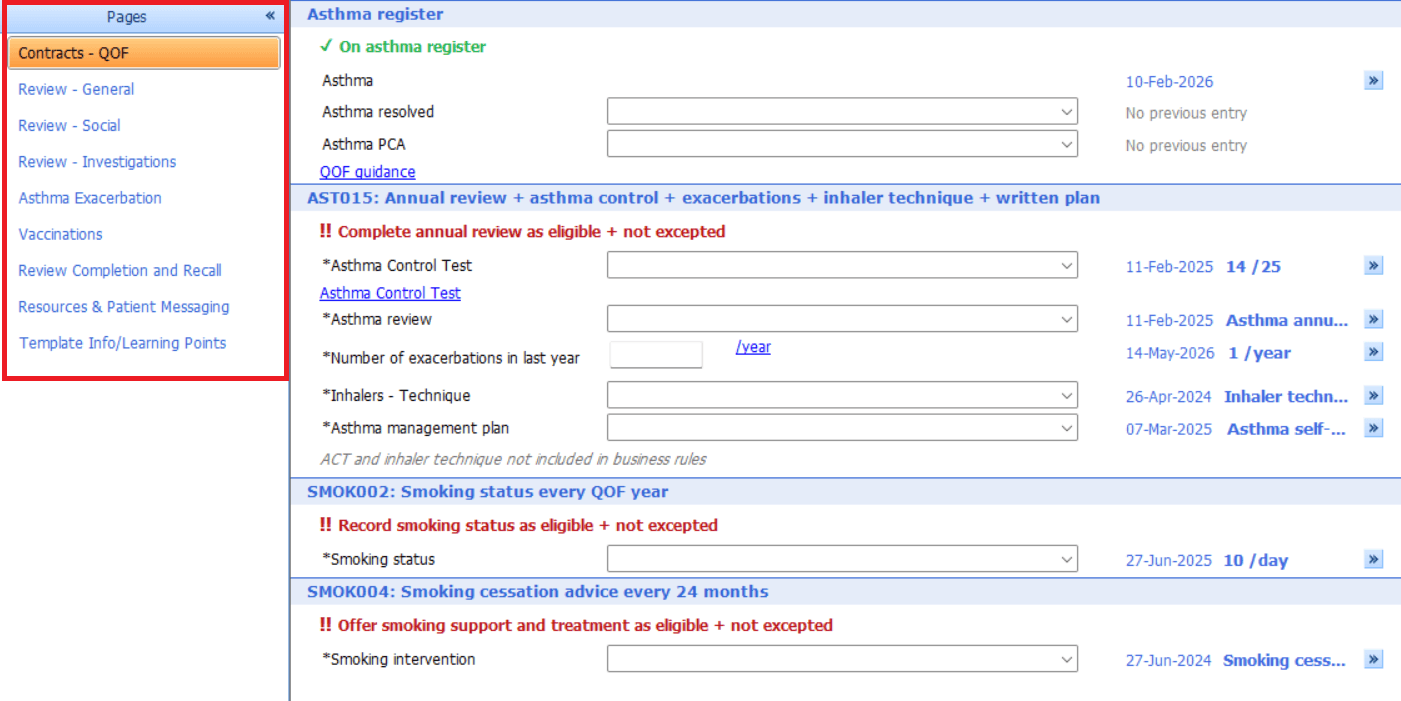
Each page consists of data fields to record information, which includes:
Tick boxes
Pick lists
Free text fields
Numeric values
The majority of fields will apply the required SNOMED codes back to the patient record once saved.
Fields marked with an asterisk indicate this is for contract purposes (QOF, Network Contract DES, local requirements).

Previously recorded data can be viewed by clicking on the chevron icon to the right of the data field.

Black bold text denotes best practice requirements.

The templates also include useful links to patient resources, clinical safety guidance and clinician appraisal toolkits.
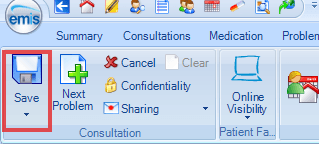
Once all information is completed, ensure you Save template to record the data back to the patient record.
⚠️Please note: data fields that appear in multiple pages, such as BP, only need to be captured once in the template.
❓FAQs
How are the Ardens templates updated?
The Ardens templates are automatically updated with the latest version via the Resource Publisher module.
What should I do if a template appears incorrect or outdated?
Contact Ardens Support (support@ardens.org.uk) who can investigate the content and advise on any available updates.
🏫 Additional Support
Complete the Getting Started with Ardens EMIS academy course
Book training for your GP Practice, PCN or ICB
Contact our Support Team for support in real time