
We’re updating our Knowledge Base
We’re currently transitioning Ardens Clinical support articles to this new Knowledge Base. Content will be added progressively, so you may find limited articles available at this stage.
In the meantime, you can access our full support resources on our existing sites:
We’ll continue to expand this site, so please check back regularly.
ℹ️ Introduction
This article explains how to access and use the Ardens Templates within SystmOne. By the end of this guide, you will understand how Templates support consistent data recording, improve consultation efficiency, and help ensure key clinical information is captured accurately.
Background
Accurate and structured clinical data is essential for patient care, reporting, quality improvement, and contractual requirements. Consistently recording information can be challenging across different primary care roles when managing multiple long-term conditions, preventive care activities, and administrative processes.
The Ardens Templates provide a standardised approach to data entry within SystmOne, helping practices record information efficiently while supporting clinical workflows and data quality.
How Ardens Can Help
Ardens Templates are designed to support clinicians and practice staff throughout patient consultations and administrative workflows.
Key benefits include:
Standardised and consistent clinical coding
Improved data quality and reporting
Reduced administrative burden
Support for national and local clinical guidance
Faster data entry through structured templates
Improved recall, monitoring, and long-term condition management
📍Access Templates
Ardens Templates can be accessed in several ways within SystmOne, depending on the workflow being used.
Auto Consultations
Open a patient record
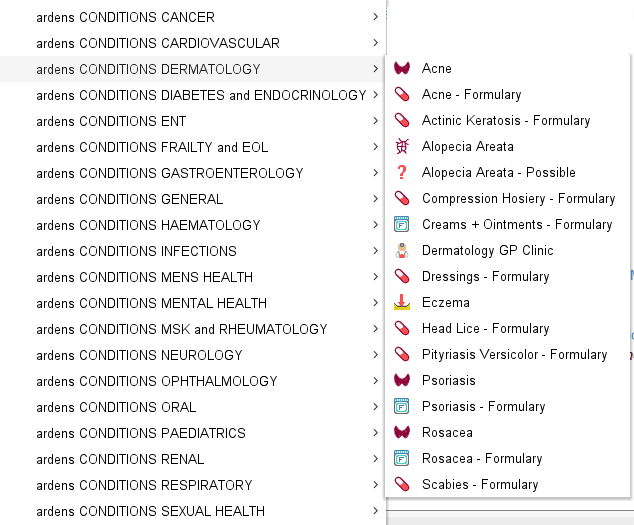
Select Auto-Consultation from the toolbar
Under the categories prefixed with ardens, you will find a comprehensive list of available templates.
Selecting the required template will launch it ready for completion
F12
Open a patient record
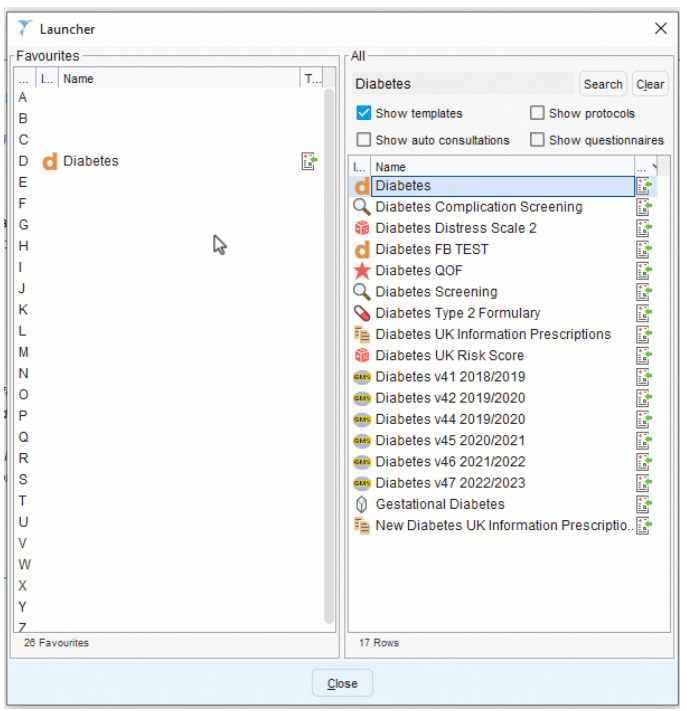
Press F12 on your keyboard
In the right-hand panel, ensure that only the Show templates option is selected
Enter the name of the template in the free text box and Search
Click and drag the required template over to a letter on the left-hand side
The template can now be accessed from here
Patient Status Alert
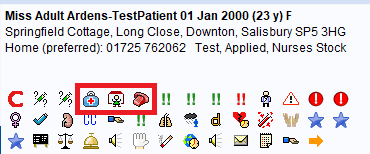
Open a patient record
Locate the required patient status alert within the patient demographic box
Click on the icon to launch the corresponding template
Search Bar
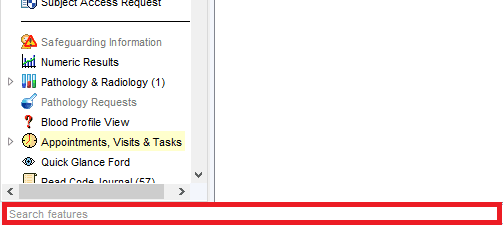
Open a patient record
Locate the search bar on the bottom left-hand corner of the screen
Search for the relevant template
📝Using the Templates
Ardens provides a wide range of Templates covering both clinical and administrative workflows. These include templates for:
Long-term conditions
Procedures
Pharmacy and medication reviews
Safeguarding
Reception and Admin processes
When launching, each template is divided into tabs along the top of the screen, designed for primary care staff to access the information they need at that time.

Each page consists of data fields to record information, which includes:
Tick boxes
Drop-down menus
Numeric values
Notes
Medical drawings
The majority of fields will apply the required SNOMED codes back to the patient record once saved.
Fields marked with a red star indicate it is a QOF requirement, blue star indicates Network Contract DES and a yellow start for local contract requirements.
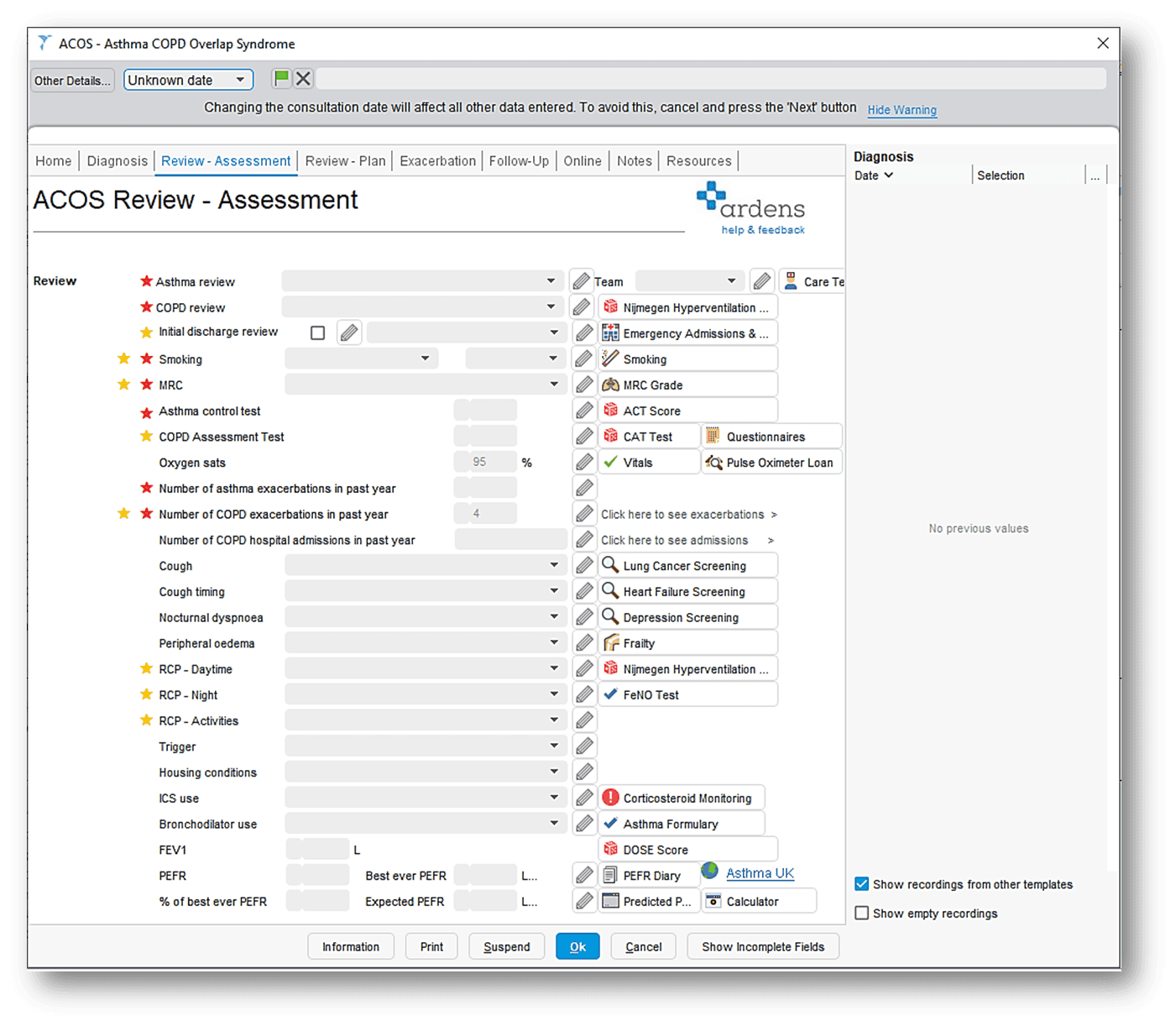
The template may also include Views, which provide a comprehensive summary of essential information, and Formularies, which allow clinicians to prescribe in line with national guidance.
Once all information is completed, ensure you click Ok at the bottom of the template to record the data back to the patient record.
❓FAQs
How are the Ardens templates updated?
The templates are automatically updated by the Ardens team.
What should I do if a template appears incorrect or outdated?
Contact Ardens Support (support@ardens.org.uk) who can investigate the content and advise on any available updates.
🏫 Additional Support
Complete the Getting Started with Ardens SystmOne academy course
Book training for your GP Practice, PCN or ICB
Contact our Support Team for support in real time