We’re updating our Knowledge Base
We’re currently transitioning Ardens Clinical support articles to this new Knowledge Base. Content will be added progressively, so you may find limited articles available at this stage.
In the meantime, you can access our full support resources on our existing sites:
We’ll continue to expand this site, so please check back regularly.
ℹ️ Introduction
This article explains the steps required to complete your Ardens setup within SystmOne after your organisation has been enabled. By the end of this article, you will have configured the key settings required to use Ardens resources effectively and minimise duplicate alerts and views.
Background
Once Ardens has been enabled for your organisation, several configuration steps are required to ensure the resources function correctly and integrate with your existing SystmOne setup.
Before completing the setup, it is recommended that practices review and tidy any existing alerts, views or processes that may duplicate functionality provided by Ardens.
How Ardens Can Help
Ardens provides a range of resources within SystmOne, including:
Clinical templates
Recall systems
Patient status alerts
Referral forms
Reports
To access these resources, your organisation must first be enabled by Ardens and complete the setup process outlined below.
👥 Join the Ardens Groups
Once your organisation has been enabled, the first step is to join the Ardens groups within SystmOne. These groups provide access to Ardens resources and updates.
To join the group:
Log in to SystmOne
Open Tasks
Locate the unassigned task inviting you to join the Ardens Ltd group
Right-click the task and select Action
Follow the same prompts to accept the invitation for Ardens Ltd Referrals if applicable
🔄️ Restart SystmOne
Once group membership has been updated, all users should restart SystmOne to ensure the new resources become available.
To restart:
Close SystmOne completely
Reopen SystmOne
Ask any other users currently logged in to do the same
📄Review Alerts and Views
Ardens provides its own patient status alerts and quick glance views. To avoid duplication and improve usability, it is recommended that existing system-wide alerts and views be reviewed.
Disable System-Wide Patient Status Alerts
To disable alerts:
In the left hand window, open the By Availability folder.
Click on the System Wide sub folder.
Disable all System-Wide alerts except those labelled QOF - (Condition) Invitations by unticking the box under the Enabled column.
Review any organisation-specific alerts and disable any that duplicate Ardens functionality
⚠️ Please note: Community and non-GP organisations may wish to leave the GP Record Visible alert active.
Disable Views
To disable views:
Go to Setup > Data Output > View Maintenance
Disable (untick) all Ardens Ltd views
⚠️ Please note: The views will still be available within templates, but removing them from Quick Glance Views can help keep screens uncluttered.
⚙️ Configure QOF Alerts
QOF Alert Actions allow users to launch the relevant Ardens template directly from a QOF alert.
This configuration only applies to GP practices. Community and non-GP organisations can skip this section.
Create Local QOF Alert Actions
To create local QOF Alert Actions:
Go to Setup > Data Output > QOF Alert Actions
Select New Local Alert Action
Choose the relevant QOF Alert from the drop down (E.g. AST007)
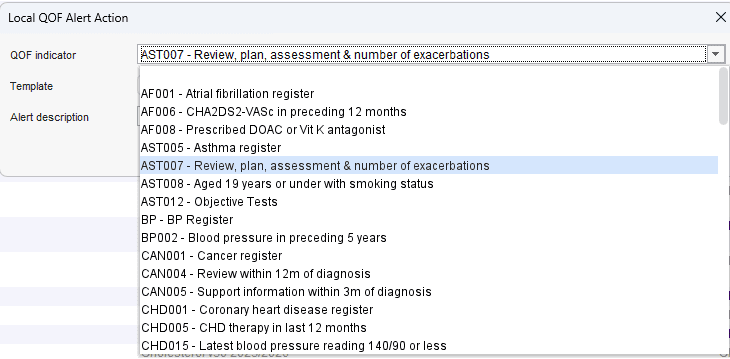
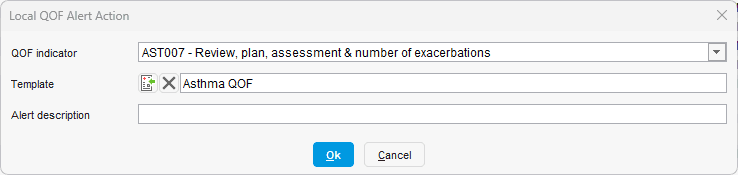
Click on the icon next to Template
In the window that opens, type QOF in the search bar and click Search
Select the relevant QOF Template with a red star. In this example, select Asthma QOF
Click OK
Copy Existing Alert Descriptions
When creating a new local alert action, the description field will not automatically populate.
To copy the original description:
Open the original QOF Alert Action
Press CTRL + C to copy the description
Open the new alert action
Right-click within the description field and select Paste
Enable Access to Auto-Consultations
Auto-Consultations are used by a number of Ardens resources and should be available to all appropriate staff members.
On the rare occasion users cannot see the Auto-Consultations option, do the following:
Go to User > User Preferences
Select Patient Record > Consultation
Tick Use New Consultation Process
Select OK and restart SystmOne
Once the configuration steps above have been completed, your organisation is ready to start using Ardens resources.
❓FAQs
Do all users need to restart SystmOne?
Yes. Any users logged into SystmOne when the groups are assigned should restart their session to ensure resources become available.
Should all System-Wide alerts be disabled?
No. QOF invitation alerts should remain active. Community and non-GP organisations may also wish to keep the GP Record Visible alert enabled.
🏫 Additional Support
Complete the Getting Started with Ardens SystmOne academy course
Book training for your GP Practice, PCN or ICB
Contact our Support Team for support in real time