
We’re updating our Knowledge Base
We’re currently transitioning Ardens Clinical support articles to this new Knowledge Base. Content will be added progressively, so you may find limited articles available at this stage.
In the meantime, you can access our full support resources on our existing sites:
We’ll continue to expand this site, so please check back regularly.
ℹ️ Introduction
This article explains how to create an Ardens Portal account, access and download Ardens resources for EMIS Web, and manage your Ardens search updates.
Background
The Ardens Portal provides EMIS Web customers with a secure way to manage their Ardens searches and download the latest search folders whenever required.
Users are required to create an individual login account to access the portal. This provides an audit trail of downloaded resources and enables organisations to identify when updates become available.
How Ardens Can Help
Using the Ardens Portal, you can:
Manually download report folders
View previous and upcoming scheduled search updates
Request high-priority search updates
Reschedule or cancel an upcoming update
View details of recent search releases
How to Access
The portal can be accessed via: https://ardens.live/portal
All users must create an account using an NHS email address.
⚙️ Create Account & Sign In
Before you can access resources within the Ardens Portal, you will need to create an individual user account. Registration is completed using your NHS email address and only needs to be completed once.
Register for Account
Access the Ardens Portal
Select Sign Up
Enter your credentials, including your NHS Email address
Select your Organisation
Create a secure password
Read and confirm you have agreed to the Ardens terms and conditions by ticking the box
Click Submit
Once your account has been created, you can sign in using your NHS email address and password
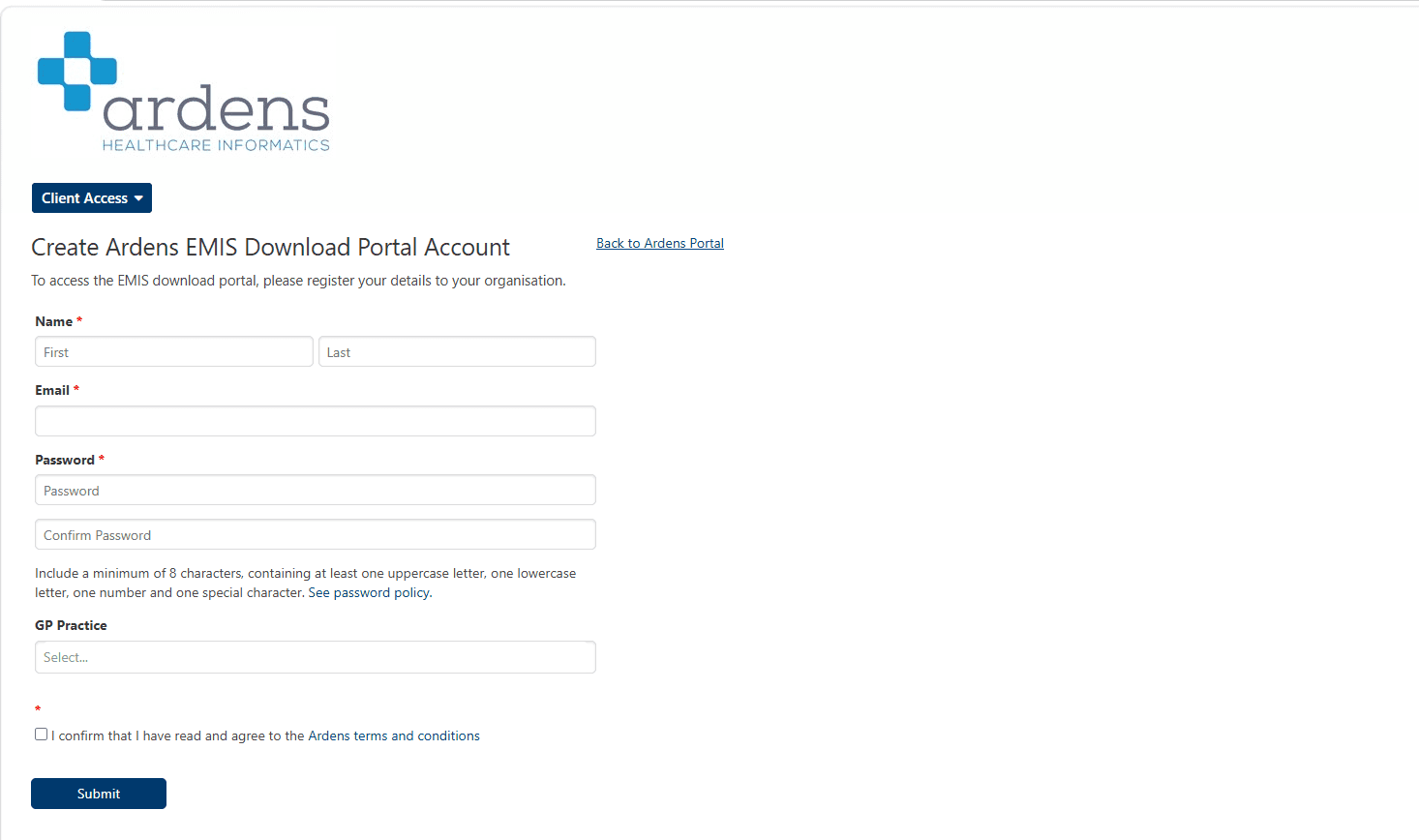
⚠️Please Note: If you can sign in but cannot see the correct organisation, or an old practice is still showing, contact the Ardens Support Team (support@ardens.org.uk) so your portal access can be updated. Each user account is linked to the organisation access separately.
Sign In
Once your account has been created, you can sign in and access available resources.
Access the Ardens Portal
Enter your email address and password
Click Sign in
Select your organisation from the My Organisations section
⚠️ Please Note: If your organisation is not listed, or you cannot access the searches you need after signing in, contact the Ardens Support Team (support@ardens.org.uk) with your organisation name/ODS code so access can be checked.
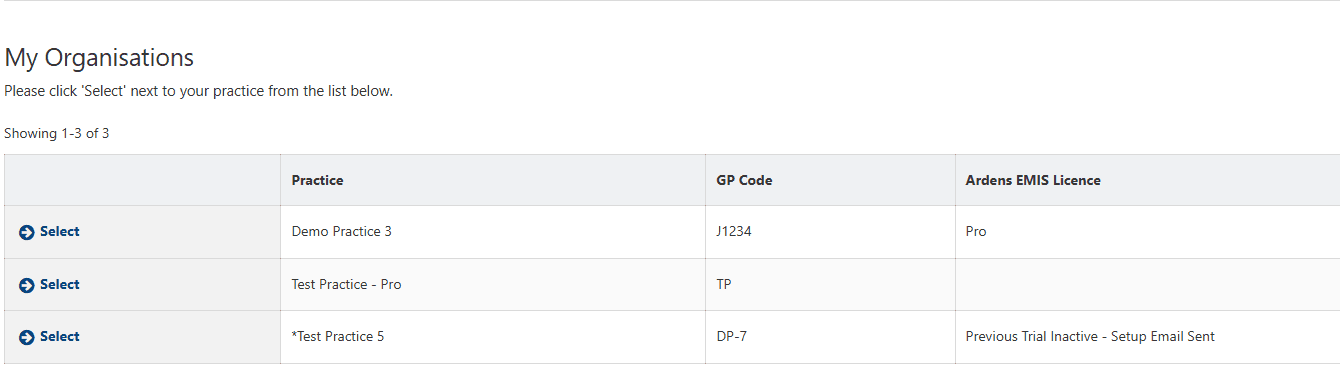
Once you have selected your organisation, the portal will display all resources available to your organisation.
Next Scheduled Update: date of your organisation's next search update
Recent Search Releases / Changelog: details of the latest updates
Scheduled Search Updates: upcoming and past updates for your organisation
Manual Search Download/Update information: download files to manually import searches into your EMIS Web system
📅Scheduled Updates
Scheduled search updates are completed automatically every 3-4 weeks. The day before an update begins, your practice will receive an email notification. If required, you can cancel the schedule through the Ardens Portal.
Updates typically complete within 48 hours and will:
Update the Ardens folder with the latest search versions
Rename previous versions with a zOLD prefix
Move previous versions into a dated folder within the Ardens Archive folder
Once complete, you will receive a confirmation email detailing the updated searches and the date of your next scheduled update.
You can also choose to add update notifications to your organisation's notepad. Access this support article for further information.
⚠️ Please Note: Archived folders are automatically deleted every 3–4 weeks unless your practice has opted out of archive deletion.
Request
To request a priority update:
If you already have a scheduled update, select the green up arrow to move your update to the priority queue.
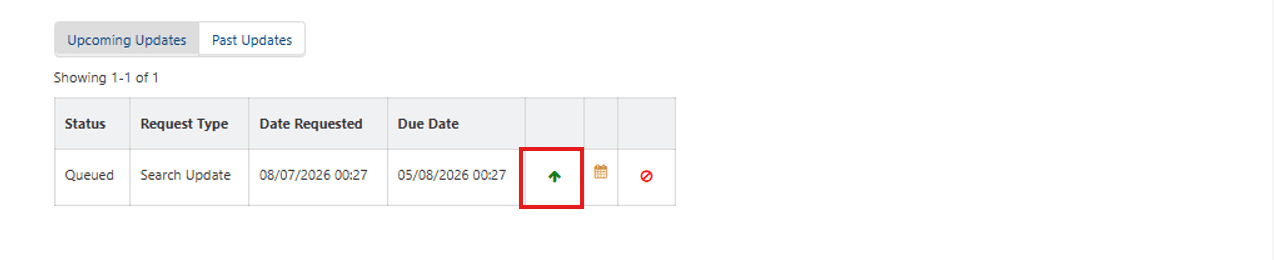
⚠️ Please Note: This option is only available if your scheduled update is not already due to run that day.
If you don't have an update scheduled, select Request Search Update to be added to the priority queue.

Updates typically complete within 48 hours.
⚠️ Please Note: Previous search versions are only deleted during routine scheduled updates.
Reschedule
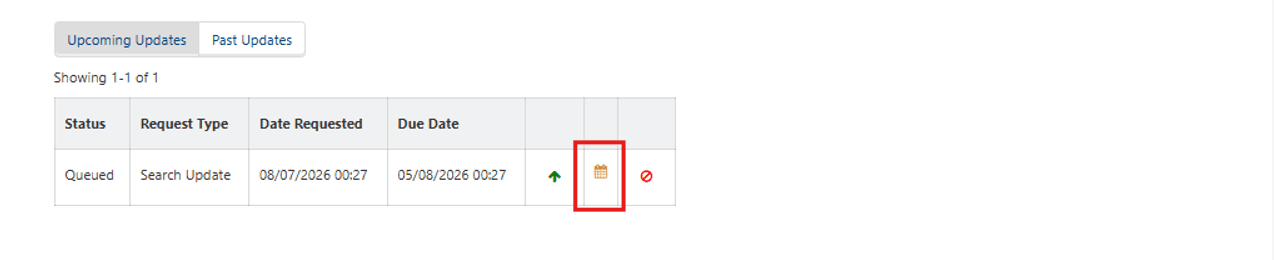
To change the date of your next scheduled update:
Select the calendar icon next to your scheduled update
Choose a new date
Cancel
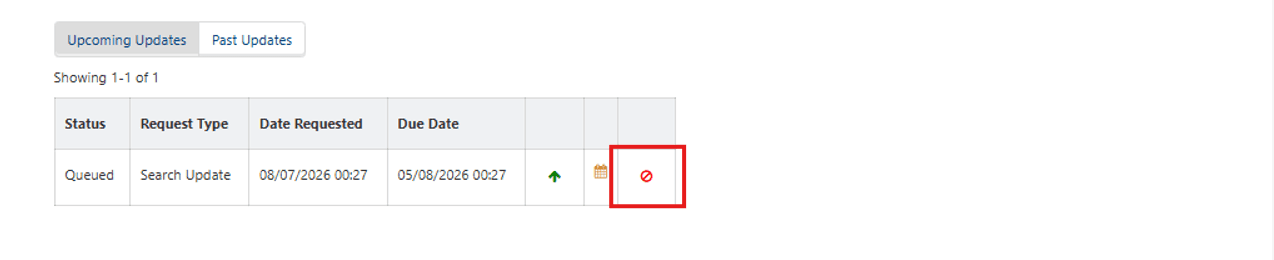
To cancel the date of your scheduled update use either of the following methods:
Via the Ardens Portal
Locate the Upcoming Update section
Select the red stop icon
Via the Notification Email
Reply to the scheduled update notification email as soon as possible, requesting that the update is cancelled before it begins.
View
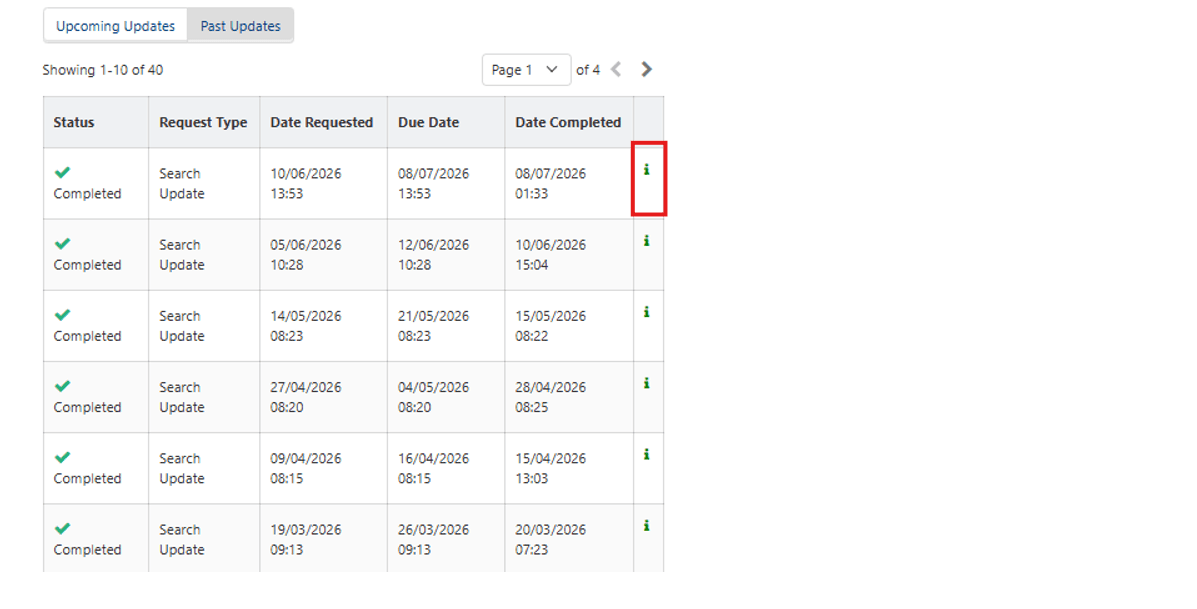
To view previous updates:
Select Past Updates
Locate the required update
Select the green information icon to view the searches included in that release
⬇️Manual Downloads
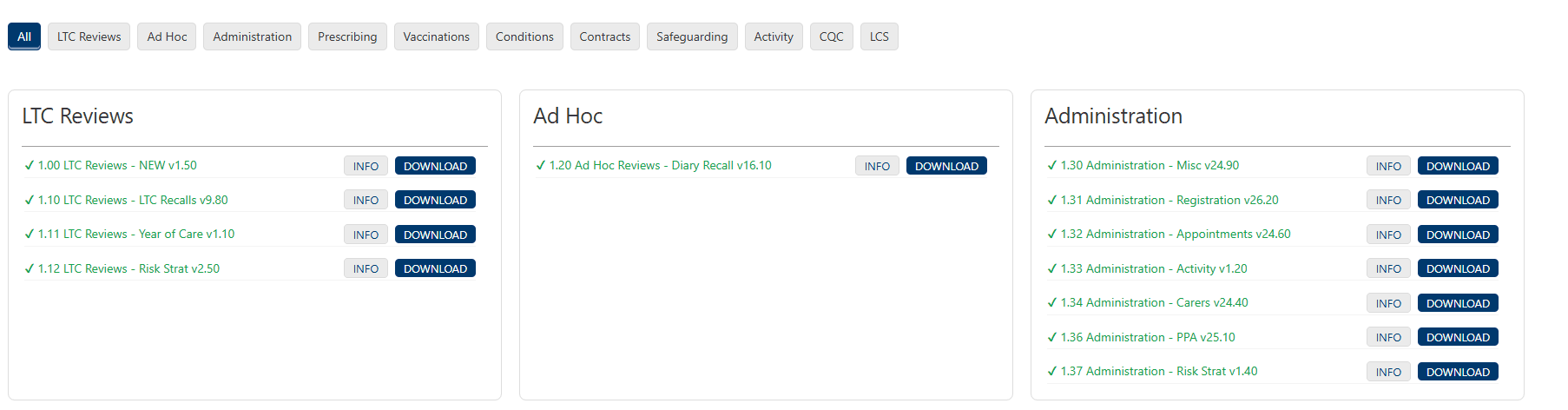
If you do not want to wait for your next scheduled search update, you can manually download the latest versions of the search folders.
Use the category tabs to navigate to specific areas, or select ALL to view all folders.

The portal uses the following status indicators:
Green tick: Latest version downloaded
Red arrow: An updated version is available
Red exclamation mark: Important update - check you have the latest version.
To view updated information for a specific folder, select the INFO option.
Download
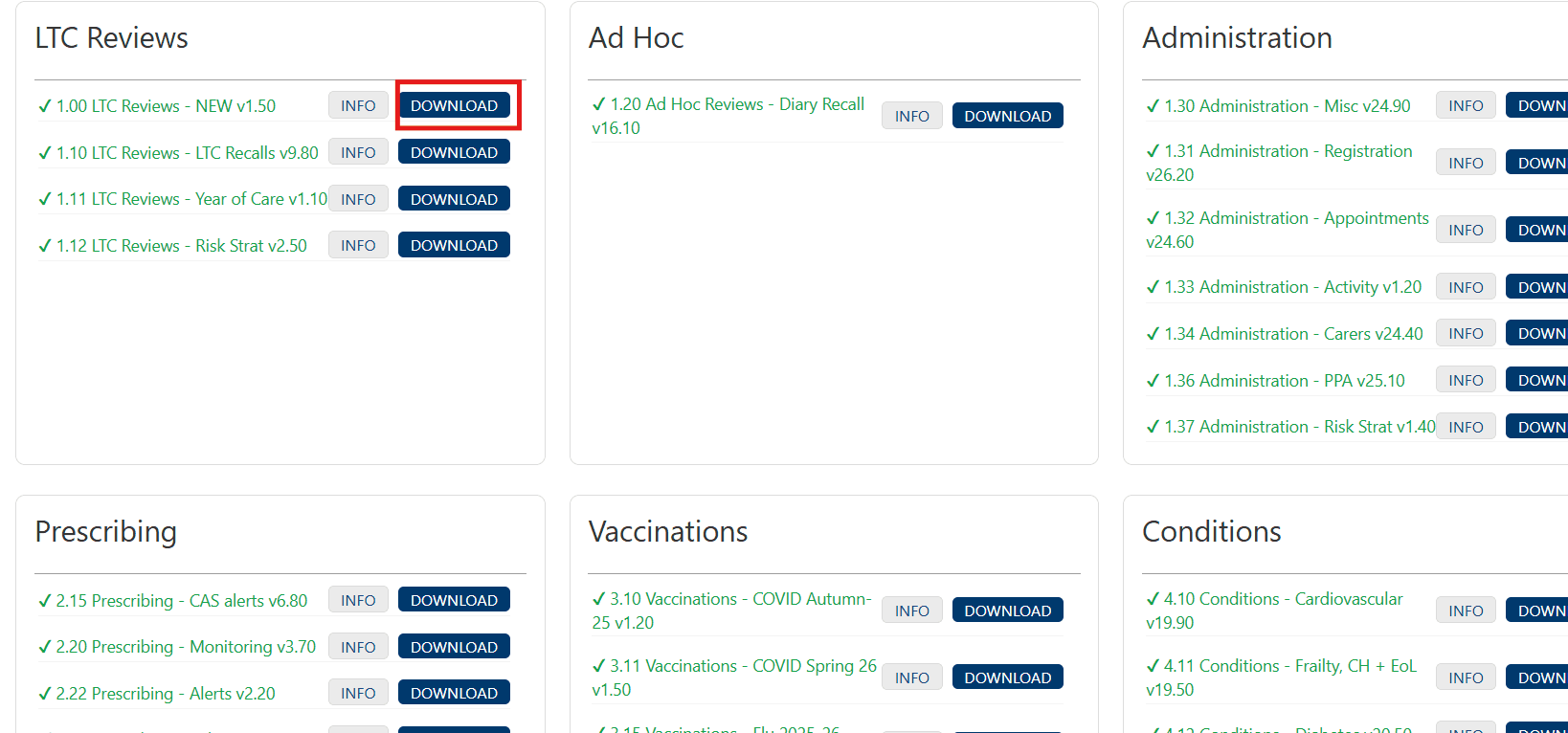
To download a report folder:
Click DOWNLOAD for the required folder
By default the file will save to your downloads folder
⚠️Please note: Occasionally you may see a message ‘blocked because this type of file can harm your computer’. The Ardens file will not damage your computer and selecting the 3 dots to the right and selecting Keep will enable you to download the file:
Import
To import the downloaded file into your clinical system:
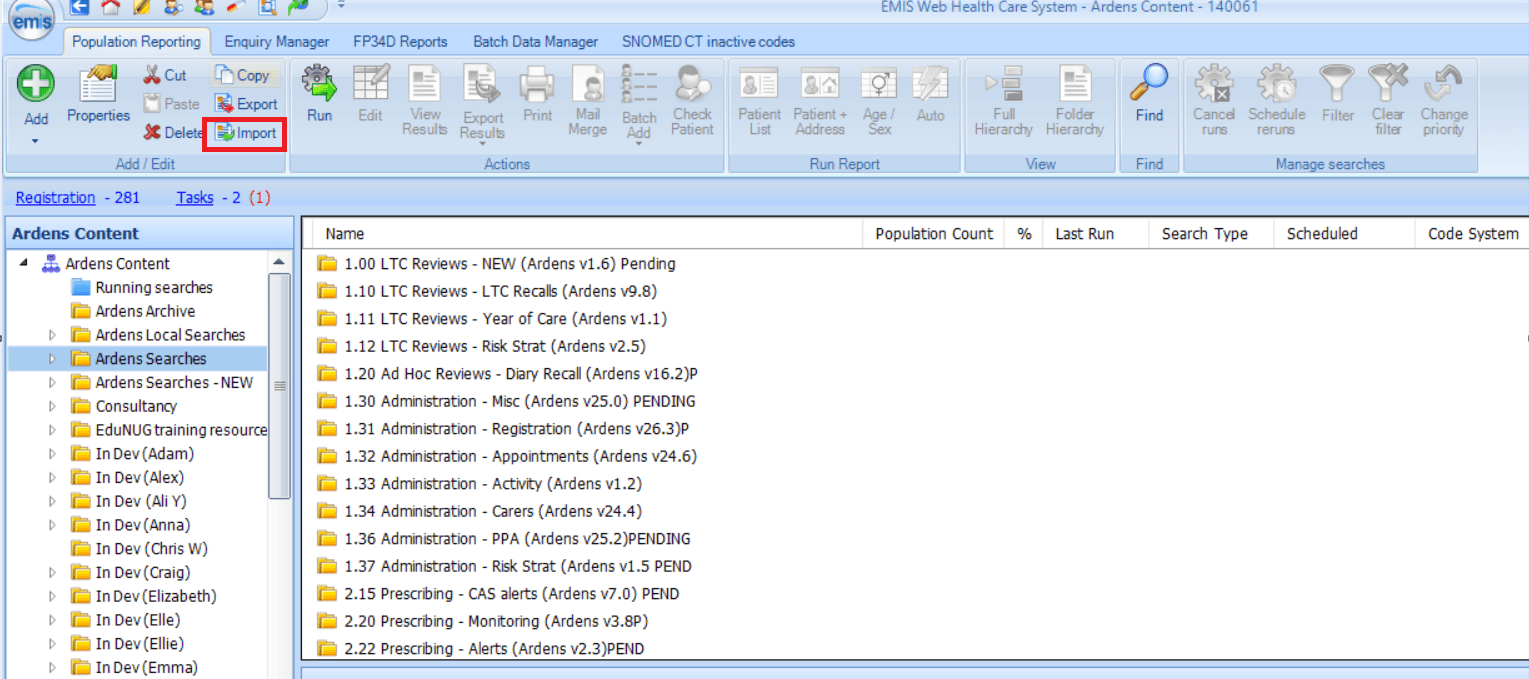
Access EMIS Web
Go to Population Reporting
Select the Ardens Searches folder
Click Import on the EMIS Web ribbon
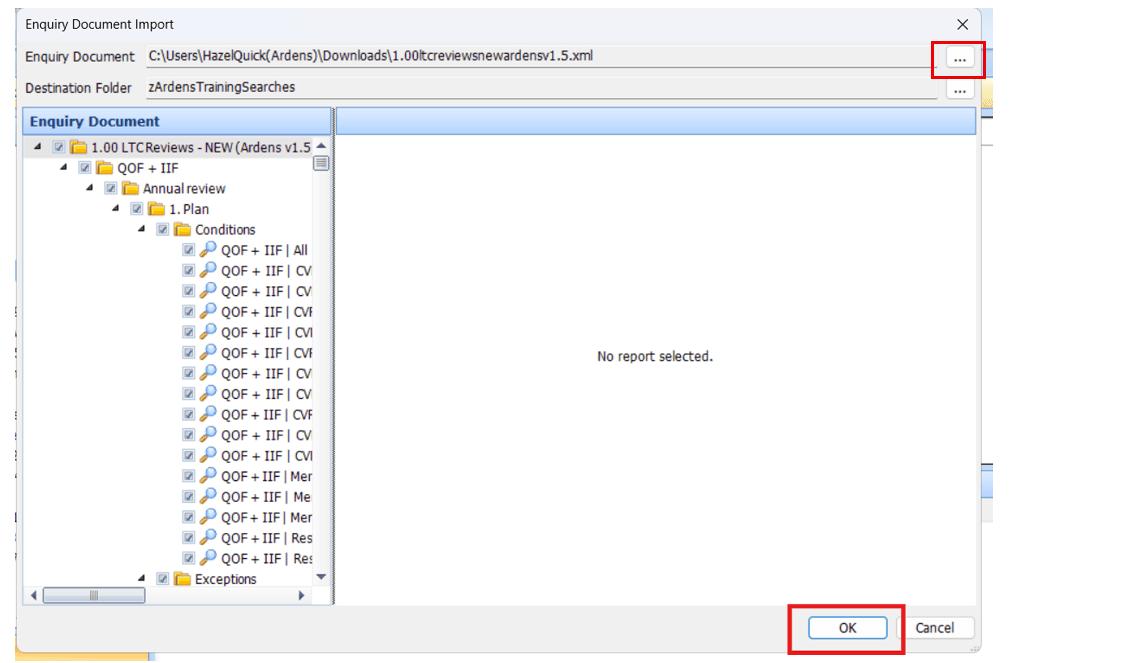
Within the Enquiry Document Import screen, click on the 3 dots next to the Enquiry Document field
Navigate to the saved file, select the file and click Open
Reports will display to the right of the Enquiry Document Import screen
Click OK to import
⚠️ Please note: To avoid confusion, we recommend deleting or archiving previous versions of report folders after importing the latest version. If a folder cannot be deleted, create an Ardens Archive folder and move older reports into it. Alternatively, rename older folders so they begin with zOLD to keep them at the bottom of the folder list until they can be removed.
If the file will not download, or the Ardens folder is missing after an interrupted import, do not continue making repeated changes if you are unsure what has happened. Contact the Ardens Support Team (support@ardens.org.uk) with your organisation details and screenshots so the folder/update state can be checked before your next scheduled update.
⚙️ Update Settings
You can manage your search update preferences directly from the Ardens Portal.
Available settings include:
Search update notifications
Automatic deletion preferences
Other search update options available for your organisation
To manage update notification preferences, scroll to the bottom of the search list and open Optional Search Update Settings, then update your settings.
📋 Important Notes
Folder Naming: Do not rename the Ardens search folder or any of its subfolders, as this may result in duplicate folders being created during future updates.
Custom Searches: Do not store your own searches or modified versions of Ardens searches within the Ardens folder structure. If modified content is detected during the deletion process, it will be moved to the Ardens Archive-ForPracticeReview folder. Practices should periodically review this folder and delete any searches that are no longer required.
Search Deletion: Some searches may occasionally be unable to be deleted during an update. If this occurs, the search will be skipped, and deletion will be attempted again during a future scheduled update.
Copying Ardens Searches: If you copy individual searches from within the Ardens folder, or create links between your own searches and Ardens searches, those linked searches may be removed during the deletion process. If you need to retain Ardens searches, copy the entire folder into your own folder outside the Ardens folder structure rather than copying individual searches.
❓FAQs
Can I share my portal account with colleagues?
No. Each user must have an individual login for security and audit purposes.
What should I do if I have forgotten my password?
Contact support@ardens.org.uk
Why can’t I see the correct organisation in the portal?
If your organisation is missing, or an old practice is showing, contact the Ardens Support Team with your organisation name and ODS code so your access can be checked and updated.
Can I request an update before my next scheduled search update?
Yes. If your organisation already has an upcoming scheduled update, you can use the priority update option to move it forward. If no update is currently scheduled, you can request a search update from the portal.
How long does a search update usually take?
Scheduled and priority updates typically complete within 48 hours. You should also receive email notifications before and after the update.
What should I do if the download is blocked by my browser?
You may see a warning that the file could harm your computer. The Ardens file is safe to download. In most browsers, selecting the 3 dots next to the download and then choosing Keep will allow the file to download.
What happens to older versions of searches after an update?
During routine scheduled updates, older search versions are renamed, archived into a dated folder, and may later be deleted depending on your organisation’s settings. If you manually import searches, it is a good idea to delete, archive, or rename older versions to avoid confusion.
🏠 Additional Support
Book training for your GP Practice, PCN or ICB
Contact our Support Team for support in real time