We’re updating our Knowledge Base
We’re currently transitioning Ardens Clinical support articles to this new Knowledge Base. Content will be added progressively, so you may find limited articles available at this stage.
In the meantime, you can access our full support resources on our existing sites:
We’ll continue to expand this site, so please check back regularly.
ℹ️ Introduction
This article explains the recommended housekeeping tasks for maintaining the Ardens resources within EMIS Web. By the end of this guide, you will understand how to archive, deactivate, and remove redundant resources to help keep your system organised and efficient.
Background
Over time, unused templates, searches, reports, and document resources can accumulate within EMIS Web. This can make it more difficult for users to find the correct resources and may impact overall system usability and performance.
Regular housekeeping helps practices:
Reduce clutter within EMIS Web
Improve navigation and usability
Ensure staff are using the most up-to-date resources
Minimise duplication of searches and templates
Support better system performance
Ardens maintains strict governance processes and insurance cover for Ardens-managed resources. Practices creating and maintaining their own local resources should ensure appropriate governance and indemnity arrangements are in place.
How Ardens Can Help
Ardens provides regularly updated resources designed to support efficient clinical workflows within EMIS Web. Keeping your system organised helps ensure users can easily locate and use the latest Ardens templates, protocols, searches, and document templates.
We recommend reviewing housekeeping processes regularly as part of ongoing system maintenance.
➡️ Clinical Templates and Protocols
EMIS Web does not allow clinical templates or protocols to be permanently deleted, as these resources may have been used to record information within patient record
Instead, templates and protocols can be:
Deactivated: The resource remains visible in Resource Publisher but appears greyed out
Archived: The resource is hidden unless Show Archived is selected
Before archiving or deactivating resources, we recommend discussing proposed changes with relevant practice staff to ensure the resources are no longer required.
Archive or Deactivate Templates and Protocols
To archive or deactivate templates and protocols:
Click the EMIS ball (menu)
Select Configuration > Resource Publisher > Protocols and Templates
Locate the required template, protocol, or folder.
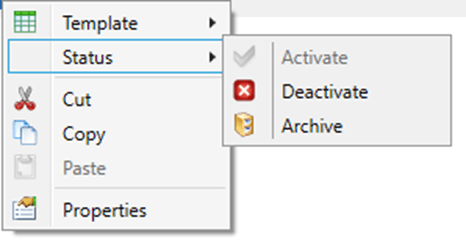
Right-click the item and select either:
Status > Deactivate, or
Status > Archive
Alternatively, use the same options from the ribbon menu.
Archiving outdated resources helps reduce clutter and encourages consistent use of the correct templates and protocols.
Remove Clinical Templates from the Template Picker
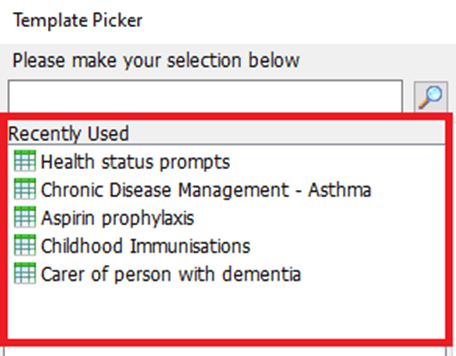
When a users clicks on Run Template within a consultation or Data Using Template, EMIS Web displays a list of recently used templates.
Over time, this list can become cluttered with outdated or unused templates. We recommend periodically clearing these templates.
To remove templates from the list:
Right-click the template and select Remove
To remove multiple, right-click any template and select Remove All
⚠️Please note: This only removes templates from your personal Recently Used list. It does not remove them for all users.
📃Document Templates
Document templates can accumulate over time, making it harder for users to identify the correct version and increasing the risk of outdated templates being used.
Document templates cannot be deleted. They can only be:
Completed: Used when a draft template is ready for publishing.
Archived: Removed from active use within the patient record.
To archive document templates:
Click on the EMIS ball (menu)
Select Configuration > Resource Publisher > Document Templates
Locate the required document template or folder
Right-click the item and select Status > Archive
Alternatively, use the same option from the ribbon menu.
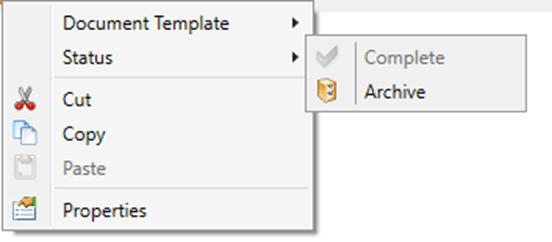
You can also use the same option from the ribbon menu.
⚠️ Please note: For Ardens Pro customers, regular housekeeping is particularly important, as referral forms and maintained templates are updated regularly and should be used instead of older local copies.
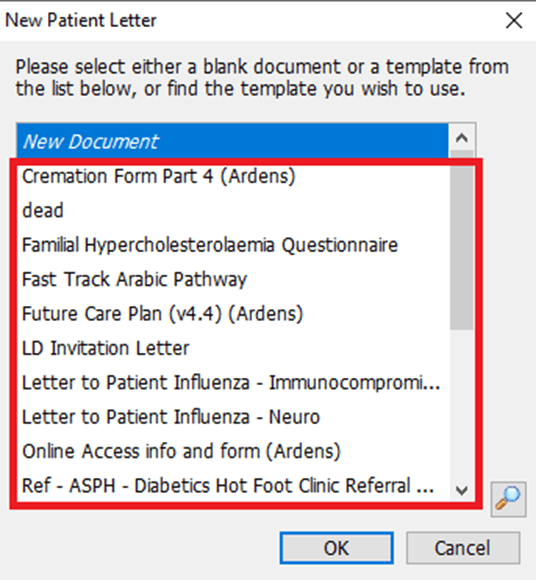
Removing Document Templates from the New Patient Letter Screen
When a users clicks on create a new document within a patient record, EMIS Web displays a list of recently used documents.
Over time, this list may include documents that are no longer required.
To remove documents from the list:
From the New Patient Letter screen when creating a letter, click the magnify glass
This will display your personal list of recently used documents, select the red cross beside the document you wish to remove
⚠️Please note: This only removes documents from your personal Recently Used list. It does not remove them for all users.
📈 Searches and Reports
Regular housekeeping of searches and reports within Population Reporting is strongly recommended.
We suggest reviewing searches and reports with search folder owners to identify:
Duplicate searches
Outdated reports
Unused folders and resources
Delete Searches and Reports
To delete:
Click on the EMIS ball (menu)
Select Reporting > Population Reporting
Locate the required search, report, or folder.
Right-click on the item and select Delete
Alternatively, use the Delete option from the ribbon menu.
⚠️Please note: Deleted searches, reports, and folders cannot be recovered.
Deleting Large Numbers of Searches and Reports
If you are unsure whether searches may still be required, or you are deleting a large number of items, consider creating an archive folder instead.
Create a folder named *DO NOT USE.
Right-click the searches or folders.
Select Cut and paste items into the new folder.
This allows unused resources to be hidden from day-to-day use and reviewed later before permanent deletion.
❓FAQs
Can clinical templates be permanently deleted in EMIS Web?
No. Clinical templates and protocols cannot be permanently deleted because they may have been used within patient records.
What is the difference between deactivating and archiving a resource?
Deactivated resources remain visible but greyed out, whereas archived resources are hidden unless Show Archived is selected.
Does removing templates and documents from the Recently Used list delete for all users?
No. This only removes the template from your personal recently used list.
🏠Additional Support
To further your understanding of the Ardens resources:
Book training for your GP Practice, PCN or ICB
Contact our Support Team for support in real time