We’re updating our Knowledge Base
We’re currently transitioning Ardens Clinical support articles to this new Knowledge Base. Content will be added progressively, so you may find limited articles available at this stage.
In the meantime, you can access our full support resources on our existing sites:
We’ll continue to expand this site, so please check back regularly.
ℹ️ Introduction
This article explains how to use Ardens resources within EMIS Web Hub, PCN, Community and other non-GP organisations. By the end of this article, you will understand how to access Ardens resources, enable Hub-specific functionality, record clinical activity and recognise important considerations when using Ardens outside of a GP practice setting.
Background
Many Primary Care Networks (PCNs), community organisations and healthcare hubs deliver clinical activity on behalf of GP practices. To support consistent data recording and visibility of national contract requirements, Ardens provides a range of templates and resources that can be used within these settings.
Whilst Ardens resources are fully tested within GP practice clinical systems, non-GP environments can vary significantly in their configuration, data sharing arrangements and patient registration status. Organisations should therefore ensure that resources are thoroughly tested within their local environment before routine use.
How Ardens Can Help
Ardens Clinical provides a range of resources designed to support standardised clinical recording and visibility of contractual requirements across organisations, including:
Chronic Disease Templates
Multi-Morbidity Review Templates
National Contract and QOF Resources
Clinical Protocols and Launchers
Data Quality Resources
Patient Recall Systems
Referral and Workflow Resources (depending on subscription level)
The Ardens templates include dedicated HUB pages which display national contract requirements from the patient's registered GP practice, helping clinicians identify outstanding activity during consultations.
⚠️ Please note: to receive Ardens resources within a Hub or non-GP site, you must ensure you have an active sharing agreement. Contact support@ardens.org.uk if you require further information.
⚙️Configure Your Hub or Non-GP Site
Before using Ardens Hub functionality, several configuration steps should be completed.
Activate Agreement
Ardens templates, protocols, and documents are published via the Resource Publisher module and require an active sharing agreement to receive automatic updates.
To activate:
Select the EMIS ball
Select Configuration > Data Sharing Manager
From the lower-left panel, select Resource Publisher
Locate the Ardens agreement and select Activate Agreement
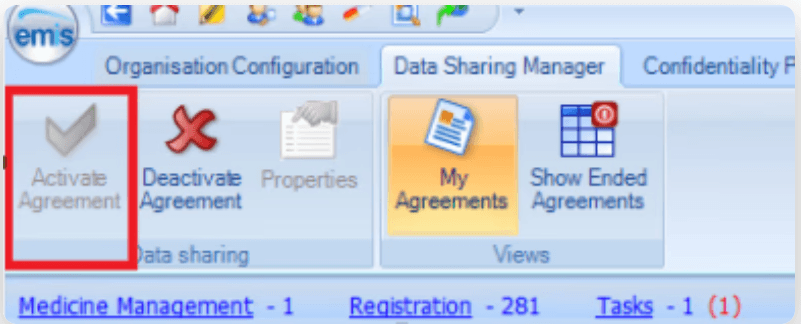
The agreement is now activated and your organisation will receive automatic updates.
⚠️ Please note: to perform this action you smartcard must include RBAC B1700 - Local System Configuration.
Concept Configuration
To enable Hub and non-GP site pages to be displayed in specific Ardens templates, the following steps must be taken once the resources have been activated.
To enable:
Select the EMIS ball
Select Configuration >Resource Publisher
From the lower-left panel, select Concepts
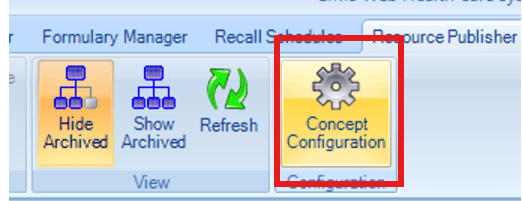
Select Concept Configuration on the EMIS Web ribbon
Under Organisation settings, ensure the following are set to Yes:
Allow evaluation of unfiled consultation data
Allow evaluation of shared care record data
Select OK to save
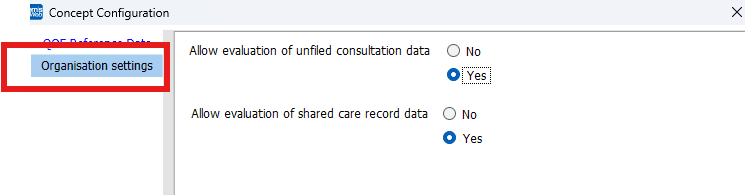
Once configured, the system will automatically add the required diary code to patients, allowing Hub-specific template pages to display correctly.

📝 Recording Data
Now that the site is enabled with Hub pages, clinicians can now use the Ardens resources to record and monitor data.
Access a Template
To access a template:
Select Run Template within an open consultation
This will launch the Template Picker screen, use the search field to search for an Ardens template
Double click, or select the template and click OK to launch
Using the Hub Page
Once a template has been launched:
Select the HUB page from the left-hand menu
Items displayed with an asterisk indicate contract payment
Information can be entered using tick boxes, pick lists, numeric values and free text fields
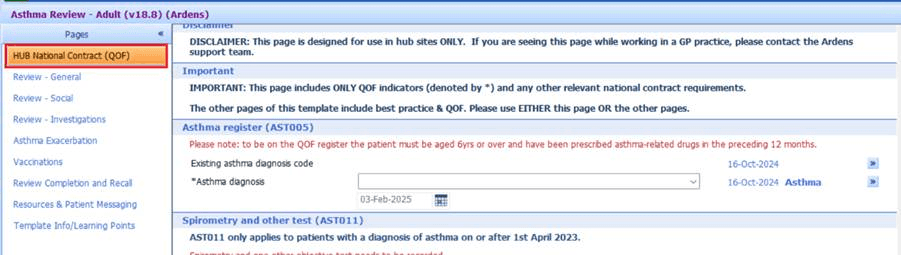
Clinicians can also view previously recorded data from the patient's registered GP practice alongside template entries.

Complete the relevant fields and Save Template when finished
💬Understand Data Visibility and Reporting Considerations
When working within a Hub or non-GP sites, there are important differences compared with a GP practice environment.
Shared Care Record Data
Some Ardens functionality relies on coded data existing within the organisation's own patient record.
Where a site is only viewing information from a GP practice through shared records, some template calculations, alerts or historical data displays may not fully reflect activity recorded elsewhere.
Searches and Reports
Many Ardens searches use a denominator of currently registered patients.
If patients are not registered within the Hub organisation, search results may:
Return incomplete information
Show reduced activity levels
Return zero results
Results may also differ if the organisation does not hold the same coded data as the patient's registered GP practice.
Resource Updates
Hubs and non-GP sites may receive EMIS library updates later than GP practices. In some cases, this can affect the deployment of Ardens resources until EMIS library versions align. Organisations should allow up to 24 hours for newly released resources to appear following deployment.
❓FAQs
Why can't I see the HUB page within the template?
You must ensure:
The Ardens Sharing Agreement is activated
Hub functionality has been enabled by Ardens Support
Concept configuration settings are enabled
Do I need to complete both the HUB page and the standard template pages?
No. Information only needs to be recorded once. The HUB page provides a simplified view focused on national contract requirements.
Why are my search results inaccurate?
Many searches rely on registered patient status and locally held coded data. Hub and non-GP sites may not hold the same data as GP practices.
How are Ardens resources updated?
Templates, protocols and documents are updated automatically through the EMIS Resource Publisher module when the relevant sharing agreement is active.
🏫 Additional Support
Book training for your Hub or non-GP site
Contact our Support Team for support in real time