
We’re updating our Knowledge Base
We’re currently transitioning Ardens Clinical support articles to this new Knowledge Base. Content will be added progressively, so you may find limited articles available at this stage.
In the meantime, you can access our full support resources on our existing sites:
We’ll continue to expand this site, so please check back regularly.
ℹ️ Introduction
This article explains how to create and access an Ardens Portal account for EMIS practices. By the end of this article, you will be able to register, sign in and access your organisation within the Ardens Portal to manually download Ardens reports, and request an update.
Background
The Ardens Portal allows EMIS Web customers to manually download searches into their clinical system.
Users are required to create an individual login account to access the portal. This provides an audit trail of downloaded resources and enables organisations to identify when updates become available.
How Ardens Can Help
The Ardens Portal provides access to:
Manually download report folders
Request high priority search updates
Check the status of the organisation's scheduled search update
View details of recent search releases
How to Access
The portal can be accessed via: https://ardens.live/portal
All users must create an account using an NHS email address.
Create Individual Account
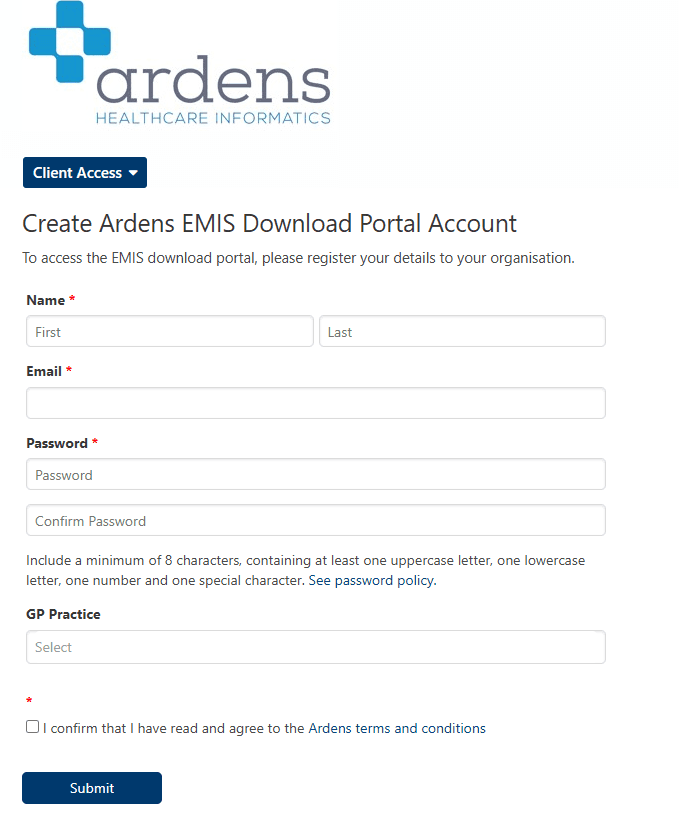
Before you can access downloadable resources within the Ardens Portal, you will need to create an individual user account. Registration is completed using your NHS email address and only needs to be completed once.
Register for an Account
Access the Ardens Portal (https://ardens.live/portal)
Select Sign Up
Enter your credentials, including NHS Email address
Select your Organisation
Create a secure password
Read and confirm you have agreed the Ardens terms and conditions by ticking the box
Click Submit
➡️ Access your Organisation
Once your account has been created, you can sign in and access available resources.
To sign in:
Navigate to the Ardens Portal login page (https://ardens.live/portal)
Enter your email address and password
Click Sign in
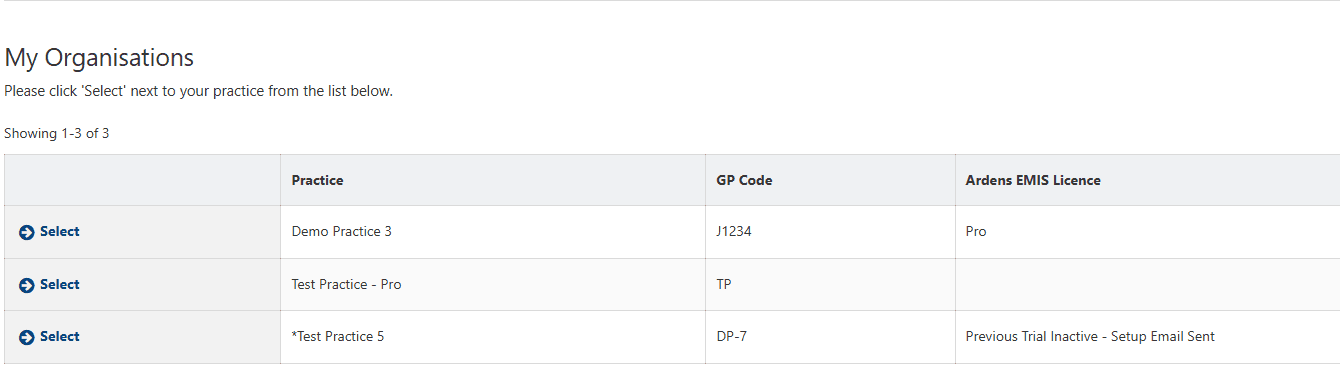
Select your organisation from the My Organisations section
The portal will display all resources available to your organisation
📁Manage Resources
Once you have selected your organisation, the portal will display all resources available to your organisation.
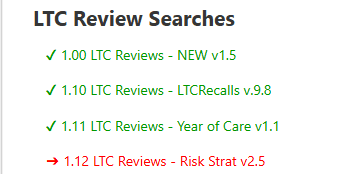
The portal uses visual indicators to identify resource status:
Green tick: Latest version already downloaded.
Red arrow: Updated version available.
Bold folder name: Important update available.
Download Resources
To manually download a report folder:
Click on the required report folder
Select the download link

Depending on your windows operating system, you may see a black screen, with the download button at the bottom of the screen
Click Download
By default the file will save to your downloads folder
⚠️ Please note: If you see a message for ‘blocked because this type of file can harm your computer’. The Ardens file will not damage your computer and selecting the 3 dots to the right and selecting Keep will enable you to download the file:
Import Resources
To import the downloaded file into your clinical system:
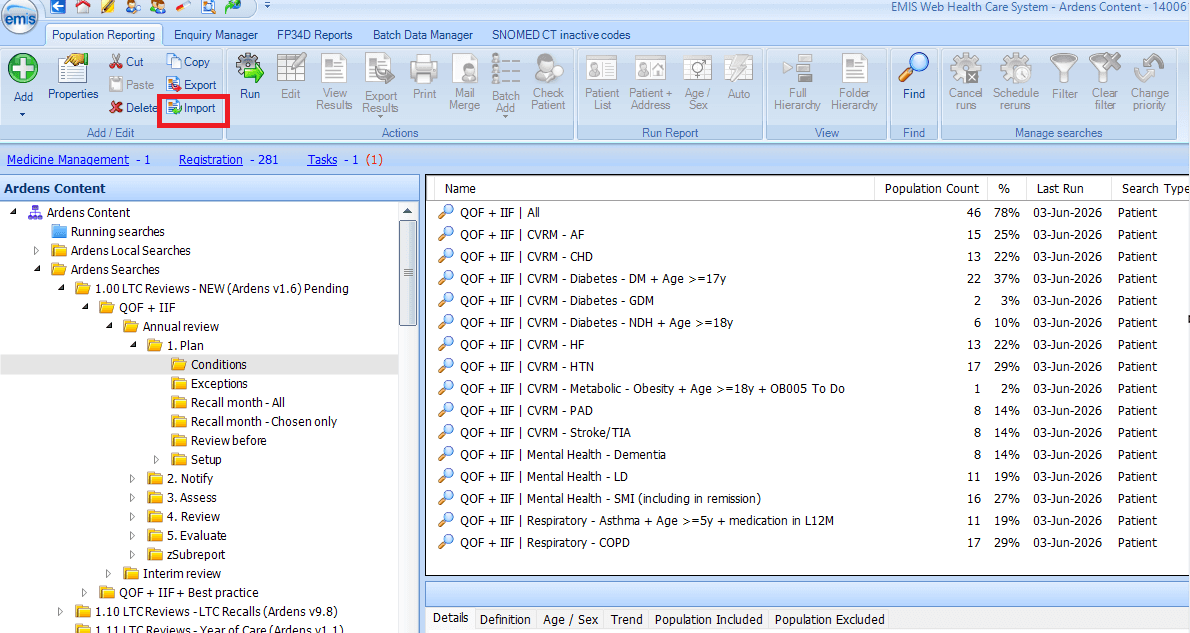
Access EMIS Web
Go to Population Reporting
Select the Ardens Searches folder
Click Import on the EMIS Web ribbon
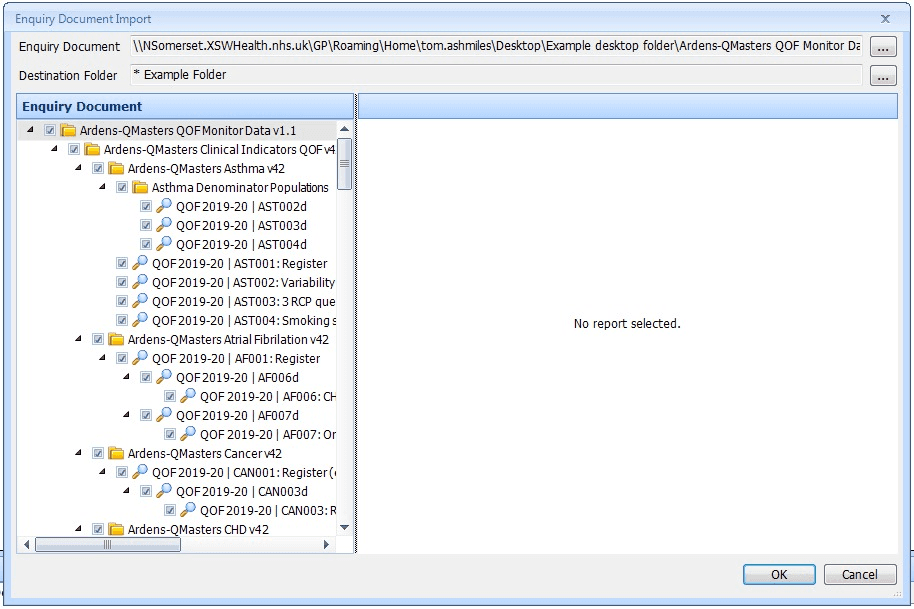
Within the Enquiry Document Import screen, click on the 3 dots next to the Enquiry Document field
Navigate to the saved file, select the file and click Open
Reports will display to the right of the Enquiry Document Import screen
Click OK to import
⚠️ Please note: We recommend deleting previous versions of the reports to avoid confusion and ensure users are running the latest reports.
❓FAQs
Do I need an NHS email address to register?
Yes. Only NHS email addresses are accepted for portal registration.
Can I share my portal account with colleagues?
No. Each user must have an individual login for security and audit purposes.
What should I do if I have forgotten my password?
Contact support@ardens.org.uk
🏫 Additional Support
Book training for your GP Practice, PCN or ICB
Contact our Support Team for support in real time