
We’re updating our Knowledge Base
We’re currently transitioning Ardens Clinical support articles to this new Knowledge Base. Content will be added progressively, so you may find limited articles available at this stage.
In the meantime, you can access our full support resources on our existing sites:
We’ll continue to expand this site, so please check back regularly.
ℹ️ Introduction
This article explains how to use the Ardens Diary Recall resources to record, identify and manage ad-hoc recalls for blood tests, investigations, medication administration, procedures and follow-ups. If you are looking to manage routine recalls, such as annual long-term condition reviews or other planned recall workflows, use the Ardens LTC Recall System instead.
By the end of this article, you will be able to add and update recall dates, identify patients with recalls due or overdue, and use alerts and reports to support ongoing recall management.
Background
Patients may require regular blood tests, investigations, observations, medication administration or follow-ups to monitor their health and treatment. Effective recall management helps practices identify when action is required and provides a safety-netting process to reduce the risk of patients being missed.
How Ardens Can Help
Ardens supports two main types of recall:
Routine recalls – planned, predictable recalls linked to long-term conditions, medication monitoring, or scheduled annual reviews. For these, practices should use the Ardens LTC Recall System and its associated reports.
Ad-hoc recalls – one-off or patient-specific recalls following a result, investigation, procedure, medication change, or other follow-up need. For these, practices should use the Diary Recall System.
For the Diary Recall System, Ardens provides a range of resources to support the management of patient recalls:
Diary Recall Template – add and manage dates for ad-hoc recalls
Ardens Clinical Templates – record recall dates as part of relevant clinical workflows
Diary Recall Alerts – highlight recalls that are due or overdue within the patient record
Reception Reminder Alert – prompt reception staff to consider outstanding recalls when booking an appointment.
Diary Completer Protocol – identify diary entries where a subsequent result or procedure may mean the recall can be completed.
Diary Recall Searches – identify patients with due or overdue recalls and support recall planning and housekeeping.
View the list of recalls included
Medication Administration
B12 injection
Denosumab
GnRH injection
Hepatitis A booster
HRT review
Inclisiran injection
Neuroleptic medication
Pessary review or change
Pneumococcal vaccination
Shingles 2nd vaccine
Subcutaneous injection
Vitamin D injection
Investigations - Other
Albumin Creatinine Ratio
BMI
BP
Chest x-ray
Colonoscopy
CT
Dexa
Doppler
ECG
Echocardiogram
FIT/FOB test
Hearing test
Histology result
Mammogram
MRI
OCG
Pulse rate
Spirometry
Ultrasound
Urine culture
Urine dip
Investigations - Bloods
B12
Ca125
Calcium level
CEA
Cholesterol
CRP
ESR
Fasting glucose
FBC
Ferritin
Fib4
Serum folate
Fructosamine level
HbA1c
LFT
Lithium
Magnesium
MGUS Monitoring
Oestradiol
Parathyroid hormone
Phosphate
Prolactin
PSA
Renal function
Testosterone
TSH
Vitamin D
Warfarin monitoring
Interim Follow-Ups
ADHD
Asthma
Catheter review
CHD follow-up
Coeliac review
COPD
Depression interim review
Dermatology review
Diabetes
DOAC monitoring
Follow-up encounter
Generic care plan
Heart Failure
High-risk drug monitoring
Hypertension
Mild cognitive impairment review
NHS Health Check
Osteoporosis
Rheumatoid Arthritis
Smear
Wound care
Contraception
Contraceptive injection
IUD removal
IUS removal
Oral contraception
Subcutaneous contraception
📅Create a Recall
A recall should be recorded when a patient requires a future blood test, investigation, medication administration, procedure or follow-up.
Set a Recall Date
The recall date can be added during a clinical consultation or retrospectively using the Diary Recall Template.
Via an Ardens Template
Some Ardens clinical templates may include an option to record a diary recall date as part of the consultation. Where available, the recall date can be recorded directly within the relevant template.
For example, following a B12 injection, the clinician may determine that the patient should return for a further injection in three months. The appropriate Ardens Injection Template can be used to record the recall date in the diary recall section.
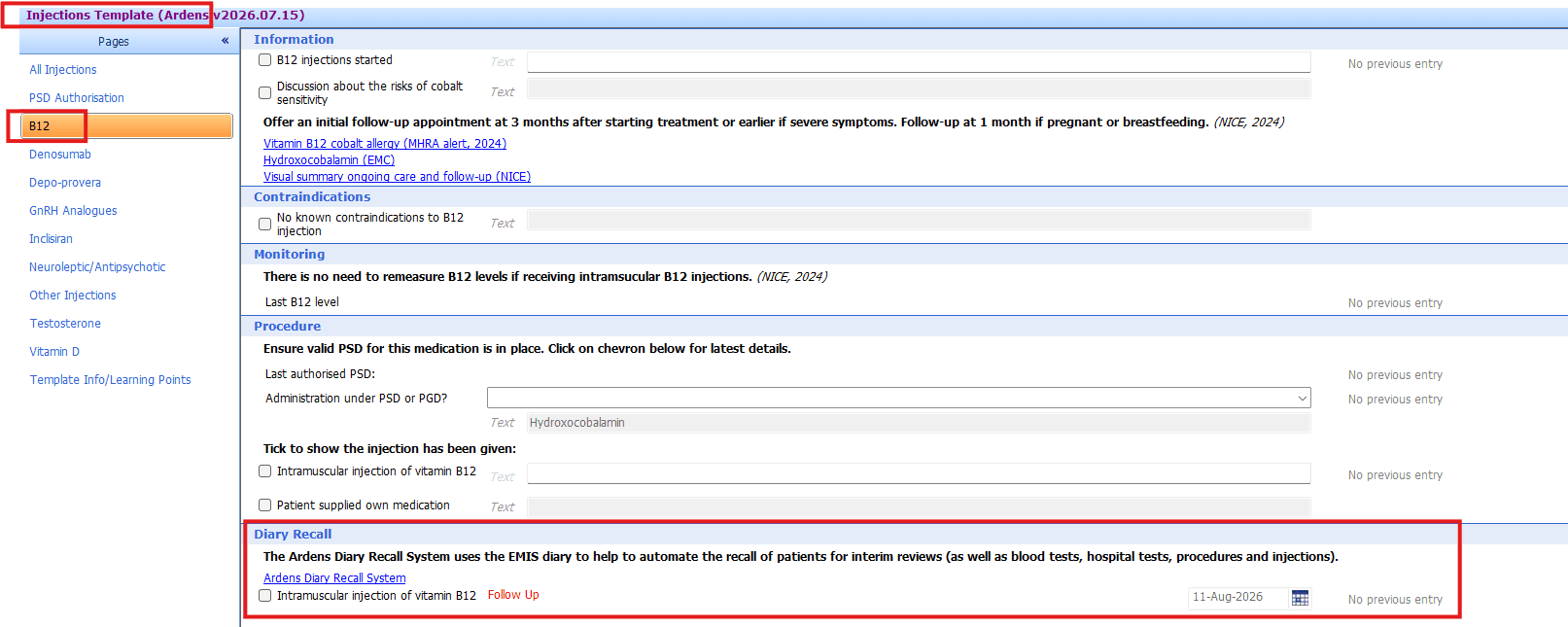
To set a recall date, select the tick box and record a date using the calendar icon to the left of the field.
Via the Ardens Diary Recall Template
The dedicated Diary Recall Template is particularly useful for Admin staff coding hospital correspondence or retrospective data.
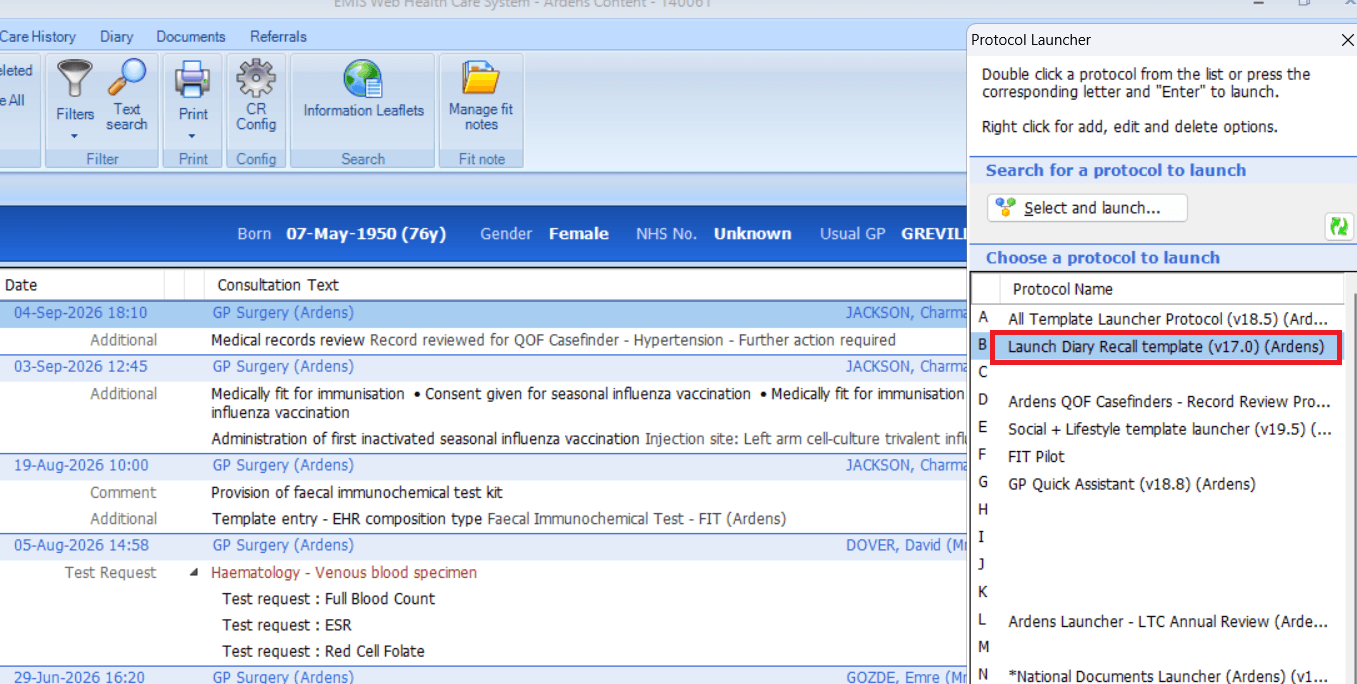
The template can be accessed via the F12 key using the Launch Diary Recall Template protocol or using the Run Template option in an open consultation and searching for Diary Recall Template.
Once the template has been launched, the Diary Alerts page is displayed. This provides an overview of the patient’s existing diary entries and highlights any relevant actions.
The left-hand pane shows a dedicated page for each recall category. Select the relevant page to record the appropriate recall for the patient.
To set a recall date, select the tick box and record a date using the calendar icon to the left of the field.
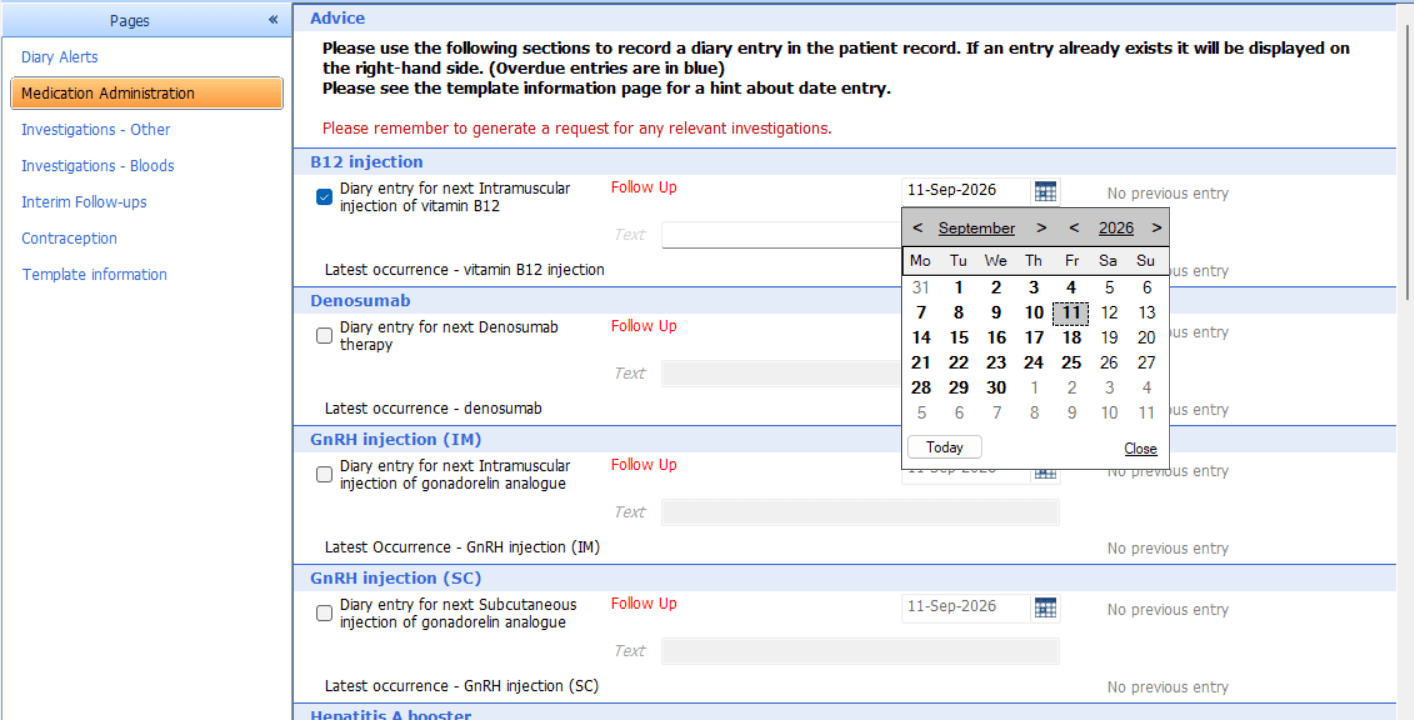
Any existing diary entries for the selected item will be displayed to the right of the date field.
Please note: If an existing diary date is present, a yellow warning is displayed to indicate that entering a new date will replace the existing date. EMIS allows only one diary entry date for each item at a time.

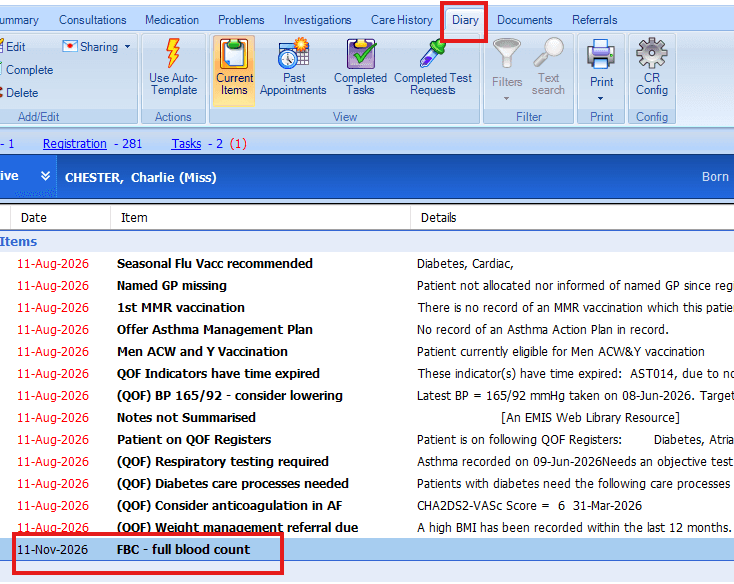
Once the diary date is recorded, and the template saved, the diary entry and date will then be recorded in the patient's care record and displayed on the Diary tab.
📂Manage a Recall
Once a recall has been recorded, practices can use alerts and reports to identify when action is required. Regular review helps ensure patients are contacted appropriately and that completed or no longer required recalls are removed.
Identify Recalls that are Due
Once a recall becomes due, an alert will display in the pink alert box of the patient record. A prompt is also available for Reception staff when booking an appointment.
Patient Record Alert
The Diary Recall Due alert displays when the diary entry is due within the next month and can remain visible for up to 12 months after the due date. Hovering over the alert will display details of the diary entry due.
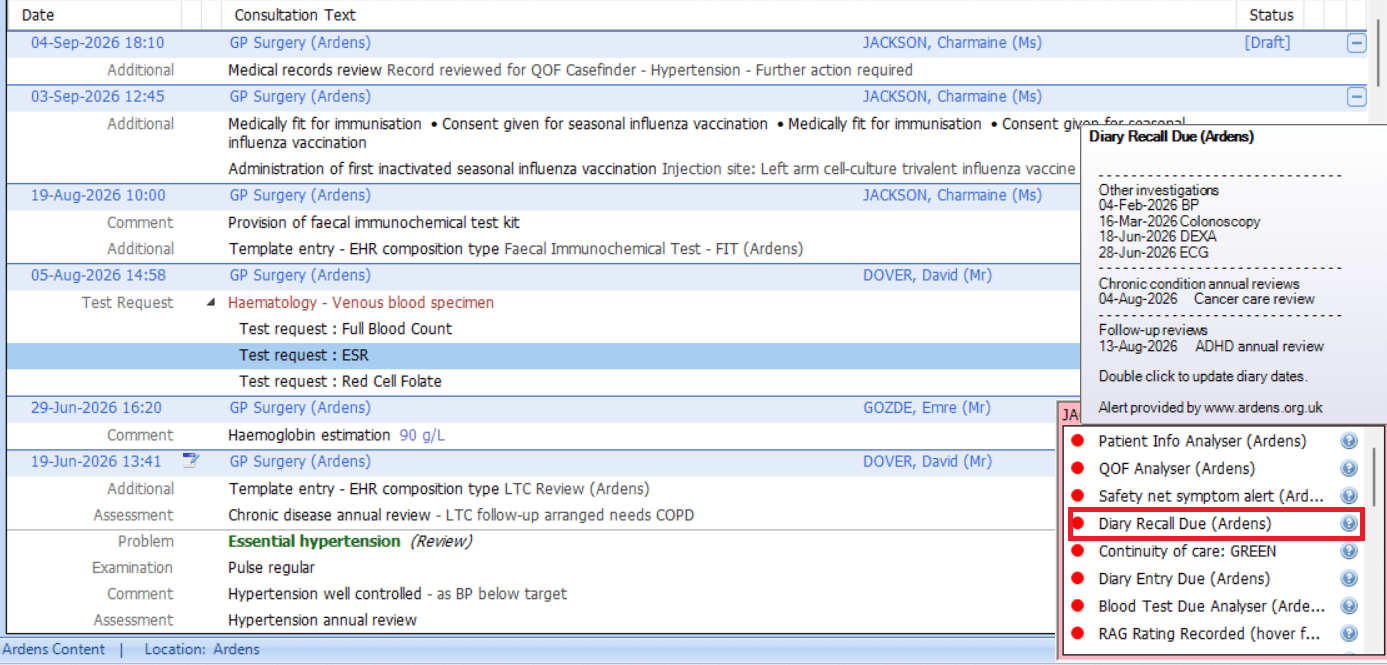
⚠️Please note: An alternative Diary Recall Alert is available for practices using the Ardens Blood Test Due Analyser; this will allow recall alerts for blood tests to be managed through the Blood Test Due Analyser instead. This alert 'Diary Recall QOF Alert Protocol (excluding blood tests)' is inactive by default.
Reception Reminder Alert
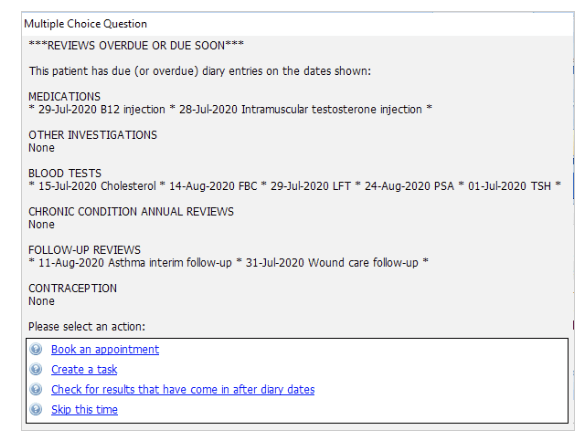
The Reception Reminder Alert displays outstanding recalls when booking an appointment, helping the reception team take appropriate action.
Options are available to:
Book an appointment – opens the Find Slot screen to book an appointment.
Create a task – opens the New User Task screen so the required action can be assigned.
Check for results that have come in after the diary dates – checks whether a subsequent result has been recorded that may mean the recall has already been completed.
Skip this time – closes the alert without taking further action.
Reports
The Diary Recall reports can be used to identify patients with recalls that are due or overdue. These searches support proactive recall management, forward planning and safety-netting.
To access the searches:
Go to Population Reporting.
Expand Ardens Searches.
Select 1.20 Ad Hoc Reviews – Diary Recall.
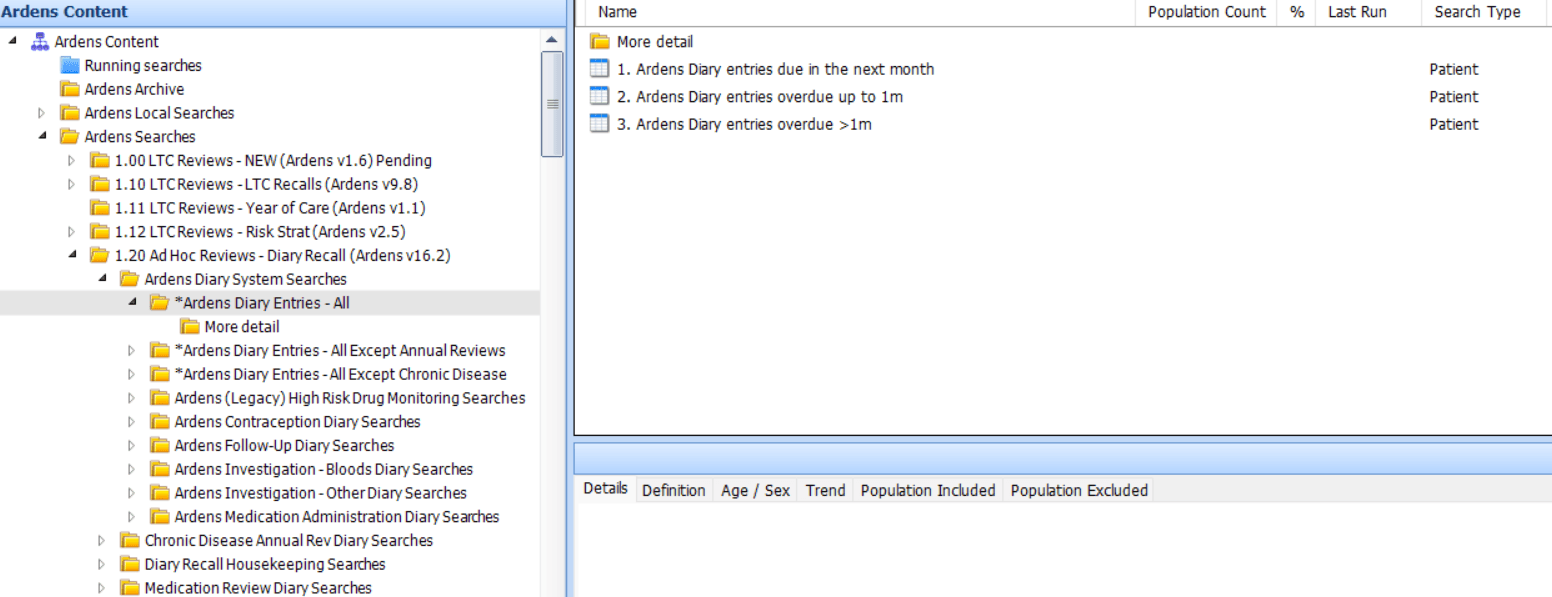
The reports are categorised into groups to help practices organise the recalling of patients.
Ardens Diary Entry Reports – identify ALL patients with diary entries used within the Ardens Diary Recall System.
Chronic Disease Annual Review Diary Reports – identify patients due for an annual review for a long-term condition with an outstanding diary entry.
Diary Recall Housekeeping Reports – supports the review and maintenance of outstanding diary entries.
Medication Review Diary Reports – identify patients due for a medication review within the next month.
Reports are available to identify:
Diary entries due within the next month.
Diary entries overdue by up to one month.
Diary entries overdue by more than one month.
Diary entries where the required action appears to have been completed.
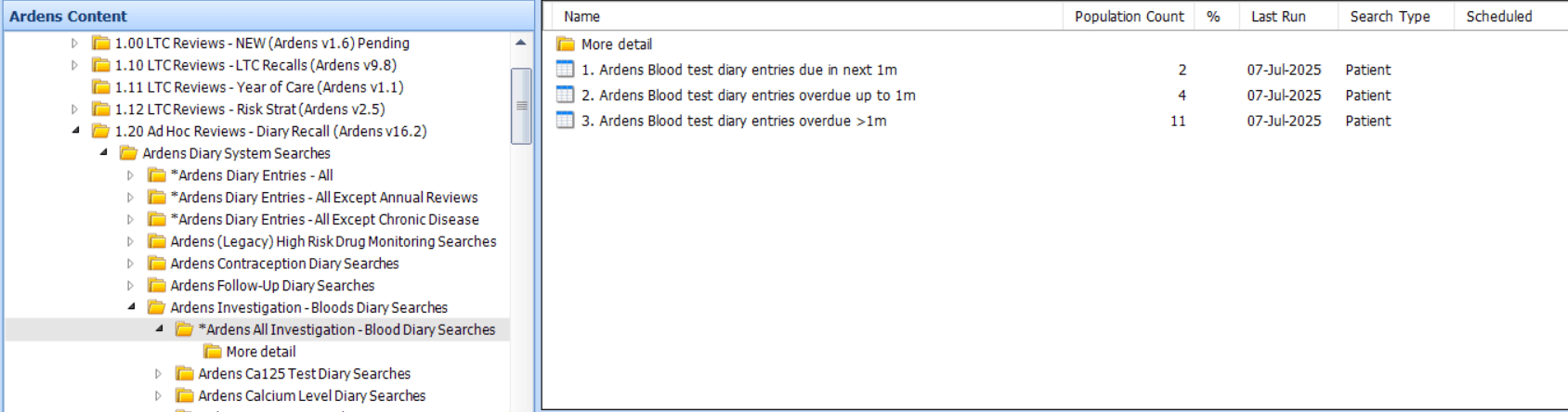
Right-click on the folder and select Run. Once run, click View Results on the EMIS ribbon to view details of the report.
Each relevant report is designed to support practices in reviewing the patient's recall status and, where appropriate:
Checking whether the patient has a future appointment booked.
Checking whether the relevant test or investigation has already been completed.
Checking whether a relevant procedure has subsequently been carried out.
Deciding whether an outstanding diary entry is still required.
For specific diary entries that are overdue, the reports may also display the most recent relevant investigation result recorded since the diary entry date.
Where a subsequent result or procedure suggests that the recall has already been completed, the patient may require clinical review before the diary entry is completed or a new recall date is added.
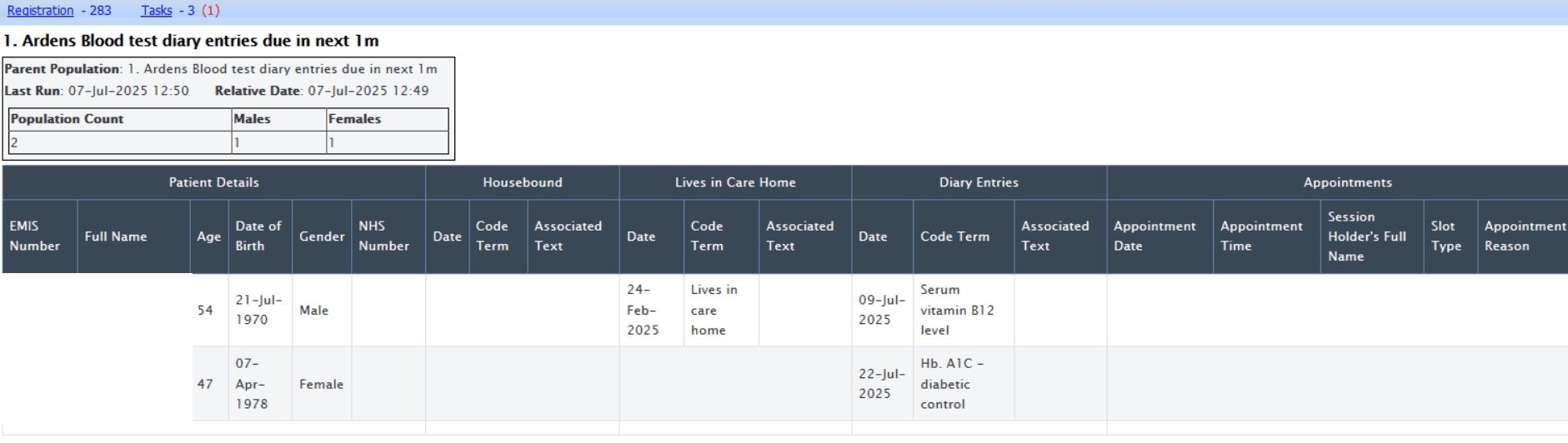
The reports can be exported to support batch messaging or further filtering/sorting of the list. Access this support article for further details on exporting.
⚠️Please note: Recording related activity does not always remove an outstanding diary entry automatically. If the recall is no longer needed, review the Diary tab or use the Diary Completer Protocol to complete it. If the patient still needs follow-up, update the diary date instead.
Complete a Recall
Diary entries should be reviewed regularly to ensure that the recall information remains accurate.
If the patient requires a further recall, update the existing diary entry with the new recall date using the relevant Ardens Template.
If the recall is no longer required, complete the diary entry so that it no longer appears as outstanding.
Complete Individual Diary Entries
Open Diary tab within the patient record
Right-click on the relevant diary entry and select Complete
Click OK to confirm you wish to complete the diary entry
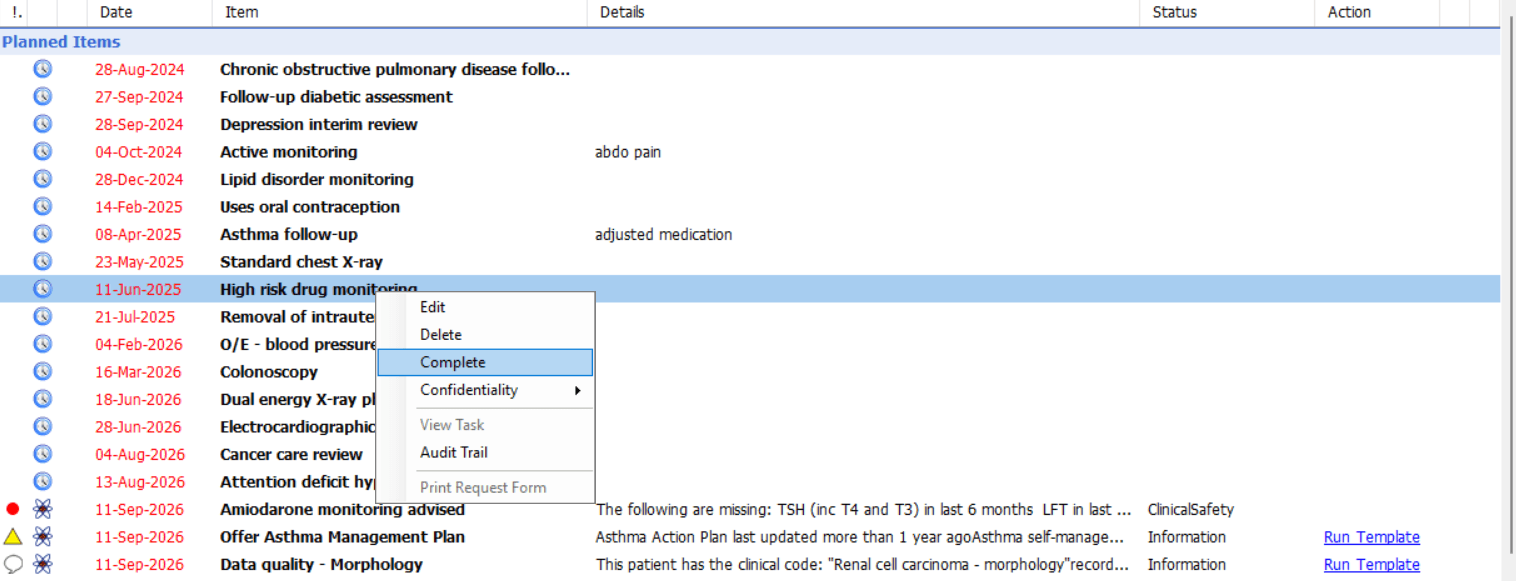
Completing Multiple Diary Entries
To support the completion of multiple diary entries for a patient, the Diary Completer Protocol can be used. This can be particularly useful when carrying out routine diary housekeeping.
Launch the Diary Completer Protocol via your F12 key. If this is not yet on your protocol list, refer to this support article for details on adding it to the F12.
Click the Complete diary entry option, then select the relevant recall category. This will then launch options to complete the diary entries or ALL diary entries in that category.

Click Yes to confirm you wish to complete the diary entries. This will complete the diary entries in the Diary tab.
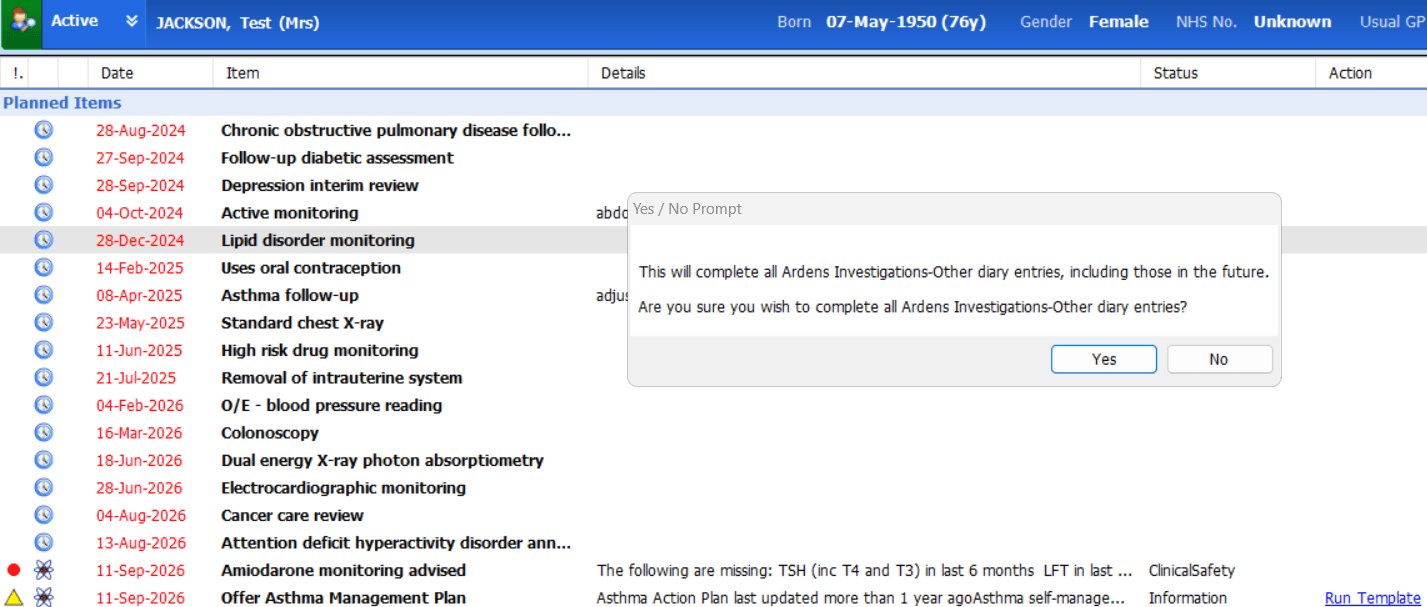
⚠️ Please note: Diary entries should only be completed where the practice has established that the recall is no longer required. Where further clinical action is needed, the diary entry should instead be updated with an appropriate future recall date.
Diary Completer Protocol
The Diary Completer Protocol supports ongoing diary housekeeping by identifying patients where a subsequent result has been recorded after the diary entry date.
The protocol provides options to:
Complete a Diary Entry – review and complete one or multiple diary entries.
Check, Add or Edit an Ardens Diary Entry – launch the Ardens Diary Recall Template to review existing entries or add a new recall date.
Show All Overdue and Imminent Ardens Diary Dates – view the patient's outstanding diary entries and, where appropriate, book a further appointment.
Help – access this support article.
Close – close the screen.
🧹Housekeeping
Regular housekeeping is recommended to ensure the Diary Recall System remains accurate and effective. Before using the Diary Recall alerts, practices should review existing diary entries, particularly older entries that may no longer be relevant. Reports are available to help with this.
To access the housekeeping reports:
Go to Population Reporting
Expand the Ardens Searches folder
Select 1.20 Ad Hoc Reviews - Diary Recall
Expand the Diary Recall Housekeeping Searches
The housekeeping reports are categorised as follows:
All Ardens Diary Entries (past 12 months) - includes diary entries being used as part of the Ardens Diary Recall System.
All Non-Ardens Diary Entries (past 12 months) - includes diary entries not supported by the Ardens Diary Recall System.
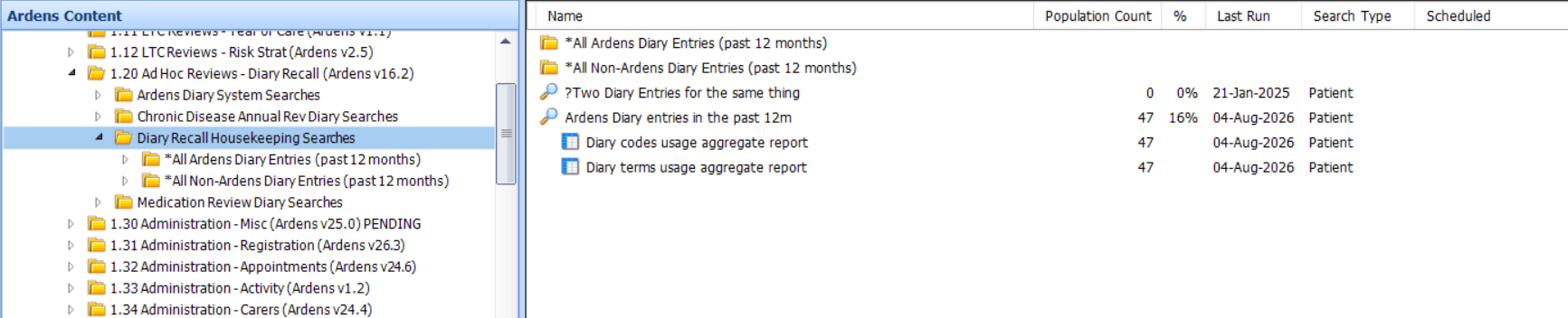
We recommend initially reviewing the reports in the All Ardens Diary Entries (past 12 months) folder. This will return outstanding diary entries in the last 12 months where recall codes used are part of the Ardens Diary Recall System.

For each report, decide:
Has the activity been completed for the patient, and does the diary entry need to be completed?
Does a new recall date need to be added?
Repeat this process for the remaining housekeeping reports.
For patients highlighted in the All Non-Ardens Diary Entries (past 12 months), if the diary entry is to remain, decide if you want to replace this with a diary entry that is supported by the Ardens Diary Recall System.
❓FAQ
What can the Ardens Diary Recall System be used for?
The Diary Recall System can be used to record and manage recalls for blood tests, other investigations, medication administration, interim follow-ups, contraception and other repeat procedures.
How do I add a diary recall for a patient?
A recall can be added using the relevant Ardens clinical template or the Ardens Diary Recall Template. The Diary Recall Template is particularly useful for recording ad-hoc recalls, such as blood tests, or when coding hospital correspondence.
What happens if a diary entry already exists for the same item?
Any existing diary entry will be displayed next to the date field. A yellow warning will appear if entering a new date will replace an existing diary date. EMIS allows only one diary entry date for each item at a time.
When will a diary recall alert appear?
The patient record alert will display when the recall is due within the next month and can remain visible for up to 12 months after the due date.
How do I identify patients who are due or overdue for a recall?
Use the Diary Recall reports within Population Reporting > Ardens Searches > 1.20 Ad Hoc Reviews - Diary Recall. These reports identify patients with recalls due within the next month and those who are overdue.
What should I do if a diary recall alert is still showing after action has been taken?
First, check whether the diary entry is still outstanding in the patient’s Diary tab. Some actions do not remove the diary entry automatically. If the recall is no longer required, complete the diary entry after review. If further follow-up is needed, update the diary date instead.
🏫 Additional Support
Book training for your GP Practice, PCN or ICB
Contact our Support Team for support in real time