
We’re updating our Knowledge Base
We’re currently transitioning Ardens Clinical support articles to this new Knowledge Base. Content will be added progressively, so you may find limited articles available at this stage.
In the meantime, you can access our full support resources on our existing sites:
We’ll continue to expand this site, so please check back regularly.
ℹ️Introduction
This article explains how to use the Ardens FIT Pilot resources to support the identification, follow-up and monitoring of patients who have been offered a Faecal Immunochemical Test (FIT). By the end of this article, you will understand how to record key FIT information, identify patients requiring follow-up, and monitor FIT activity within your practice.
Background
The FIT Pilot aims to support a more structured and consistent approach to managing FIT completion across participating practices. It focuses on identifying patients who have been offered a FIT but have not yet completed the test, as well as highlighting gaps in the recording of key information, such as cancer safety netting and written advice.
The pilot will help practices understand how the process is working in practice, identify opportunities for improvement, and inform the implementation of a consistent approach to FIT follow-up in the future.
How Ardens Can Help
Ardens provides a range of resources to support practices throughout the FIT Pilot:
Clinical templates: to support consistent recording of FIT provision, cancer safety netting, written information and follow-up activity.
Clinical reports: to identify patients who may require follow-up, highlight gaps in recorded information, and monitor FIT activity and results.
How to Access

📝Record
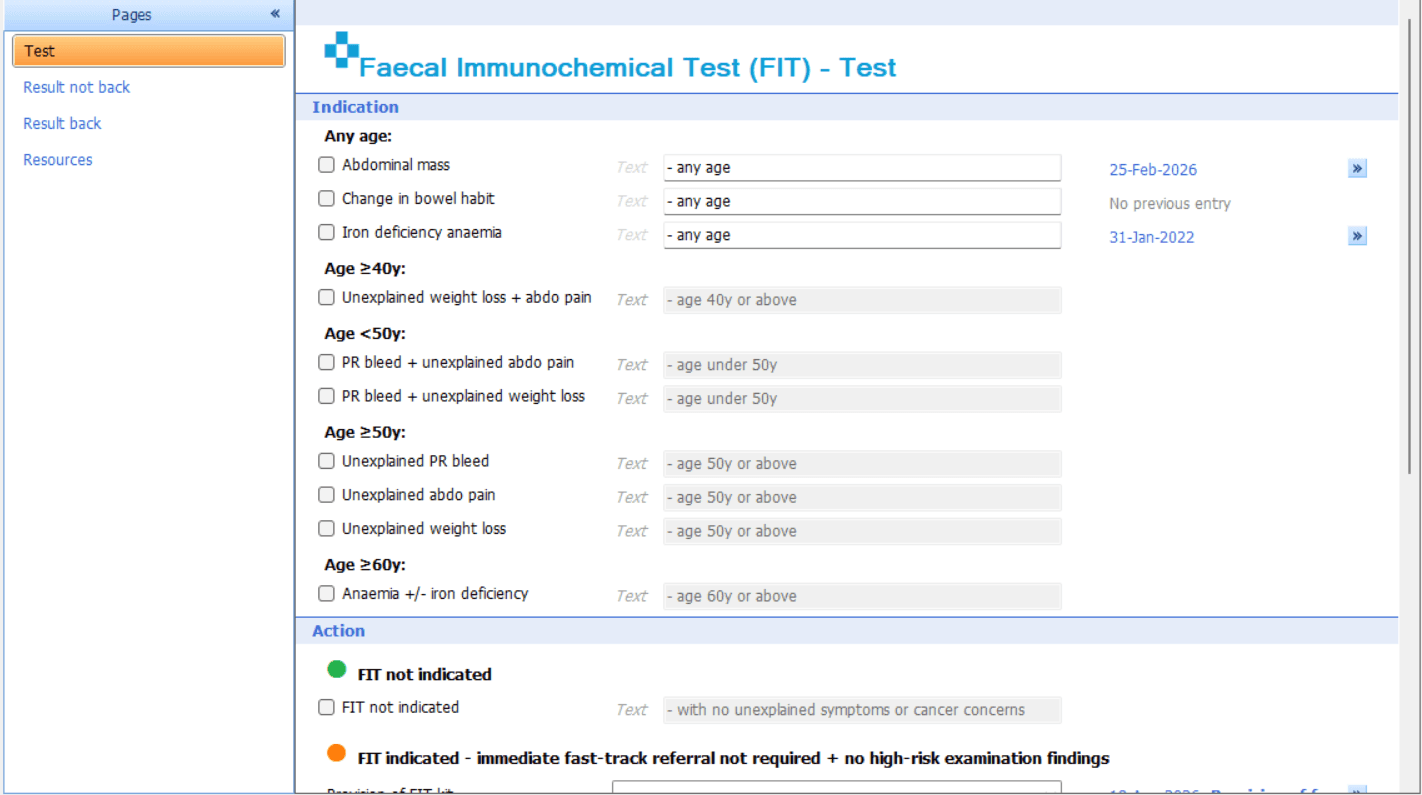
Accurate coding is essential to ensure activity is captured correctly. The Ardens Faecal Immunochemical Test (FIT) template provides a consistent way to record key FIT information and follow-up activity for the patient.
The Test page is used to record the patient's indication for FIT and the action taken. Select the relevant indication(s) based on the patient's symptoms and age, then record the appropriate action, including whether a FIT was indicated and provided.
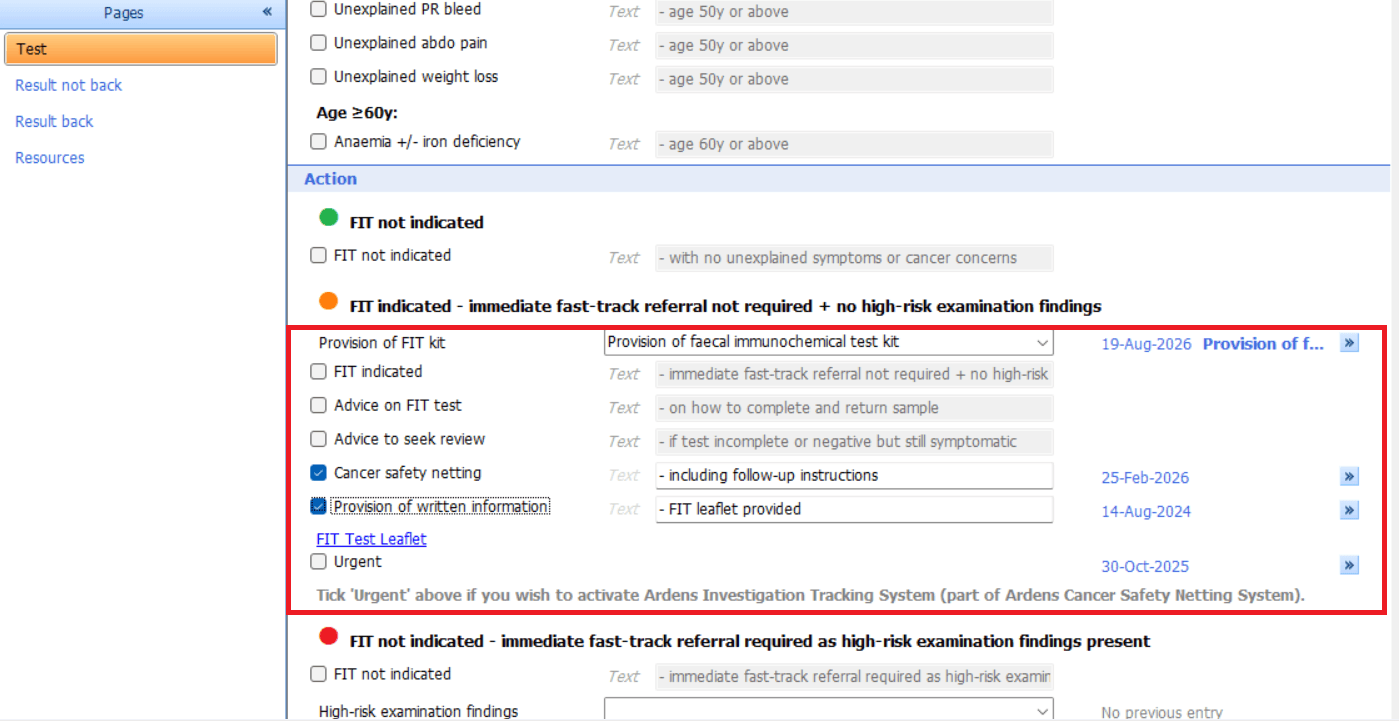
For the FIT Pilot, ensure the following key information is recorded:
Provision of FIT kit
Cancer safety netting
Provision of written information
⚠️Please note: For the FIT Pilot, recording the above codes is essential because the associated reports use these entries to identify patients needing follow-up and to monitor pilot activity
🚨Identify
The FIT Pilot reports can help practices identify patients who may require further action. Work to Do reports highlight outstanding activity or missing information, while Activity reports can be used to monitor activity that has already been recorded.
Work to Do
The Work to do reports can help identify patients who:
Have a FIT recorded up to 6 weeks ago, and no results have been recorded
Have had a FIT recorded, but are missing cancer safety netting and/or written information.
Have a FIT test request recorded, but do not have the associated safety netting, written information or FIT provided recorded.
Reports should be reviewed regularly in line with the practice's agreed process to identify and address any outstanding actions.
Depending on the report and the information identified take the following action:
No result recorded after FIT provided → review the patient and record follow-up on Results not back page of the template.
Missing safety netting / written information / FIT provided entry → reopen the Test page of the template and add the missing pilot information.
Result recorded but patient not appearing as expected → check the result has been coded/recorded in the expected way and rerun the report.
Activity
Activity reports can be used to monitor the FIT activity recorded within the practice.
Examples include reports showing:
FIT results recorded in the last 1 month.
FIT results recorded in the last 1 year.
FIT follow-up activity where a result has not been received.
These reports can help practices monitor activity during the pilot and understand how the process is being used.
Work to do reports
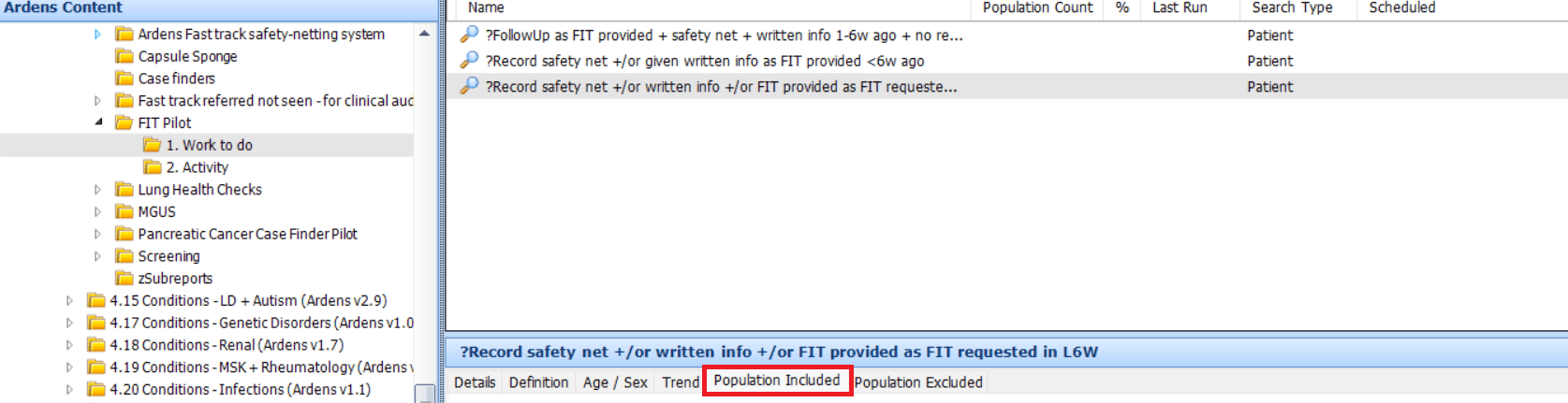
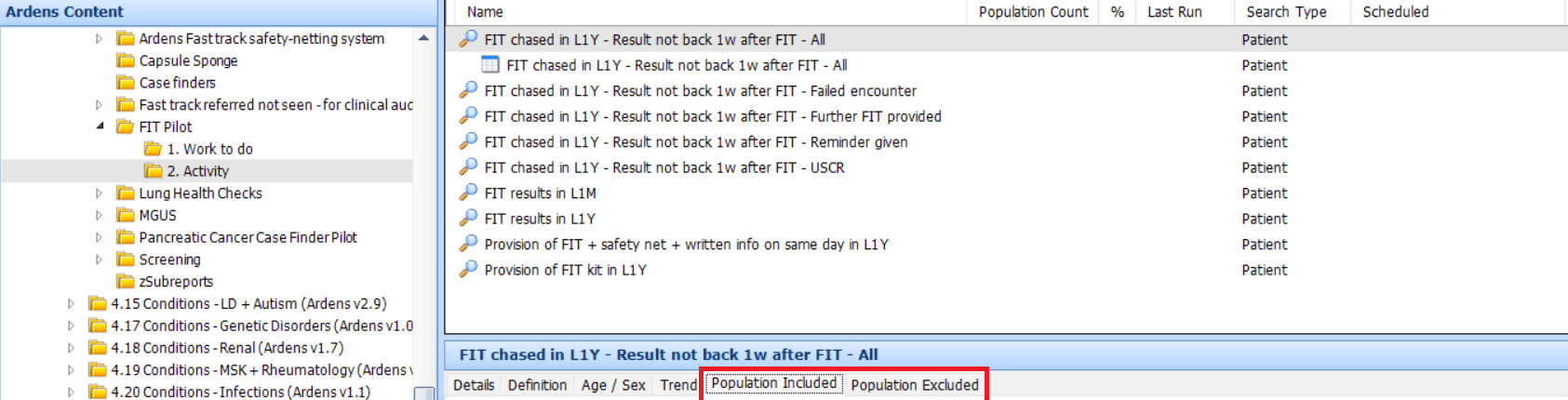
Right-click on the Work to do folder and select Run. Once the reports have been run, select the Population Included tab to action the patients appropriately.
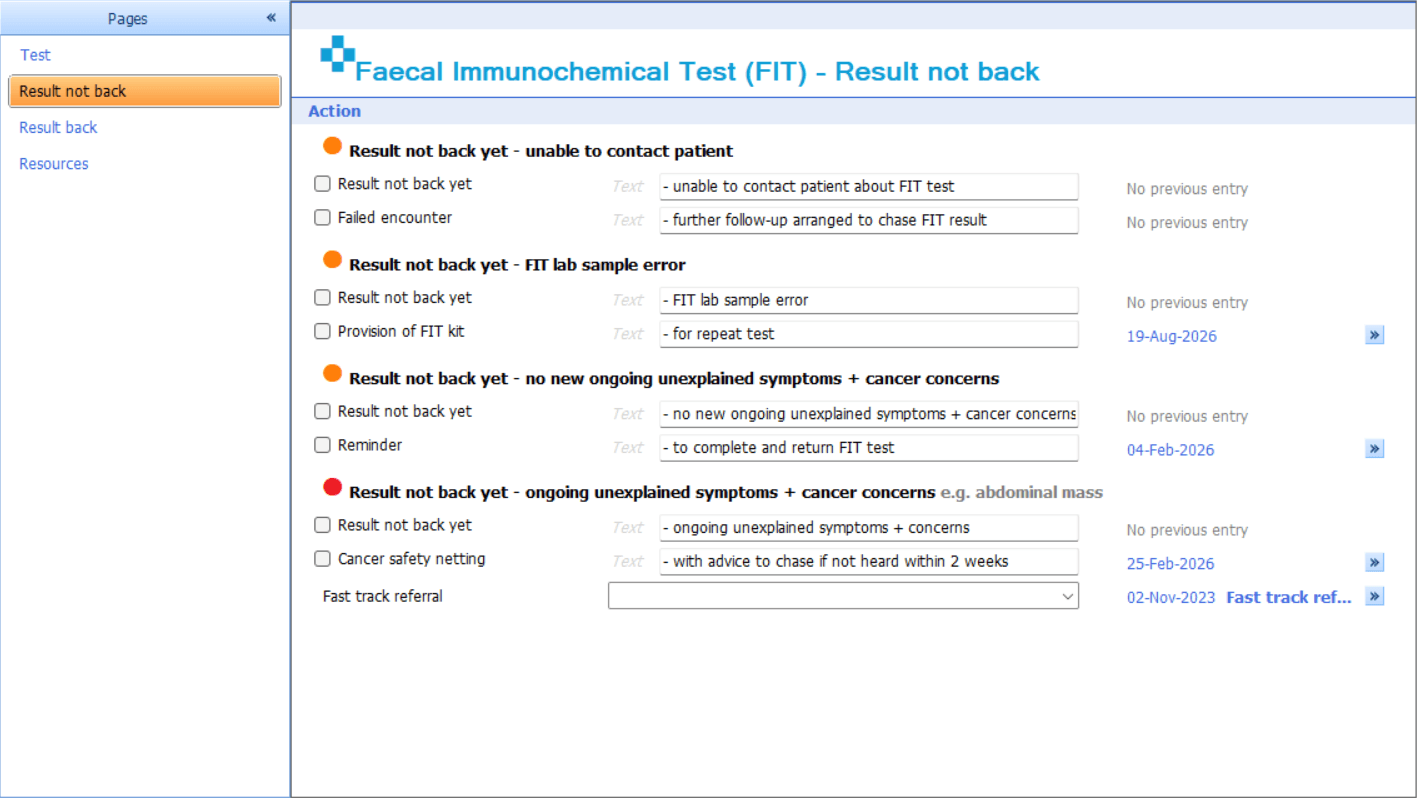
Results not back
Access the template and use the Results not back page record outcomes, such as you were unable to contact the patient, or there was a sample error. Save the template once documented.
Activity reports
Right-click on the Activity folder and select Run. Once the reports have been run, select the Population Included tab to view patients that meet the criteria, or Population Excluded for those who have not.
❓FAQ
What key information needs to be recorded?
The key items for the pilot are Provision of FIT, Cancer safety netting, and Provision of written information. Recording these consistently allows the information to be identified by the associated reports.
What should I do if a FIT result has not been received?
Patients can be identified in the Work to do reports. Use the Results not back page of the template to record the appropriate outcome.
Why isn't a patient appearing in a report?
Check that the relevant information has been recorded using the expected clinical codes and through the FIT template where appropriate. If the required data has not been recorded, or an alternative code has been used, the patient may not be identified by the report.
Why are patients still appearing on the Work to Do report after follow-up?
Check that the follow-up outcome was saved from the correct page of the FIT template and that the key pilot information was recorded using the expected options/codes.
Why is a patient not appearing in the report I expected?
Check the date the FIT was provided, whether a result has already been coded, and whether the key pilot fields were recorded through the template.
🏫 Additional Support
Watch our FIT Safety Netting Pilot webinar recordings for GP Practices and Commissioners
Book training for your GP Practice, PCN or ICB
Contact our Support Team for support in real time