
We’re updating our Knowledge Base
We’re currently transitioning Ardens Clinical support articles to this new Knowledge Base. Content will be added progressively, so you may find limited articles available at this stage.
In the meantime, you can access our full support resources on our existing sites:
We’ll continue to expand this site, so please check back regularly.
ℹ️ Introduction
This article explains how to use the Ardens GP Quick Assistant to quickly access commonly used clinical and administrative resources during a consultation. By the end of this article, you will know how to access the GP Quick Assistant and use the resources to support common tasks.
Background
GPs and ANPs may need to complete a range of clinical and administrative tasks during a consultation. Finding individual templates or protocols for each task can take additional time.
The GP Quick Assistant provides quick access to commonly used Ardens resources through a single protocol, saving time and streamlining workflows.
This article is mainly relevant for GPs, ANPs and other clinicians using Ardens EMIS during consultations.
How Ardens Can Help
The GP Quick Assistant provides quick access to the following groups of resources:
Quick Admin: Record common administrative activities, such as home visits, care discussions or other routine consultation admin
Quick Diaries: Access commonly used diary tools, such as blood pressure, headache, food or stool diaries
Quick Prescribing: Access safe prescribing guidance for selected clinical areas
Quick Results: Record and review common investigation results
Quick Scores: Access scoring tools such as alcohol or depression/anxiety assessments
GP Quick Assistant is best used when you need quick access to commonly used Ardens resources during a consultation. It is designed to help clinicians open the right template, protocol or scoring tool more quickly, rather than searching for each resource separately. If you need a more detailed workflow for a specific area, such as a condition-specific template or a dedicated prescribing/injection process, you may need to use a separate Ardens resource instead.
How to Access the GP Quick Assistant
The GP Quick Assistant is an Ardens protocol that can be added to the F12 Protocol Launcher. Once added, it can be accessed quickly from within the patient record.
To add to your F12 key:
Press F12 on your keyboard to open the Protocol Launcher
Right-click an available letter or number
Select Add
Search "GP Quick Assistant" using the search field
Once located, double-click on the protocol to add
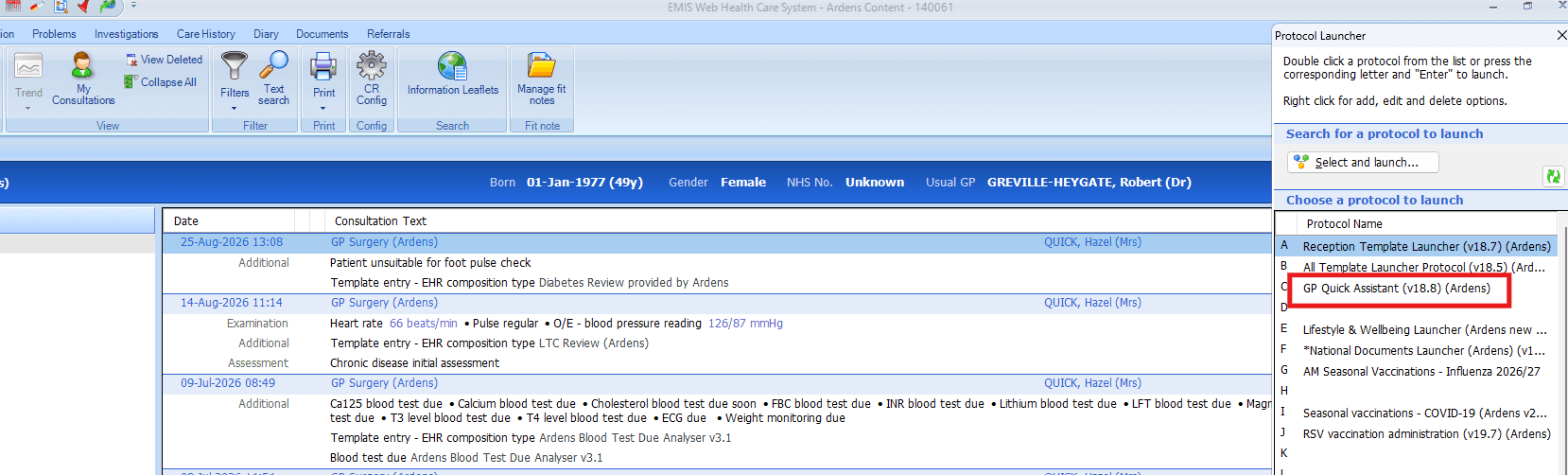
The GP Quick Assistant will now be available from your F12 Protocol Launcher. When you are ready to access it, press F12 and double-click on the protocol to launch.
Please note: The F12 Protocol Launcher is user-specific. Each user who wants to access the GP Quick Assistant from F12 will need to add it to their own Protocol Launcher.
👨⚕️Using GP Quick Assistant
The GP Quick Assistant can be used to support a range of administrative and clinical tasks during a consultation. Select the relevant resource and follow the prompts to record the required information in the patient record.
Administrative Tasks
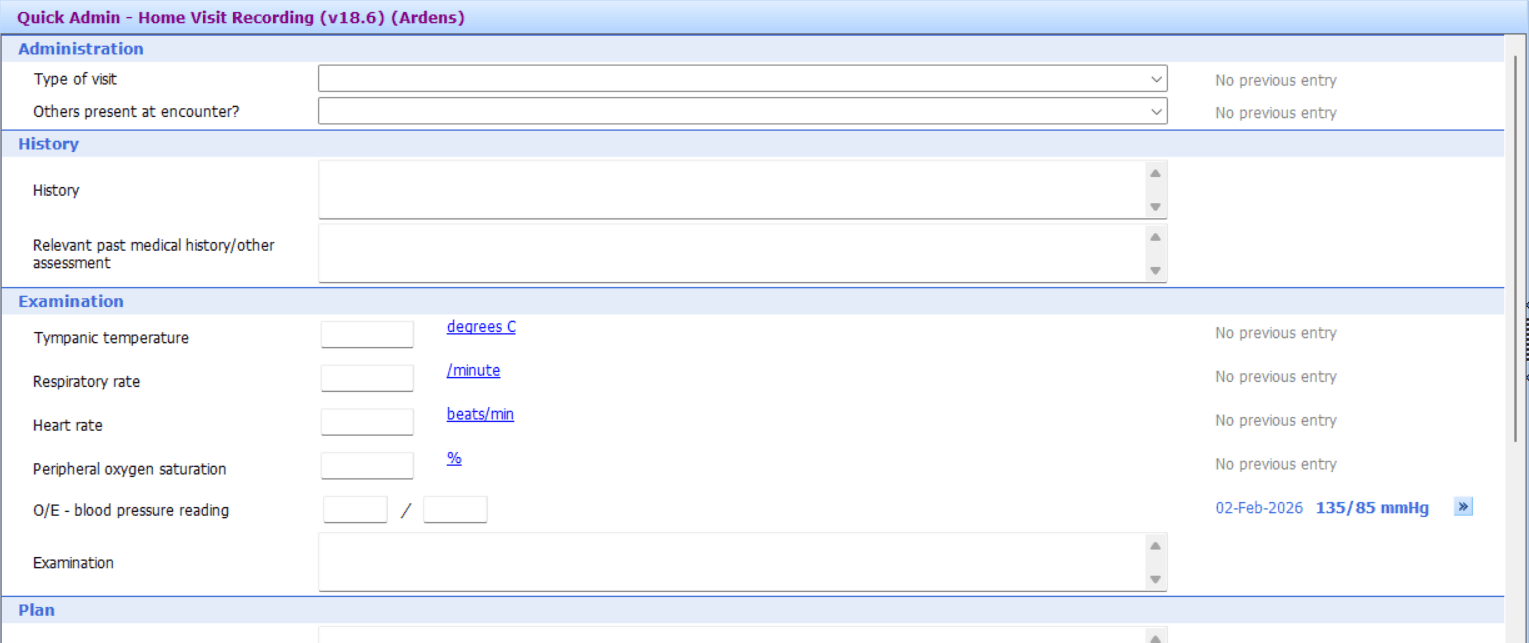
Use Quick Admin and Quick Diaries to efficiently record common administrative activities and information from patient diaries.
For the Quick Admin, most options open a single-page template, allowing you to efficiently record key information in the patient record, e.g., care discussed and home visit recordings.
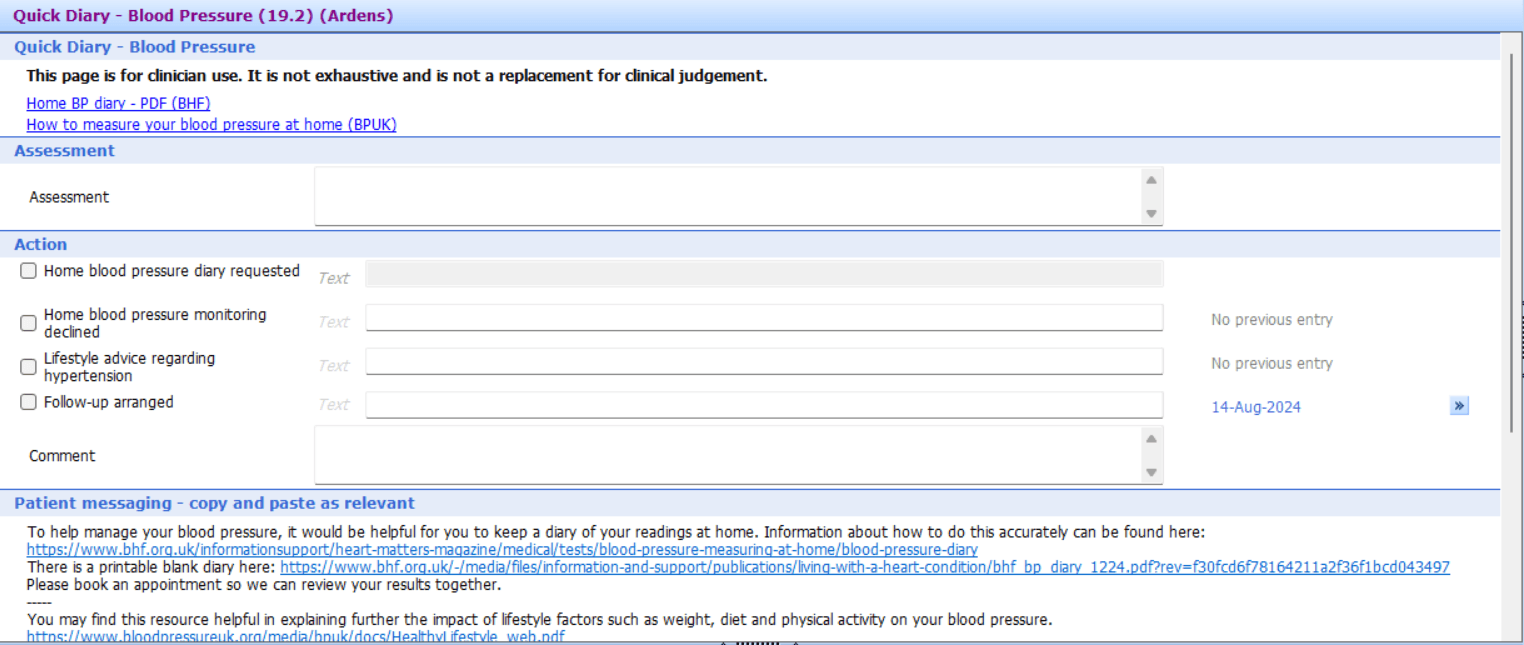
Quick Diaries includes options for commonly used health diaries, e.g. BP, food and stool diaries. Similar to Quick Admin, it launches a single-page template, with options to record the assessment and action.
Clinical and Prescribing Tasks
Use Quick Prescribing and Quick Scores to access resources that support common clinical assessment and treatment decisions.
For Quick Prescribing, select an appropriate option to access safe and up-to-date prescribing guidance. These resources are intended to support common clinical scenarios, but they do not replace clinical judgement and may not cover every prescribing workflow or medication type.
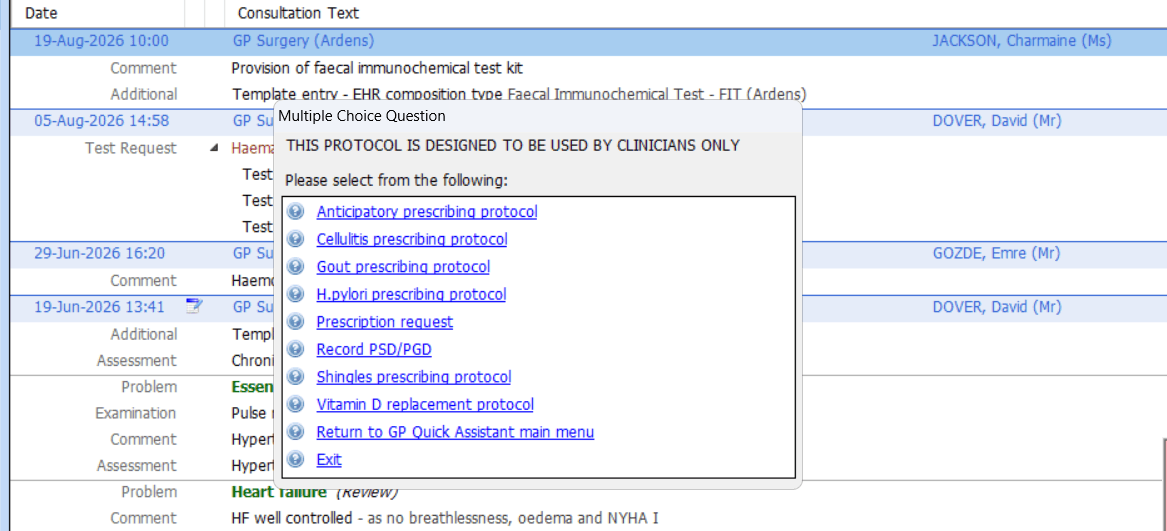
⚠️Please note: Doses are based on national guidance and may differ from local policies. Prescribing protocols are intended to support, not replace, clinical judgement. Always ensure treatment is appropriate for the individual patient before prescribing any medication.
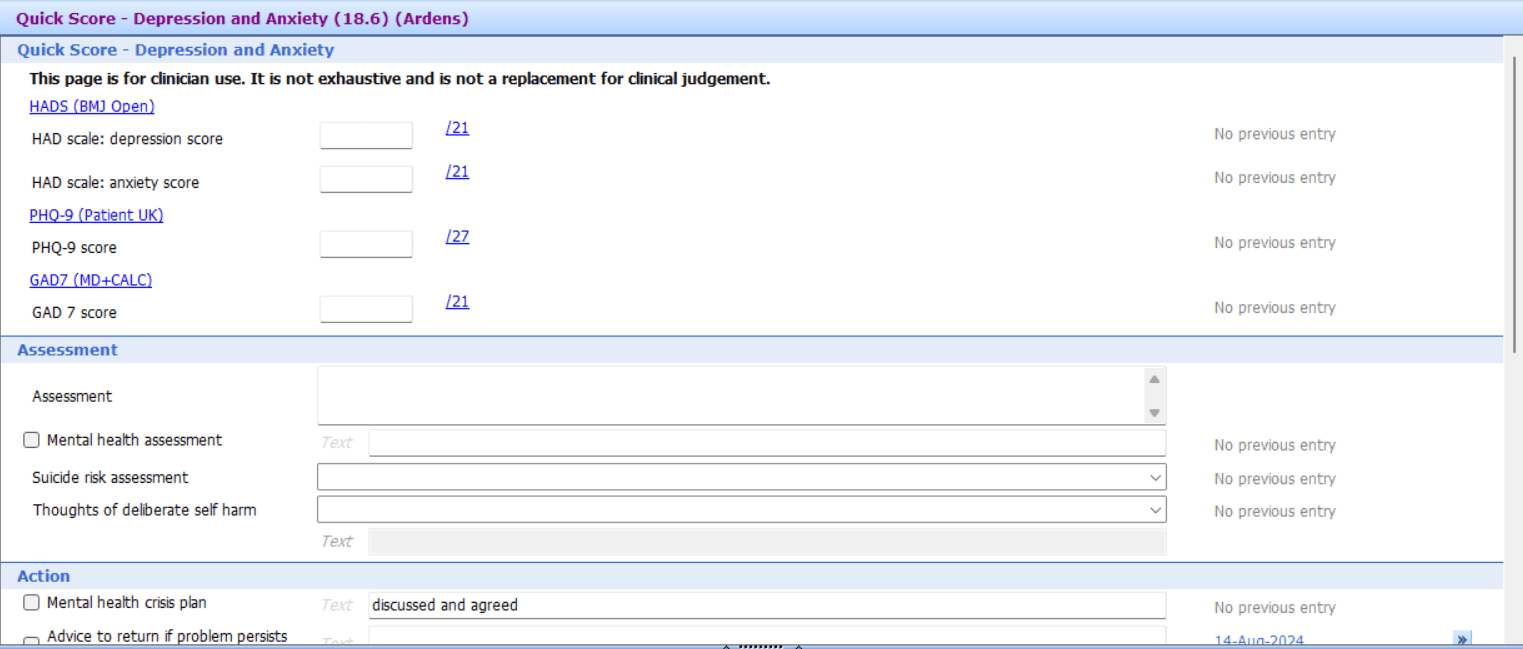
Quick Scores options include commonly used clinical scoring tools, e.g. Alcohol and Depression/anxiety. It launches a single-page template, with fields to capture the score, assessment and any follow-up actions.
Reviewing Results
Use Quick Results to support the review and recording of common investigation results.
Select an appropriate result option to launch a single-page template with options to record the results and any follow-up actions.
❓FAQs
Do I need to add the GP Quick Assistant to F12?
Yes. The GP Quick Assistant needs to be added to your individual F12 Protocol Launcher before it can be accessed using F12.
Can all users in the practice access the GP Quick Assistant?
Yes, however, it is designed to be used by GPs and ANPs, and each user needs to add the GP Quick Assistant to their own F12 Protocol Launcher, as F12 settings are user-specific.
Is GP Quick Assistant suitable for every clinical scenario?
No. GP Quick Assistant is designed to give quick access to commonly used resources during a consultation. Some workflows are better supported through separate condition-specific templates or other dedicated Ardens protocols.
Can I access the GP Quick Assistant outside of a patient record?
The GP Quick Assistant is designed to be used as part of the patient consultation workflow and is accessed through the F12 Protocol Launcher.
What should I do if I cannot find the GP Quick Assistant?
First, check that you have searched for GP Quick Assistant when adding a protocol to your F12 launcher. If you still cannot find it, check that your organisation has access to the latest Ardens EMIS resources. If resources have only recently been updated, you may need to refresh and reopen EMIS before the protocol becomes visible. If the problem continues, contact the Ardens Support Team.
🏫 Additional Support
Book training for your GP Practice, PCN or ICB
Contact our Support Team for support in real time